Category: Photography

  • How to Make Easy and Affordable DIY Food Photography Backdrops

    In this helpful video by Joanie Simon of The Bite Shot, she explains how to do DIY Food Photography Backdrops that are both affordable and easy. Costing you less than US$ 30 per backdrop!

    ??

    Before beginning, please be sure to use your spray paints outdoors and always paint in a well-ventilated area.

    Things you will need:

    1. Laminated plywood
    2. Paint scraper/palette knife
    3. Joint Compound (used for drywalling)
    4. Oil-based spray paint
    5. Chalky finish acrylic paint
    6. Acrylic or oil-based metallic spray paint.

    When you pick out your paint, ensure that you choose paint that has a matte finish to stop glare and reflection.

    Stick to colors that are subtle so that your food is the star. For example, browns, topes, cool greys, mossy green, and robins blue.

    Step 1:

    Use the scraper/palette knife to apply the Joint Compound to the board. Allow it to be organic and textural. Explore cross-hatching and mixed textures for different boards.

    Let it sit for a few minutes and drag the palette knife across the applied compound to flatten it a bit while still leaving interesting grooves and patterns.

    Let it dry overnight (24hrs).

    Step 2:

    Apply your darker peak-through color first (oil based spray paint). There is no need to apply full coverage as the other colors will be overlayed.

    Step 3:

    Next, brush on your chalky finish paint. You can use a short blending brush. Brush, stipple, use circular motions to blend over the previous color so that the peak through color still shows through.

    If you put too much on, you can use a damp cloth to wipe the acrylic paint back off.

    Step 4:

    Take your colored spray paint and just spray sections from a distance to give light coverage for extra tone and texture.

    Step 5:

    Spray a little water onto your board and spray your oil-based metallic paint over it. The paint won’t adhere to the areas of water. Wait ten minutes for the paint to dry and once it is dry, wipe the water off. You are let with a really cool effect.

    Step 6:

    Take your other boards and play around with these techniques using your different tones and textures.

    Step 7:

    Apply a matte finish spray to your boards to protect the surface. 2-3 coats will do the trick.

    Please share with us any of your DIY food photography backdrops in the comments below.


    You may also find the following helpful for your food photography:

    Food Photography – An Introduction

    5 Tips to Seriously Improve Your Food Photography Techniques

    Are You Making These Five Food Photography Mistakes?

    Household Items to Bring to Your Next Food Photography Shoot

    The Secret to Finding the Hero Angle in Food Photography

    The post How to Make Easy and Affordable DIY Food Photography Backdrops appeared first on Digital Photography School.


    Digital Photography School

  • Photography Hot Spots – Love ‘em or Hate ‘em?

    I hear much maligning the days about photography hot spots. You know them, they are the places photographers seem to flock to: Mesa Arch, Tunnel View, Horseshoe Bend, Kjeragbolten (that rock wedged between two other rocks in Norway), etc… The list goes on an on and they tend to be natural wonders. Although, cityscapes are certainly included (e.g. New York’s Manhattanhenge).

    Photography Hot Spots - Delicate Arch

    But do those photography hot spots deserve their increasingly bad reputation? I asked some fellow photographers to give their perspective on the love and hate of shooting at photographic hot spots.

    On The Side Of Love

    The Sheer Beauty

    Let’s face it; these places are popular for a reason. They are gorgeous! Maybe not when there is a crowd (even the Mona Lisa is hard to enjoy from four rows back in a packed crowd), but there is a reason these locations draw people, with or without cameras.

    For instance, we see a picture of symmetry and grandeur of the Taj Mahal and we are drawn in.

    Photography Hot Spots - Taj Mahal

    And all those photography hot spots in National Parks around the world? Those parks were set up to protect and preserve the often astonishing and sublime beauty we humans are lucky enough to share with this world.

    Photography Hot Spots - Machu Picchu

    Good Practice And A Chance To Learn

    The hard part of photography can be finding subjects. For outdoor and landscape photographers, in particular, more effort is put into researching, getting to and finding the right location than actually shooting.

    Hot spots make the learning more readily accessible when the pain is taken out of the hunting process. These days almost any hotspot can be found online with direction or precise coordinates on a map. It is a chance to get out and shoot more and an opportunity to learn from other photographers at the hot spot.

    Photography Hot Spots - Seattle

    Camaraderie And Socializing

    Photographer Eileen Descallar Ringwald explains what she enjoys about the social aspect of hot spots.

    While I value getting away from crowds, I do see advantages to be had when in groups. Once in Yosemite on a climbing-focused trip, a photographer I met by chance in the El Cap picnic area told me the elusive moonbow conditions were going to occur that night. I went out at night to the Lower Yosemite Falls Bridge and was at first shocked to see just how many photographers and even non-photographers were there. However, everyone was very polite. People made way for tripods and shared long exposure settings throughout the night. One photographer even shared where he normally went to shoot the Upper Falls. I had a fun time and got some decent shots as well. This was an experience I would have missed if I hadn’t decided to ‘follow the crowd’.

    When you get in with the right group, the benefits can multiply. It can lead you in directions you would not have discovered on your own.

    Photography Hot Spots - Socializing

    Gateway Drug To Other Offerings In The Area

    Landscape photographer and instructor Gary Crabbe spends a lot of his time outdoors with this camera. He has used photography hot spots as a means to an end.

    The lure of great iconic photo locations should not be ignored or dismissed on the pathway to developing our own personal vision. I always recommend that once you’ve nailed a certain shot, dare to explore further afield or venture off the regularly traveled path. This will allow you to seek out more unique or personal compositions. Regardless of what primary area my travels take me, I always like to find one or two nearby lesser-known locations that fuel a bit more of the journey with an eye toward photographic discovery and adventure.

    Photography Hot Spots - Mesa Arch, Utah

    I shot Mesa Arch at sunrise (pictured above) because it makes for a beautiful image. I visited the park with my friend Michael Riffle. As we were spending three days in Arches and Canyonlands National Parks, he suggested a location nearby that I hadn’t previously explored.

    It was Dead Horse Point State Park and at sunrise in October, it looked like this:

    Photography Hot Spots - Dead Horse Point

    While Mesa Arch and the ‘Big 5’ National Parks of Utah are a big draw, there are so many other unique and interesting sites to explore. While I wouldn’t have planned a trip to Dead Horse Point if I were alone, it, and many other sites, are valuable add-ons made possible by first hitting the Gateway Hot Spots.

    It’s Never The Same Place Twice

    Sure, you’ve seen the photos and you might have even been to that photography hot spot. But times and weather change. Different light means a different mode. Fewer people, more people. A chance encounter with wildlife.

    It all makes hot spots different for everyone on each occasion. They are an easy way to grow as a photographer because they teach us not to be complacent and accept that, “Well, I shot that already. It never changes.”

    For instance, another day at the Taj Mahal can bring a new feeling. Maybe the shot works better with people? Maybe the light isn’t as crisp? Take the opportunity to learn from them.

    Photography Hot Spots - Taj Mahal

    On The Side Of Hate

    Crowds

    Photographer and tour operator, Genevieve Hathaway, knows a thing or two about crowds.

    Crowds at locations can provide challenges for photographers. Especially iconic travel locations can be very crowded making clean compositions tough, making it hard to find spots to shoot. It’s also hard to try and capture more authentic, idyllic scenes. It’s great that so many people are traveling, but this provides photographers with new challenges in composing our shots and even in competing with other photographers for the coveted angles. I think these challenges can push us to be creative. They are opportunities to find new angles at favorite sites, wake up early to beat the crowds and to even discover more off the beaten path locations to shoot.

    Photography Hot Spots - Crowds

    Rude Photographers More Interested In Getting ‘The Shot’ Rather Than Ethical Or Polite Behavior

    We’ve all met them: rude photographers. They seem to care only about themselves and getting ‘the shot.’ I asked Canadian photographer Michael Russell for his take.

    I have to wonder if the photographers who yell and scream, push people out of the way, damage plant life and infrastructure, or otherwise act to disrupt others, have any understanding as to why a great view at an iconic location is special? Even when the light isn’t great or there are too many tourists on the trail in front of their camera; do they feel anything? A photographer who acts out because something went wrong while hunting for a preconceived trophy is at best missing the gift of visiting these places. At worst, ruining the visit for everyone else who does.

    Photography Hot Spots - Rude Photographers

    Uninspired Execution

    Pam Boling, a talented, multi-faceted photographer from Las Vegas, sees a lack of effort and originality as a common outcome.

    I am most inspired when I am shooting portraits or landscapes. My most lucrative client, however, is the commercial client. Commercial content rarely inspires me. Getting the exposure right in commercial environments can sometimes be the most challenging: I am often faced with window light, fluorescent lights, OCF, harsh backlight, and sometimes reflective surfaces. I think the photographic process – whatever the subject – eventually becomes the driving force once the toolbox is worn around the edges. Some photographers don’t go beyond the normal tools and the results are uninspired.

    Photography Hot Spots - uninspired

    False Impression That Photographers Are Great When Copying

    Freelance writer and photographer Peter Tellone put it most succinctly when it comes to copying others.

    Copying greatness does not make you a Chef, it makes you a Cook. The entire point in this madness that is art is to be the Chef.

    If you don’t expand your vision, if you don’t break out of the mold of others, you are nothing more than a fancy copy machine.

    These hot spots make it easy to take a great photo because the scene, in and of itself, is already amazing. You just need some decent light to get a decent photo. To be great you need to build, expand and reinterpret what others have done, and what the scene gives you.

    Photography Hot Spots - No so great

    Conclusion

    I have tried presenting both sides to the controversy of iconic photography hot spots. Honestly, I can see both sides of the story. Some positive aspects and some negative.

    What do you think? Do you love or hate photography hot spots?

    The post Photography Hot Spots – Love ‘em or Hate ‘em? appeared first on Digital Photography School.


    Digital Photography School

  • Photoshop Smart Objects for Beginners


    1 - Photoshop Smart Objects for Beginners

    When editing in Photoshop, it is nice to know how the edits affect your image. Edits that you make directly to an image write over the original image. Edits also change its pixels. The opposite of editing directly is the practice of non-destructive editing. This is where the edits on the image are on a separate layer, which preserves both the edited and original image.

    Using Smart Objects in Photoshop allows you to edit an image in a non-destructive way. A Smart Object is a layer that saves your image’s original state and permits editing without changing or destroying pixels. It also means you can undo any changes you make.

    Why Use Smart Objects?

    The main reason to use Smart Objects is to perform non-destructive editing. This means you can scale, skew, rotate, or warp an image without compromising its original pixels or quality. Simply put any transformation you do to the image does not affect the original data.

    2 - Photoshop Smart Objects for Beginners

    By right clicking on the mirror image layer of the hummingbird, you can convert it to a Smart Object.

    3 - Photoshop Smart Objects for Beginners

    Here the image is resized to be a smaller scale. The red circle shows that only the right side is a Smart Object

    4 - Photoshop Smart Objects for Beginners

    When the image is returned to its original size, the Smart Object (right) is unaffected, while the left side shows destructive editing and decreased pixel clarity.

    Advanced Photoshop users are fans of linking ‘Smart Objects.’ This is where you use a single image or file in several Photoshop projects. This is very beneficial when you make changes to the original file. The changes are instantly reflected across all the linked referenced files. In the design world, this is a huge time-saver! It can be useful to photographers who want to change a logo/watermark across a multitude of images too.

    Smart Filters

    When you apply a filter to a ‘Smart Object,’ it becomes a ‘Smart Filter.’ What this means is, that the filter is not altering the pixels and you can adjust/change them later on if need be.

    To create a ‘Smart Filter,’ select your ‘Smart Object,’ choose your desired filter and set your requirement options. To edit any of the applied filters, simply double-click on it and enter your adjustment. You can also change the order of filters or delete them from here. The ease of adjusting a filter/filter values is another great reason to use Smart Objects.

    Note: Within the different versions of Photoshop, there are a few filters that cannot be applied as a Smart Filter

    5 - Photoshop Smart Objects for Beginners

    The same filter is applied to both sides, but the Smart Filter is highlighted under the Smart Object on the right image.

    6 - Photoshop Smart Objects for Beginners

    When you uncheck the eyeball next to the filter, your original layer is revealed unaffected.

    7 - Photoshop Smart Objects for Beginners

    Using Smart Filters, stacking and adjusting filters independently of each other is easy.

    Masking Smart Filters

    When a filter is applied to a ‘Smart Object,’ Photoshop shows you a white mask thumbnail on the ‘Smart Filter’ line. This Smart Filter mask works the same way that Layer masks work, where you paint black to hide and white to reveal.

    8 - Photoshop Smart Objects for Beginners

    Filter Masks works the same way as Layer Masks.

    How to Create a Smart Object?

    Two easy ways to create Smart Objects are:

    1. You can open a file as a Smart Object.
    From the Photoshop menu, choose File -> Open as Smart Object. Choose your file and click ‘Open.’

    9 - Photoshop Smart Objects for Beginners

    2. You can convert a layer to a Smart Object.
    Select the Layer you want to convert and from the Photoshop menu, choose Layer -> Smart Object -> Convert to Smart Object. The shortcut for this is right-clicking on the layer and choosing ‘Convert to Smart Object.’

    Note: Smart Objects can be created on a layer, a layer group or on multiple layers.

    Smart Object Shortcomings

    Files that contain ‘Smart Objects’ are larger and therefore require more system resources to open, work with and save. So these can certainly slow down your computer while it processes.

    While ‘Smart Objects’ work with the different types of transformations, they do not work with those operations that alter pixel data. So you will not able to dodge, burn, clone or paint directly to a ‘Smart Object’ unless it is first converted to a regular layer. This conversion nullifies the effects of using ‘Smart Objects’ in the first place. If you have to alter pixel data, it is recommended you edit a duplicate layer of the ‘Smart Object’ or create a new layer.

    10 - Photoshop Smart Objects for Beginners

    Smart Filters also make it easy to add and remove applied filters e.g. this vignette added to the image above.

    Conclusion

    Using Smart Objects is a very powerful tool and a great approach to editing in Photoshop. It allows you to preserve your original image data and work non-destructively. Even though the files are large and can slow down your processing, it retains the quality of your images.

    How do you use Smart Objects?

    The post Photoshop Smart Objects for Beginners appeared first on Digital Photography School.


    Digital Photography School

  • Top 8 Best Circular Polarizers Reviewed

    We are at the dawn of the 21st century and in the photography industry technology has become nothing short of groundbreaking. With photo editing tools such as Photoshop, Lightroom, and others, we are capable of transforming raw images into lively stories – the gap between what our eyes are seeing and the final photo results are becoming minimal. However, no Continue Reading

    The post Top 8 Best Circular Polarizers Reviewed appeared first on Photodoto.


    Photodoto

  • How to Use Creative Aperture to Maximum Effect

    One of the most powerful controls on your camera is the aperture setting. It’s so useful that a good proportion of photographers utilize aperture priority as their primary setting, allowing them to quickly change this setting for creative aperture use.

    So what are the ways you can use aperture to get creative photos? There are several ways and some different effects that can be achieved. So read on, and see how you can add these creative approaches to your photography.

    You can use aperture to create bokeh like this.

    Creating Bokeh in Your Photos

    Almost certainly the first thing you’ll think of with creative aperture is bokeh. So what is this and how is it achieved?

    What is Bokeh?

    Bokeh is the area of the photo that’s out of focus, and the level of blur achieved will depend on a number of factors. The word itself come from the Japanese word ‘boke,’ which translates as blur.

    Using aperture to blur out the background is an ideal way of making the main subject standout more.

    How Creative Aperture Makes Bokeh

    You’ll create bokeh by using a lens with a large aperture, and sometimes with a lens that has a long focal length. The best lenses for creating bokeh are prime lenses, mainly because they offer larger aperture. To create bokeh focus on an object in the foreground, and ensure there is a separation to the background. When using a lower focal length with a large aperture the distance of separation between fore and background can be relatively small. If you use a longer focal length with a lens that has a smaller aperture you can still achieve bokeh as long as the background is far behind your foreground object. To sum up use your lenses largest aperture, and ensure you leave enough distance to the background so it’s blurred.

    • Light source – One of the most attractive aspects are what are sometimes called ‘bokeh balls.’ When you have points of light in the background, they’ll become enlarged orbs because of bokeh. Look to place city lights in the background during blur hour, or light reflecting off leaves to create this type of bokeh.
    • Tell the story – One way of subtly telling a story in a scene is to blur out the background, but leave enough definition to see what’s happening in the background. Perhaps you can photograph some food, with the chef making that food blurred into the background.

    You can use bokeh for simple minimalism in a photo.

    Creative Bokeh

    It’s possible to get even more creative with bokeh, by turning it into various shapes. The idea behind this involves placing a piece of black card over the front of your lens. You’ll need to cut the shape your want to create with your bokeh in the center of that card first though! To find out more about how to do this you can read this guide. Remember you’ll need some light sources in the background, so how about experimenting with some fairy lights this Christmas!

    Get those creative sparks flying with different shaped bokeh!

    Lensbaby

    Lensbaby is a series of lenses produced with the idea of using bokeh in your photo. It’s a little like a tilt-shift lens and will create stretched bokeh as you change the position of the focal sweet spot. This lens can be fun to play around with, though it doesn’t produce the sharpest photos you’ll ever see.

    The Sweet Spot

    While this area of aperture usage isn’t especially creative, it’s worth knowing about. The lens sweet spot refers to the aperture which produces the greatest sharpness across your photo. Each photo will have a different sweet spot, but generally between f8 and f11 is the sharpest point for your lens. Knowing your lenses sweet spot is essential knowledge for landscape photographers. Keep in mind that if you have elements close to your foreground, you may need to use focus stacking to keep sharpness across the entire image.

    Landscape photographers will often use an aperture of f8 for their photos.

    Starburst Effect

    A starburst can be produced when you have a single focused light source. This can be a street light, all the way up to the sun! The effect is produced by closing your aperture down to a number smaller than f16. Each lens will produce a slightly different starburst as well. This depends on the type of diaphragm used in your lens to open and close the aperture. The lens diaphragm has a number of blades and depending on how many of these there are, your ‘star’ will have different numbers of spikes.

    The sun can have a star look to it, by hiding it behind the tree.

    • Photographing city lights – This is relatively straightforward, as you just need to close down your aperture. Keep in mind however that a small aperture will mean your photo is less sharp.
    • Photographing the sun – To do this you’ll need the sun to be partially blocked. This might mean hiding the sun behind some tree leaves, or waiting for the sun to just about disappear behinds some clouds or headland. In these conditions, the sun won’t dominate the rest of the frame as much, and you can create a star effect with it by closing down your aperture.

    Starburst Filters

    Not related to creative aperture, but this is an alternate way of creating starbursts in your photo. Once again this will create starbursts from a point of light in your frame. The light spikes will be longer though, and you might decide this creative effect is not for you.

    City lights provide a great point of light, and this can be made into a starburst.

    Get Your Own Creative Aperture Photos!

    So now it’s your turn to use one of the key settings to its creative potential! Get your camera on aperture priority, and see what you can produce!

    Do you have a favored way of using aperture for your photography? We’d love to hear your experiences with this setting.

    Finally, please share your photos with the digital photography school community, by posting them in the comments section below.

    The post How to Use Creative Aperture to Maximum Effect appeared first on Digital Photography School.


    Digital Photography School

  • How To Plan Astrophotography With The Photopills App

    One of the most important lessons that astrophotography has taught me is the importance of planning. I’m a huge advocate of planning your photos in advance, no matter what your subject may be. With most genres of photography, you can wing it and still come home with some great photos. With astrophotography, you’re a lot less likely to get lucky if you don’t plan ahead.

    how to plan astrophotography with photopills app

    There are many factors that come into play when photographing the night sky. You can’t just pick a location and hope for the best. A successful image will depend on sunrise/set, moonrise/set, the phase of the moon, milky way position, galactic center visibility, time of year, and light levels.

    If all that feels a bit overwhelming, don’t stress. There are many tools available to help you research and plan your night sky photos. I’ve used a number of them over the years, but there’s really only one that I rely on these days.

    The PhotoPills App

    You may have heard of PhotoPills already. It’s a popular app among landscape photographers. I’ve used it for a while now, and I can’t imagine planning my travel and landscape photos without it.

    PhotoPills is a great tool for figuring out the best time to photograph the outdoors. It gives you a bunch of useful information about the sun and moon at a specific time and location, which is great for planning sunrise and sunset photos.

    how to plan astrophotography with photopills app

    It does so much more than that, though. It’s actually an incredibly feature-rich app that provides far more tools than I could cover here. If you’re new to PhotoPills, I recommend learning the basics of the app first. I’m just going to show you how to use PhotoPills to plan astrophotography.

    Ambient Light

    The single most important factor in successful night sky photography is darkness. There are three main factors that will affect the amount of ambient light in the scene and potentially ruin your photos.

    The first, and most obvious, is daylight. Photographing the night sky while the sun is still shining is difficult. While you may think that you just need to wait until after sunset, it’s not quite that simple. The light from the sun illuminates the sky for a lot longer than you may realize.

    As the ambient light from the sun fades in or out at the end of the day, it goes through four phases. You’ve likely heard of golden hour and blue hour. There’s also nautical twilight and astronomical twilight. You don’t need to understand what these terms mean, just that there will still be light from the sun that your camera will see.

    For the darkest sky possible, you want to shoot after astronomical twilight ends and before it begins again. In the PhotoPills app, open the Sun pill, select the calendar view, and tap on the date you’re planning to shoot. You’ll be able to see the exact times from golden hour and sunset, through the twilight phases, and into night time. The sky will be darkest between that time and the beginning of astronomical twilight the next day.

    how to plan astrophotography with photopills app

    Light Pollution

    The second factor is light pollution caused by man-made light. This is most noticeable in or near built-up areas, so getting away from these is crucial.

    The simplest way to find locations that have minimal light pollution is to look at a light pollution map such as Blue Marble Navigator. You can easily find locations far enough away from light pollution to photograph the night sky.

    how to plan astrophotography with photopills app

    The Moon

    The third factor that can affect the amount of ambient light in your night sky photos is the moon. The moon can reflect a surprising amount of the sun’s light and wash out your night sky photos. It can also illuminate the foreground, which may be something you want to take advantage of. Unfortunately, you can’t have the moonlight on the foreground without it illuminating the sky also.

    If you want to eliminate moonlight from your night sky photos, there are two ways to do it. The first, and easiest, is to shoot during a new moon. A new moon is the opposite to a full moon, meaning it’s completely dark. No matter where it is in the sky, it won’t reflect any light or affect your photos at all.

    The second way is to plan your photos so that you’re shooting while the moon is below the horizon. That means before moonrise and after moonset. This isn’t as effective as timing your photography with a new moon, but you can come home with some great images using this technique.

    PhotoPills makes it easy to plan using both these options. To plan for a new moon, open the Moon pill and go to the calendar view. You’ll be able to look ahead and see the date of the new moon each month. The new moon is completely black with the little circle next to the date. A day either side is also usually safe.

    how to plan astrophotography with photopills app

    To figure out what time the moon will rise and set on a specific date, tap on that date while still in the calendar view. You’ll be shown a list of events for that date, including moonrise and moonset.

    how to plan astrophotography with photopills app

    The Milky Way

    If you want to include the Milky Way in your night sky photos, you’ll need to consider a couple of things. Firstly, although the Milky Way is visible all year round, the galactic center is only visible for part of the year. This is between March and October, or slightly longer in the Southern Hemisphere.

    The second thing you need to remember is that the Milky Way moves through the sky as the earth rotates, just like the sun and moon. What this means is that when planning your astrophotography, you’ll need to consider the time that the galactic center is visible.

    PhotoPills makes this super easy. Going back to the Sun pill, you’ll see that galactic canter visibility appears in the event list for your selected date. Note that this may not be the time that the galactic center rises and sets, it may be the time that the sky is dark enough to see it.

    how to plan astrophotography with photopills app

    One of the coolest and most useful features of the PhotoPills app is augmented reality (AR). In the Planner pill, go to the date and location you’re planning to photograph, then tap Night AR in the option bar at the bottom. This will show you an AR view that superimposes the Milky Way over your screen.

    how to plan astrophotography with photopills app

    This is useful for seeing where the milky way and galactic center will be at your selected date and location. You’ll be able to see the angle and relative position of the Milky Way, as well as watch how it will move across the sky by sliding your finger across the screen.

    PhotoPills Widgets

    PhotoPills makes it super easy to see all this info in one place. Instead of having to go into each pill to find the relevant information you want, you can take a quick look at the PhotoPills widget and see times for the next sun, moon, and galactic center events.

    how to plan astrophotography with photopills app

    This won’t work for planning future photos, but if you want to see if tonight is a good night for astrophotography, you can find out at a glance. I’m sure you’ll find it useful once you have a good understanding of the right conditions for night sky photography.

    Dig Deeper Into PhotoPills

    As I mentioned, the PhotoPills app is incredibly powerful and feature-rich. It includes many more useful tools, such as Star Trails, Spot Stars, and Time Lapse. If you want to dig deeper and find out what PhotoPills can really do, I encourage you to buy the app and spend some time working through the User Guide on their website. There’s a wealth of tutorials and how-to videos that will help you make the most of the app.

    I would love to see the night sky photos that you create with PhotoPills. Feel free to share them below.

    The post How To Plan Astrophotography With The Photopills App appeared first on Digital Photography School.


    Digital Photography School

  • 4 of the Best Lenses for Creative Dog Photography

    It’s now estimated that of the 12 million households in the UK, 44% have pets. This equates to approximately 51 million pets owned. Of those, 9 million are dogs and 8 million are cats. With dogs and cats recognized as legitimate members of our families, just like our children, it’s no wonder we want to share them with the world. Pictorially speaking.

    4 of the Best Lenses for Creative Dog Photography 1

    Cavachon, Dorset © Andrew Sproule

    Adult dog owners post a picture or talk about their dog on social media on average six times per week. They also watch dog videos or check out dog pictures about three times a week — and, one in ten has a social media account exclusively for their beloved woofer. It’s a similar picture (pardon the pun) in many countries around the world.

    The perpetual advancements in smartphone camera technology allow us to be able to snap and share good quality pics of our very special soul mates, anytime and virtually anywhere.

    Despite the ever-ready benefit of having a camera at hand (or should that be ‘in hand’), the demand for superior quality, longer lasting, tangible keepsakes such as albums or wall art has never been higher.

    As a working dog photographer, I am inundated with questions pertaining to all aspects of pet photography as you can imagine. And I love to help where I can. The questions that I’m asked most often relate to lenses:

    ‘What is the Best Lens for Pet Photography?’

    Now, this is a somewhat loaded question. However, the answer really depends on you. What you’re trying to achieve, your style, your budget, whether you’re a hobbyist or professional, a generalist or targeting one type of pet etc. If your chosen system is Nikon, Sony or another, that’s absolutely fine. Rather than focus on the brand, this article outlines how particular lenses can be used to create different effects in certain situations.

    90% of my work is focused on dogs, predominantly in outdoor on-location situations. I use two Canon full-frame camera bodies, which has inevitably influenced my choice of lenses.

    I would love to be able to provide you with a catchall solution to this question. Nevertheless, it’s only right that I concentrate on providing you with details about what works for me. I trust that you’re able to take away information that you find helpful and constructive, and that you can use in your own unique situations.

    4 of the Best Lenses for Creative Dog Photography 2

    Springer Spaniel Sussex © Andrew Sproule

    So, here’s an overview of what I tend to use on most of my dog photography sessions. As a heads-up, I’ve avoided the technicalities of each lens and instead focused on how these lenses can be used creatively.

    Clients hire me based on my style and my approach to dog photography. That works for me because I’ve always liked to get up close and personal. I often get at or below the dog’s level to afford me a dog’s eye view of the world.

    Now, I have a certain style, but when it comes to a commissioned shoot, my focus and my duty are to offer my clients a gallery of images jam-packed with diversity. One sure-fire way to achieve this is through the use of several different lenses. In this post, I’m going to concentrate on the four that I tend to use the most.

    Zoom Lens: 70-200mm f2.8

    I like to ease myself into most photo sessions to ensure the client’s dog is relaxed right from the offset. I tend to stand back a bit (or lay down in most cases!) and start with the 70-200mm f2.8. This zoom lens (although quite heavy for its size – over 3lbs) is a real workhorse. It has a very handy focal range, outstanding autofocus, and excellent image quality. Because I always work hand-held (often in varying light conditions), its 3-stop image stabilization (IS) is a godsend.

    However, if I need a bit more focal length I will pair the 70-200mm with a 1.4x extender. There is the inevitable small drop in image quality, which can be more noticeable in older versions of the extender. However, if it’s this versus no shot at all, then it’s a no-brainer.

    The 70-200mm f2.8 is an extremely versatile lens that allows you to capture a variety of shots from playtime, scenic, group, portrait and so much more. It’s a lens that is always with me on my photo shoots.

    4 of the Best Lenses for Creative Dog Photography 3

    Labradoodle, Kent © Andrew Sproule

    Prime Lens: 85mm f1.2

    For situations that call for stunning background blur, I reach for my 85mm f1.2 (non-IS). I absolutely love this prime lens for its light gathering properties and superb image quality. Again, for its size, it’s heavy. That is to be expected though as there’s an awful lot of glass in there. In fact, there’s so much heavy glass that it affects the autofocus speed.

    Therefore, I use this lens primarily when I know I’m going to have subjects that can remain fairly still, even if it’s just for a few seconds. I hardly ever shoot at f1.2 either. The plane of focus is so narrow that you can often see a difference in sharpness between a dog’s eyes. A dog that is facing me! It’s that narrow. I find f2-f4 is the sweet range.

    Zoom Lens: 24-70mm f2.8

    If I were only allowed to use one lens on a dog photography session it would be the 24-70mm f2.8. This lens, which offers my most-used range of focal lengths, is often described as ‘the best performing Canon full-frame compatible general purpose zoom lens available.’ And breathe!

    And, I have to agree.

    The 24-70mm is super sharp, super fast and super accurate, so I can forgive Canon for this lens’s lack of image stabilization. They (Canon) sacrificed IS to ensure this lens would retain ultimate image quality and I can live with that.

    The amount of flexibility and control the 24-70mm lens affords me means that, on average, over 65% of the images I present at my clients’ viewing appointments have been taken with this lens.

    4 of the Best Lenses for Creative Dog Photography 4

    Pug, London © Andrew Sproule

    Wide-Angle Zoom Lens: 16-35mm f4

    Finally, the lens I most like using is the 16-35mm f4. It’s an extremely sharp ultra-wide angle zoom that’s full-frame compatible. It is incredibly fast and quiet, extremely accurate and the image quality is excellent. This is the lens that allows me to truly have some fun with my subjects. If I’m working with a dog that’s unfazed by having a lens unusually close to them, then I can truly come away with some magical and whimsical portraits.

    As you’ve read, it’s horses-for-courses. In my case, it has taken quite a few years to get to this point. The crucial take-out is that you need to discover for yourself what works for you. The best advice I was given was to get out there and shoot. The more dogs I photographed the more I was able to hone in on what lenses worked for me.

    So, don’t be afraid to invest in pro-quality lenses, especially if you’re a working professional. You owe it to your clients to be using pro-level gear. And, these lenses really hold their value. They can be resold or part-exchanged if they don’t quite work out for you. If it’s a toss-up between several lenses, consider hiring first. It’s an effective way to help you narrow down the many choices available.

    Good luck out there!

    What lenses do you use for dog photography? Share with us your experiences in the comments below.

    The post 4 of the Best Lenses for Creative Dog Photography appeared first on Digital Photography School.


    Digital Photography School

  • Introducing New dPS Managing Editor – Caz Nowaczyk

    new dPS managing editor - Caz Nowaczyk

    Caz Nowaczyk dPS Managing Editor

    Some of our regular readers may have noticed a new byline on our Weekly Challenge posts recently, and the absence of Darlene Hildebrand. We announced a while back that after 5 years Darlene was moving on from dPS to focus on her own business – an exciting move for her.

    From Darlene:

    I’m honored to have been the Managing Editor at dPS for the last 5 years but now it’s time for me to move on to new ventures. It’s been a pleasure curating and publishing all the articles on dPS for you to enjoy and I hope you’ve learned a lot. You’ll be in good hands with the new editor and team of talented writers and photography educators.

    Continue on your own photography journey, keep learning and shooting and you may even see my from time to time with a guest article right here on dPS.

    Cheers, Darlene

    Quietly and confidently slipping into her new role over the past few weeks is Caz (Carolyn) Nowaczyk (much to our General Manager Laney’s relief who got a crash course in editing whilst bridging the gap!).

    About Caz Nowaczyk

    Caz is a creative sponge and an excellent new asset to our team. As a practicing photographer, filmmaker, designer, songwriter, she follows the philosophy of practicing and sharing creativity to add to a balanced life.
    Caz’s love of creativity led her to co-own and operate a community art gallery and performance space for 4 years. It included a photography club, many different creative workshops and hundreds of artists exhibitions. As an exhibiting artist herself (photography, painting, video and sound installation), supporting other artists is a right fit.
    She currently has her own photography and digital media business, Exposure Arts and Media, working on projects for Government and commercial clients. One of her favorite things to do is photograph the community she is a part of; theatre, cabaret, circus and other areas of performance. She also loves nothing more than to get out into nature with her camera.
    On the side, Caz writes and produces music under the pseudonym Dreamgirl and the Motorist, and plays with Sydney band Feick’s Device. She generally keeps this on the down-low though.
    Caz is incredibly excited about being the new Managing Editor with Digital Photography School. She loves photography and the dPS business philosophy to help others learn, grow and make an income from doing something they love, is precisely what she believes in. It seems the stars aligned to bring the two of them together, and Caz can’t wait to share with and learn from the dPS community.

    Moving Forward

    As a fellow Aussie, we’re looking forward to being able to catch up with Caz in person again later this month, and planning exciting changes for dPS.

    We hope you join us in welcoming Caz to the team.

    The post Introducing New dPS Managing Editor – Caz Nowaczyk appeared first on Digital Photography School.


    Digital Photography School

  • How to Duotone a Photograph in Photoshop

    There is an incredible array of color in our world, so it’s no wonder that it plays such a significant role in photography. However, have you ever considered narrowing your pallet down to just two colors? A duotone image is just that – an image made up of two individual tones. A duotone scheme can highlight subtle detail or boast a vivacious color combination that can make an image pop! Here’s how to make use of Photoshop’s Duotone tool to create a beautiful duotone look.

    1 - How to Duotone a Photograph in Photoshop

    Select an image with a good tonal range so that the duotone can take full effect.

    How to Duotone a Photograph

    Step 1 – Preparing an Image

    First, select an image with a good tonal range and open it in Photoshop. I chose this image of a flower because it has a range of dark shadows through to bright highlights.

    In order to apply a duotone effect to your photograph, you convert it to a greyscale image first. Select ‘Image’ in the top Photoshop menu bar, followed by ‘Mode -> Grayscale.’

    2 - How to Duotone a Photograph in Photoshop

    A prompt will appear, asking if you want to discard color information. Click ‘Discard’ and your image will be converted to Grayscale.

    3 - How to Duotone a Photograph in Photoshop

    Click the ‘Discard’ button and your image will be converted to grayscale.

    After you have converted your image to grayscale, you may notice that your image looks a bit flat. Open a ‘Curves’ adjustment layer by clicking on the ‘Curves’ icon in the Adjustments tab.

    4 - How to Duotone a Photograph in Photoshop

    Adjust your contrast with the ‘Curves’ adjustment layer until you are happy with the level of contrast in your image.

    5 - How to Duotone a Photograph in Photoshop

    Adjust your contrast with the ‘Curves’ adjustment layer until you are happy with the result.

    Step 2- Converting to Duotone

    The next step is to convert your image to duotone. Make sure you have your original image layer selected and click on ‘Image’ in the top Photoshop menu bar. Select ‘Mode ->Duotone.’

    6 - How to Duotone a Photograph in Photoshop

    Once you’ve selected ‘Duotone’ from the menu a Duotone Options window will open.

    7 - How to Duotone a Photograph in Photoshop

    If it isn’t already set, click on the ‘Type’drop-down menu and select ‘Duotone.’ Selecting ‘Tritone’ and ‘Quadtone’ will allow you to add three and four colors respectively, but we’ll just stick with the two colors for now.

    8 - How to Duotone a Photograph in Photoshop

    Click on the ‘Type’ drop-down menu and select ‘Duotone.’

    Step 3 – Making Adjustments

    Once you’ve selected ‘Duotone’ from the ‘Type’ drop-down menu, you’ll see two channels are available: one for ‘Ink 1’ and one for ‘Ink 2’. Traditionally ‘Ink 1’ is set to black, as it defines the shadows in your image, so start with that. Ink 2 is for filling in the mid tones and highlights with your selected color.

    9 - How to Duotone a Photograph in Photoshop

    The ‘Ink 1’ and ‘Ink 2’ channels.

    There are two ways to go about applying a Duotone effect to your image. The first method is to click on the ‘Preset’ drop-down menu and select a color scheme from the available options. To preview your adjustments as you go, make sure the ‘Preview’ box is checked.

    11 - How to Duotone a Photograph in Photoshop

    Click on the ‘Preset’ drop-down menu and select a color scheme from the options available.

    However, if you aren’t keen on the preset options, you can always select your own custom colors. Click on the colored box for ‘Ink 2’ and you will bring up the ‘Color Libraries’ window.

    12 - How to Duotone a Photograph in Photoshop

    Click on the color box for ‘Ink 2’ to bring up the ‘Color Libraries’ window.

    The ‘Color Libraries’ window groups colors into certain printing prerequisites, so have a browse and find a color you like. You can also click the ‘Picker’ button to bring up the standard ‘Color Picker’ window. Once you have found a color you like, click OK.

    13 - How to Duotone a Photograph in Photoshop

    You can adjust the contrast of each channel individually. Click on the curve window to the left of the color boxes and fine-tune your contrast as you would adjust a Curves adjustment layer.

    14 - How to Duotone a Photograph in Photoshop

    Click on the curves windows to adjust the contrast in each channel.

    15 - How to Duotone a Photograph in Photoshop

    Fine-tune your contrast as you would adjust a ‘Curves’ adjustment layer.

    Once you are happy with the result, give a name to each channel (I usually just name them Ink 1 and 2) and click OK!

    Step 4- Experiment!

    Now you have the basics down, its time to experiment! Here are a few of my own examples below.

    16 - How to Duotone a Photograph in Photoshop

    Here is a more traditional application of the duotone tool. I added this sepia tone by selecting a deep brown from the Color Library.

    17 - How to Duotone a Photograph in Photoshop

    This evocative color scheme was made up of a deep red color for the shadows and a blue tint for the midtones and highlights.

    18 - How to Duotone a Photograph in Photoshop

    Traditionally, a duotone image is toned with black for the shadows. But that doesn’t mean you can’t experiment! I got this rich, pop-arty effect by combining red with magenta.

    Please share your creations below!

    The post How to Duotone a Photograph in Photoshop appeared first on Digital Photography School.


    Digital Photography School

  • Maternity Session Tips For Better Client Experience

    There are many different types of portraiture. Maternity is probably one type that is truly one-of-a-kind. Each maternity session is different, however, these tips will help you have the same approach to your sessions so they run smoothly from beginning to end.

    Maternity Session Tips For Better Client Experience 1

    Keep Posing Simple

    When women get a maternity session photographed, they are usually between 7-9 months pregnant. As a photographer, you should know that a growing belly is tiring. Therefore, keep posing simple and move your client to a minimum to help her stay comfortable while you are photographing this beautiful moment in her life.

    Maternity Session Tips For Better Client Experience 2

    In order to keep the focus on the belly, use your client’s hands to frame the belly. One hand on top and one below, both below, both on top, or rubbing the belly. All are great ways for your clients to connect with their belly. They will also appear more natural in photos as the bump is the main focus.

    Maternity Session Tips For Better Client Experience 3

    Popping one knee out can help give your client a little more shape. This is especially helpful if she is wearing a long maxi dress or wardrobe that hides her natural shape. Make sure that your client pops out the knee that is closest to the camera. She can do this by putting one foot on tip-toe or just bending the knee.

    Maternity Session Tips For Better Client Experience 4

    In order to make the belly stand out while still giving your client a bit of shape to her body, angle her at 45 degrees from the camera. This makes the maternity silhouette more prominent in the photographs.

    Maternity Session Tips For Better Client Experience 5

    Pose your client with a knee pop and at 45 degrees toward the camera to put the focus on the belly silhouette.

    Posing with Partner or Siblings

    When posing with siblings, make sure to pose your client first and then have her children surround her. Or if she is willing to carry one sibling. Try different poses and allow for natural posing to happen. Children might be excited to rub or kiss the belly, and you can capture many natural expressions.

    Maternity Session Tips For Better Client Experience 6

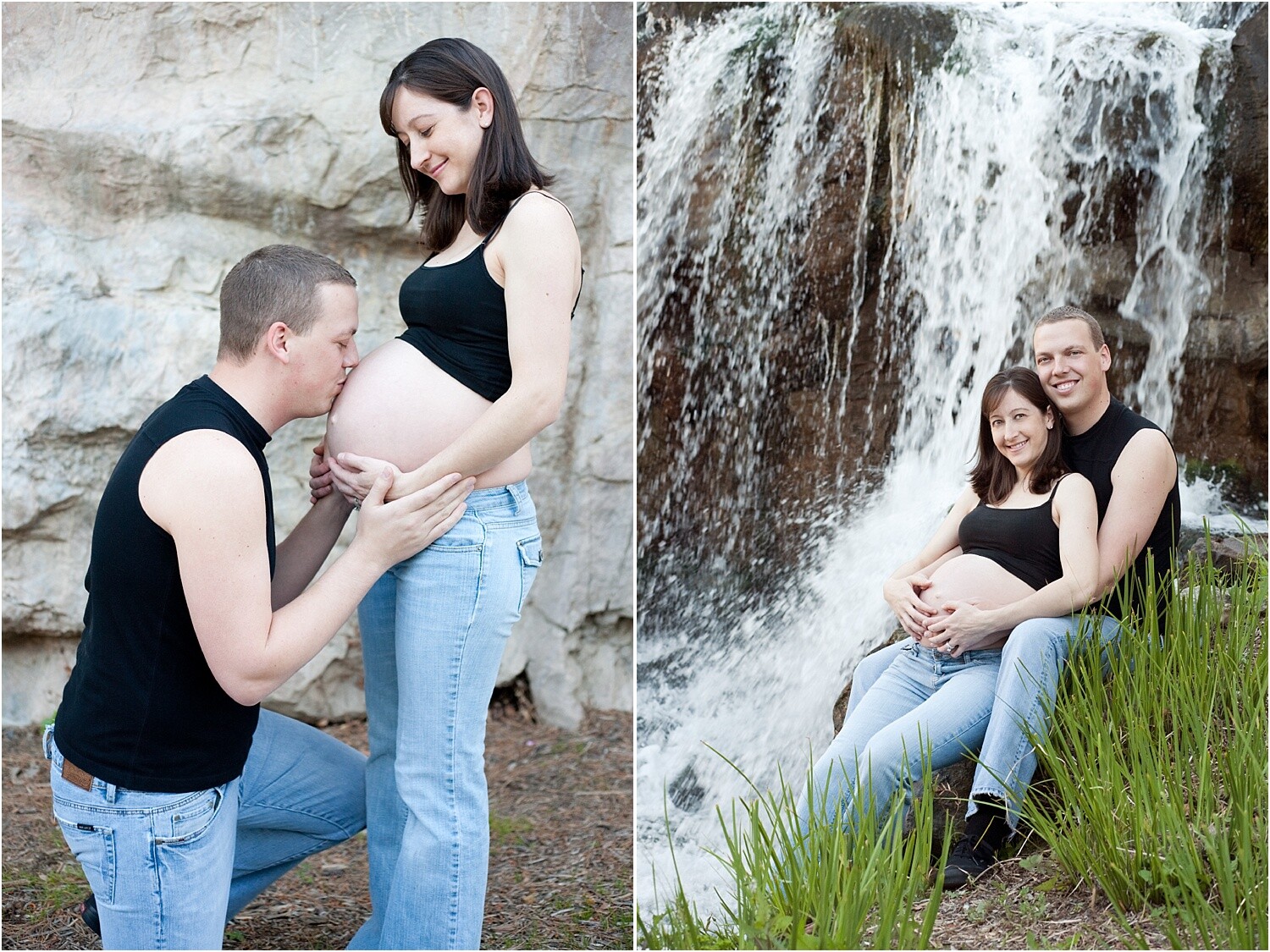
    When posing with partners, make sure that they are interacting or connecting with the belly as well. A hand on the belly, or kneeling, rubbing or speaking to the belly can really bring out a connection. Don’t be afraid of just focusing on the partner and the belly bump. Take photos close-up and from afar to include both clients.

    Maternity Session Tips For Better Client Experience 7

    Photographing the whole family can be tricky during a maternity session. Keeping the energy light and happy can really help bring out the best expressions. Working quickly is a good idea to keep the siblings interested and engaged. Move through poses swiftly and try to tell jokes or be playful to help.

    Maternity Session Tips For Better Client Experience 8

    Whether you’re photographing your client indoors or outdoors, try to maximize the number of poses in one spot. Being pregnant can cause swollen feet if she is on her feet for too long. When posing siblings and partners, move them first or move them closer to your client so that she doesn’t have to move around too much.

    Know Your Pregnancy Facts

    If you are a female photographer and have been pregnant before, then you can skip this tip. However, if you have never been pregnant or are a male photographer, it is really important to take the following into consideration. You will ensure your client has the best maternity session experience.

    Maternity Session Tips For Better Client Experience 9

    • Maternity clients may not be able to walk around a lot without getting tired or swollen. Take breaks between setups and offer her a seat whenever possible.
    • Bathroom breaks: Be close to bathrooms because a pregnant woman will need to go often.
    • Offer water and snacks. Pregnant women need more calories so it’s really important for them to have healthy snacks and lots of water. It’s a nice gesture if you these to the session to offer her. Take it a step further by asking what her favorite snack is right now.
    • Ask if they will want retouching done to their belly. Some women prefer to keep it natural as it is in real life. Some will want a little extra editing. Asking up front can keep you from doing double the work or having to re-edit photos later.
    • Ask if your client will want to show her bump or not. This will help you prepare her to bring the right wardrobe.
    • Do not point out the obvious: that they are pregnant, or big, or look like they are having twins or anything of that nature. All you should ever say to a pregnant woman is that she looks beautiful and congratulations. Anything outside of that can seem like unsolicited advice or opinions. It may be interpreted as rude.

    Maternity Session Tips For Better Client Experience 10

    These are just a few of the things you should be aware of in order to give your client the best maternity session experience. She will see that you have put a great deal of effort into her comfort and will be instantly appreciative.

    Props and Accessories

    Ask your client to bring props or accessories that she has already purchased for her little one. Shoes, bows, onesies, signs with the name or another special item that can really personalize the session for them.

    Maternity Session Tips For Better Client Experience 11

    The more they bring, the more you will have to play with resulting in more options and variations for your clients. It can be exciting to incorporate the items into the session.

    Maternity Session Tips For Better Client Experience 12

    Photograph the items alone as well as with the bump. A nice detail photo of the item can look really nice in an album. You can also offer ideas for them to bring props or particular accessories to create more of a story.

    Maternity Session Tips For Better Client Experience 13

    If you are photographing inside your client’s home, you can photograph the nursery. As well adding to the overall experience of her pregnancy, it will show the experience of waiting for the baby to arrive.

    Show Your Client Photos During the Session

    Pregnant women are very self-conscious about the way they look. To make sure that they feel confident, show her a really great portrait of herself during the session. This can give her a boost knowing that you have captured her best.

    Maternity Session Tips For Better Client Experience 14

    Letting her see for herself that she is radiant and beautiful can make the session go much smoother. She will trust that you are getting the best photos of her during this very unique and important moment in her life.

    Offer a Newborn Session

    When you are wrapping up the maternity session, offer your clients a newborn session for when the baby is born. Newborn sessions are typically done within two weeks of the baby being born so they don’t lose their newborn features.

    Maternity Session Tips For Better Client Experience 15

    Chances are that your client hasn’t thought that far in advanced yet and it will be nice for them to come back to you since you have already built trust.

    Maternity Session Tips For Better Client Experience 16

    Let them know about the session options you offer and how you can create a beautiful album of both sessions so that they can always look back on these joyous moments in their lives.

    Maternity Session Tips For Better Client Experience 17

    If they walk away with a great experience during their maternity session, they will certainly want to come back for the newborn session. And all subsequent portraits thereafter. Don’t miss your chance to keep your clients coming back!

    In conclusion

    A maternity session is special in that you get to photograph this very unique, one-of-a-kind moment in your client’s life. Make sure to stay positive and energetic. Take breaks and snacks, and be aware of what you say.

    Guide your clients through the process so that they can enjoy and trust you to make the best photographs possible of such an important time in their lives.

    The post Maternity Session Tips For Better Client Experience appeared first on Digital Photography School.


    Digital Photography School