RSS
 

Posts Tagged ‘Images’

Fairytale Photography: 50 Images With a Moody Narrative Style

01 Jul

[ By Steph in Art & Photography & Video. ]

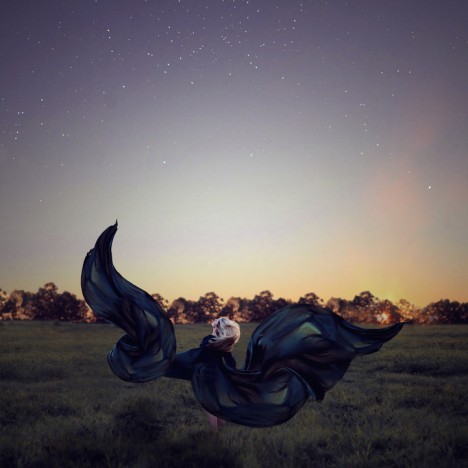
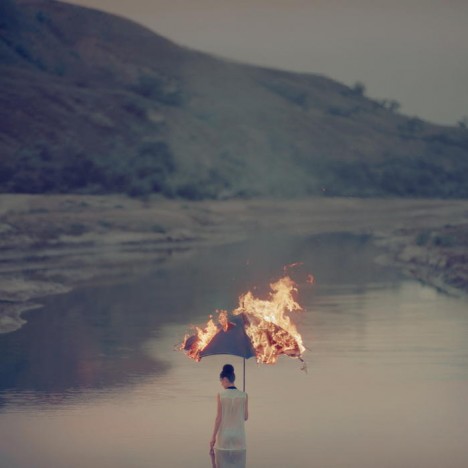
photography oleg oprisco 5

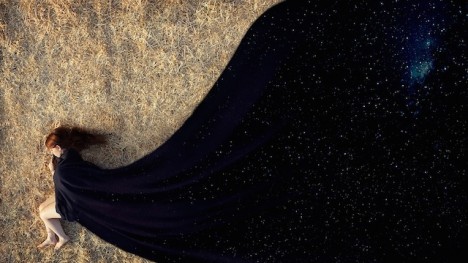
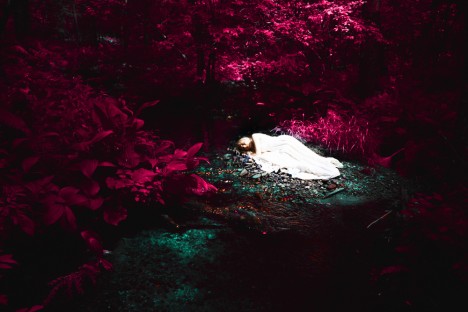
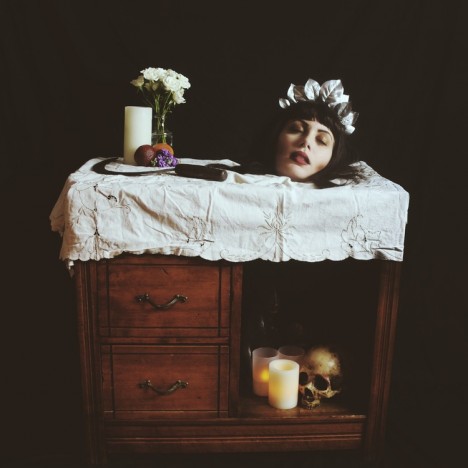
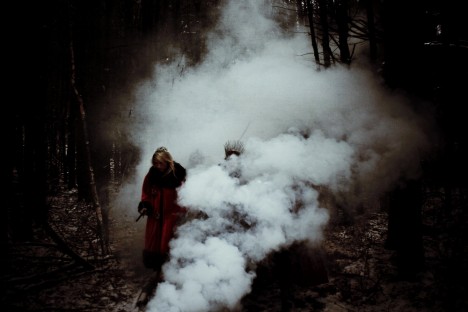
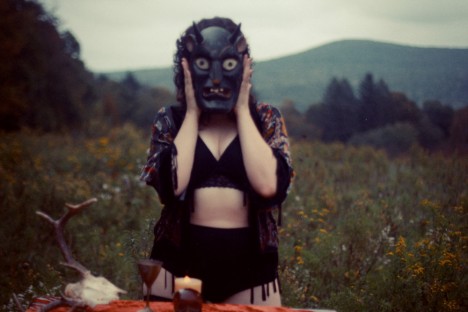
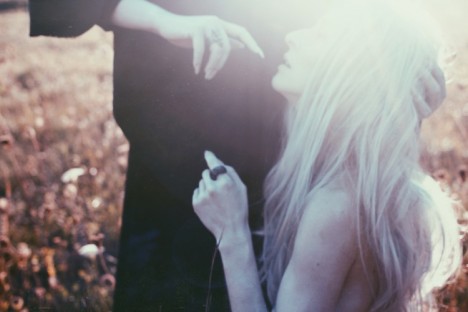
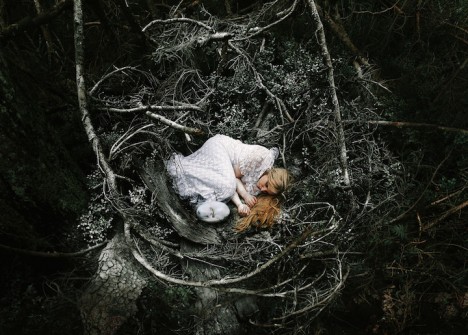
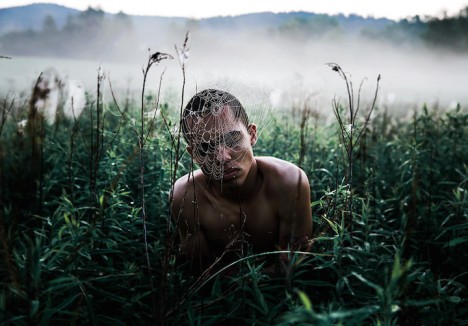
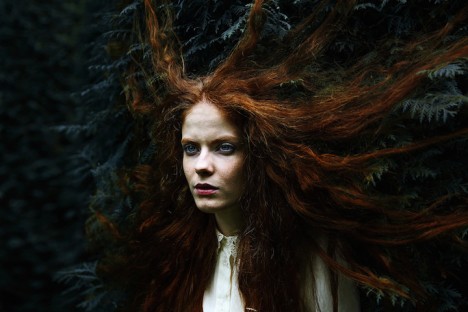
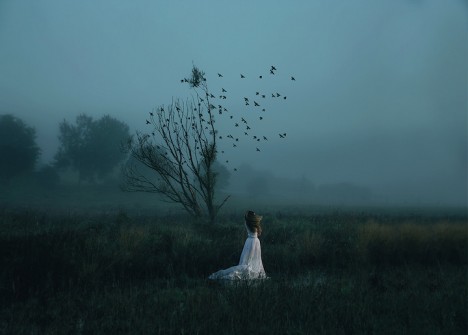
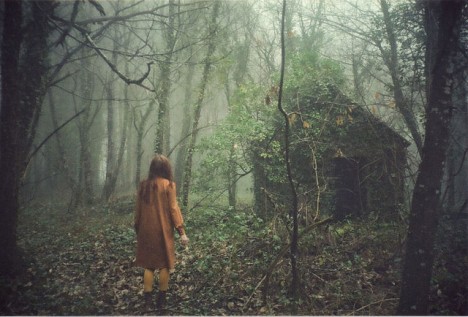
Each of these moody, dreamlike images feels like a moment from some larger story that remains a mystery to the viewer, forcing us to become active participants in the work by filling in the blanks. Whether working with props in a studio, using only analog film photography techniques or capturing incredible images with little more than an iPhone, these photographers lure us into an alternate reality with narrative images that leave us wanting more.

Aela Labbe

photography aela labbe 1

photography aela labbe 2

photography aela labbe 3

photography aela labbe 4

Photography Aela Labbe 5

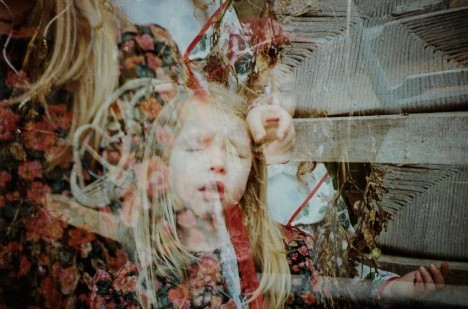
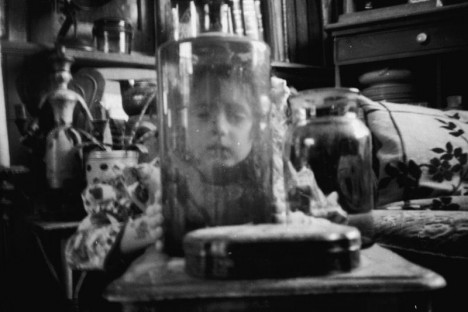
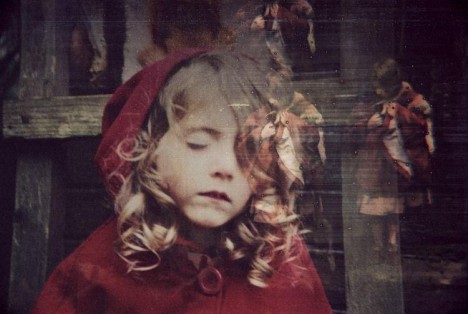
Of all the gorgeous images French dancer and photographer Aela Labbe has created, perhaps the most striking are her portraits of children. “My family is another key that unlocks the world I have created through photography; my nephews, in particular, are the main protagonists of my photographs. It was thanks to them that childhood has become a recurrent and determinant theme in my work. It is based on a different vision that aims to show a darker side, and mystery, through unconventional representations of the early time of life,” she tells Feature Shoot.

Elena del Palacio

photography elena del palacio 1

Photography Elena del Palacio 3

Photography Elena del Palacio 5

elena del palacio 5

elena del palacio 4

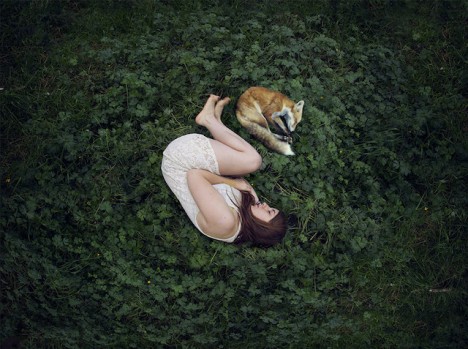
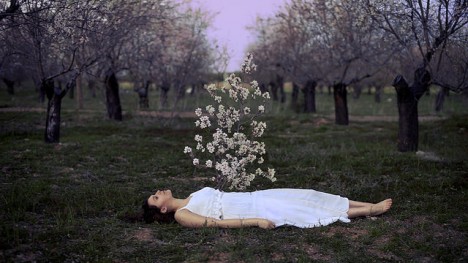
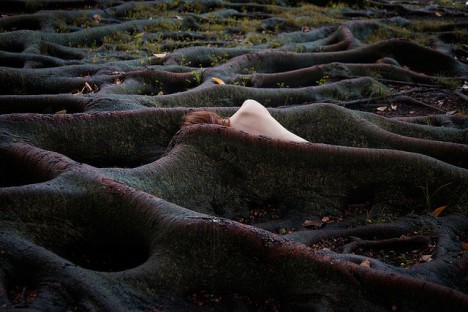
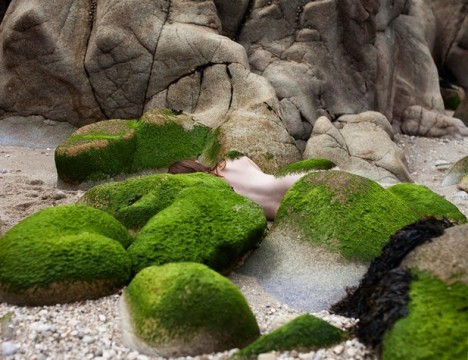
Madrid-based photographer Elena del Palacio explores the relationship between women and nature in a series of photographs placing her subjects in vulnerable places and positions.

Courtney Brooke

photography courtney brooke 1

photography courtney brooke 3

photography courtney brooke 4

The specific magic that can only be found in the foggy hills and forests of New England is frozen in time within each striking image created by Western Massachusetts photographer Courtney Brooke, who is often armed with no more than an iPhone and an exceptionally keen eye for composition and mood. “I pull inspiration from photos taken in earlier dates and the rich history of my environment. I strive to create a visual moment that urges the viewer to question spirituality, the human experience and ones own connection to the universe.”

Katharina Jung

photography katharina jung

photography katharina jung 2

photography katharina jung 3

photography katharina jung 4

photography katharina jung 5

At just twenty years old, German photographer Katharina Jung infuses her portraits with a heady sense of mystery and emotion. “I would describe my style as a mix of daydreams and fairytales,” she says. “The fascinate thing in photography is the way I can deal with my feelings and the way I can convert my daydreams into images. Photography allows me to create the world I would love to live in.”

Next Page – Click Below to Read More:
Fairytale Photography 50 Images With A Moody Narrative Style

Share on Facebook


[ By Steph in Art & Photography & Video. ]

[ WebUrbanist | Archives | Galleries | Privacy | TOS ]


WebUrbanist

 
Comments Off on Fairytale Photography: 50 Images With a Moody Narrative Style

Posted in Creativity


How to Watermark Your Images Using Lightroom and Photoshop CC

29 Jun

Watermarks, love them or hate them, are a way of protecting your images. Although, just because you have one on your image doesn’t mean it won’t be stolen. If you are like me, I do it as a deterrent.

There are many ways to watermark your images. In this article I’m going to show you how to add a watermark to your images using Adobe Lightroom and Photoshop CC.

Lightroom (6) CC

Lightroom makes watermarking your images very easy, there are a couple of ways of doing it. Once you have processed your images and are ready to export them, then it is also time to watermark them.

Exporting Your Images

Select the images you want to export and watermark. You need to make sure you are in the Library module, then click on Export.

The Export Window will come up. We aren’t going to go through how to export your images, there are other tutorials that will show you how to do that. For this purpose we are concerned with the section down near the bottom, so scroll down until you see Watermarking. Take a look at the following image.
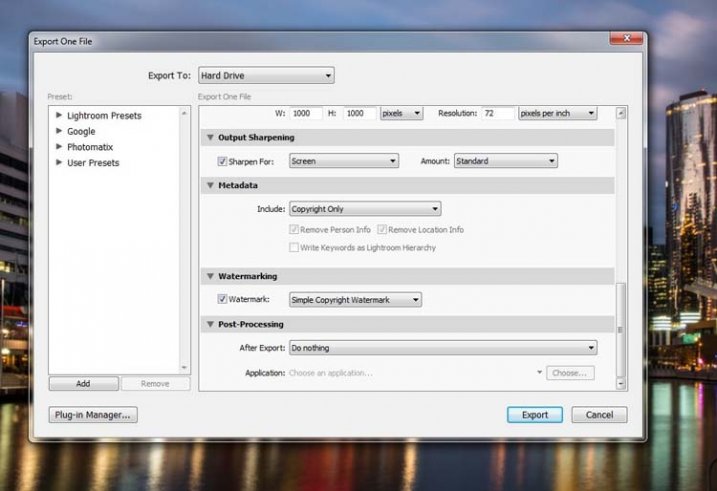
watermarking-1

If it hasn’t been ticked, then check the box for Watermark. Next to that is a drop down menu click on that.

Simple Watermark

watermarking-2

If you’ve never watermarked anything before, then you could simply click on Simple Copyright Watermark and it will just put your name on the photos. Though you must be registered in order for Lightroom to know your name.

Another option under that drop down menu is Edit Watermarks, so let’s go through that option.

Edit Watermarks

In this section you can edit the text for the water, or what you want it to look like.

Before you can change the simple watermark you will have to make sure that at the top where it says Watermark Style, you have selected Text. In the image below you can see the window for the Watermark Editor and in the top right corner you can see Watermark Style.
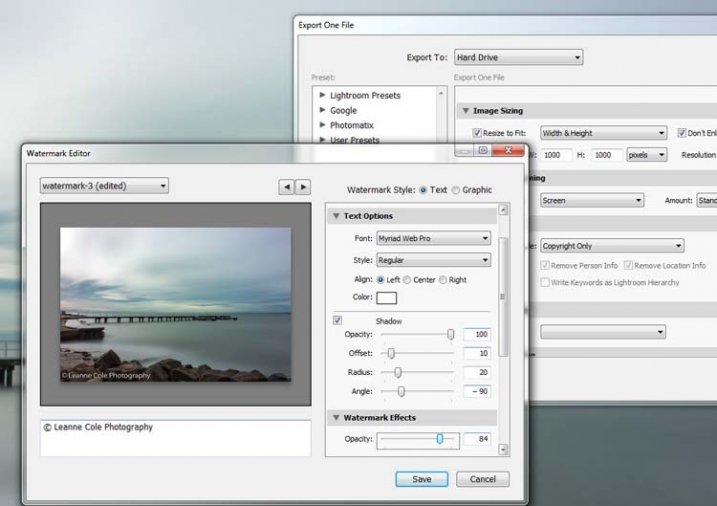
watermarking-3

In the box underneath the image you can see the simple watermark, you can now select that and delete it, and write anything you like. The most common thing to do is put the copyright symbol, ©, with your name or business name after it. To make the copyright character on Windows simply press the Alt key and type the number 0169, on a Mac press Option+G.

There are various sliders in the Watermark editor as well, one allows you to change the opacity of the watermark. How opaque you make it is up to you. I like to make mine so that you can barely see it. A lot of people looking at images can find watermarks distracting, so it is something you should keep in mind when you are adding them to your images.

There are different things you can do to adjust the watermark, for example changing its position. There is also a size slider to make it bigger or smaller.
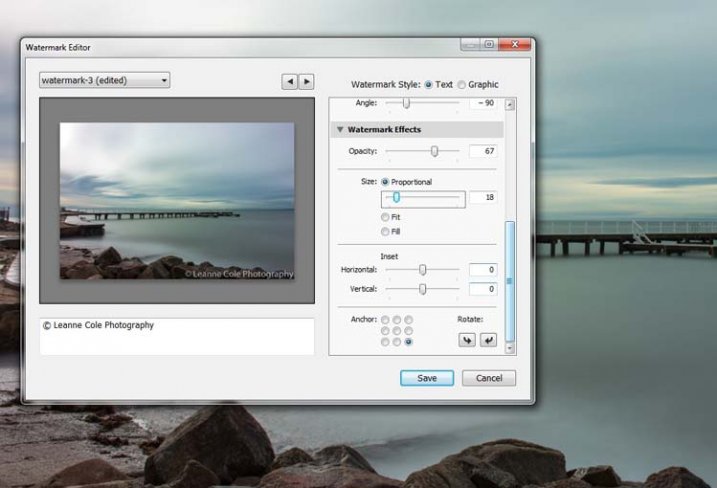
watermarking-4

Add a Logo or Unique Watermark

If you have a logo or a special watermark you can use this in Lightroom too.

In the same window that we have been using, go back to the top and select graphic. Directly underneath you will see Image Options where you can load your file. You can make the same changes in regards to size, opacity and location as you did with the text watermark.
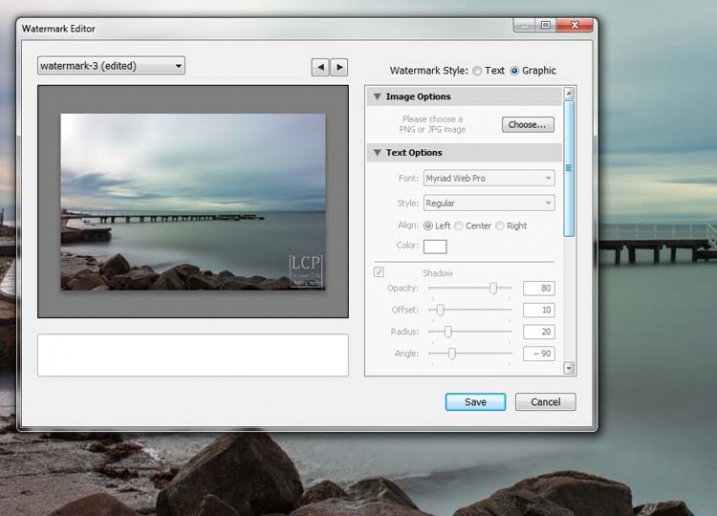
watermarking-5

Saving the Watermark Preset

Once you have worked it all out, you don’t have to do all that every time you want to export images. You can save what you have done as a watermark preset, and give it a name (pull down the menu top left where is says “Custom” to find Save Current Settings as New Preset – select that to see the pop-up box below) . The next time you want to watermark an image, just look in the same drop down menu that you used earlier to edit the watermark, and you will find your saved preset there.
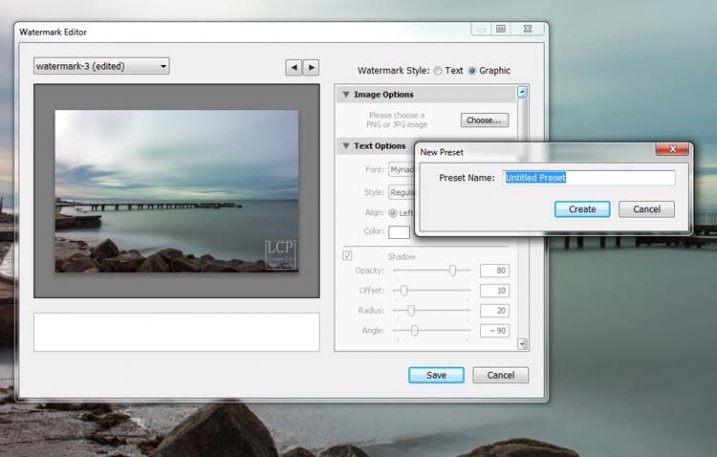
watermarking-6

Here you can see that I have called one of my presets: watermark-3.

Photoshop CC

There are also some simple ways of watermarking in Photoshop CC as well. It is a little different, but not harder.

Prepare your image as usual, then get it ready for its designated use and how you want to add a watermark to protect it. I resize every image I put online, that is my choice, it is up to you whether you decide to or not.

Easy Watermark

Once you are ready to save your image, read for use, one of the easiest ways of watermarking it is to simply use the text tool, located in the tool bar on the left of your workspace. The image below shows where it is located.

Click on the image where you want to put the watermark, and start typing. Remember you can also add the copyright symbol the same as you did using Lightroom.

You can change the size and colour of the text at the top, in the tool options bar below the main menu (or choose Window>Character to show the text adjustment panel). Select the text to change it. You can also move it around when it is highlighted as well. The opacity slider is above the layers panel on the right, you can change it to suit your preference.
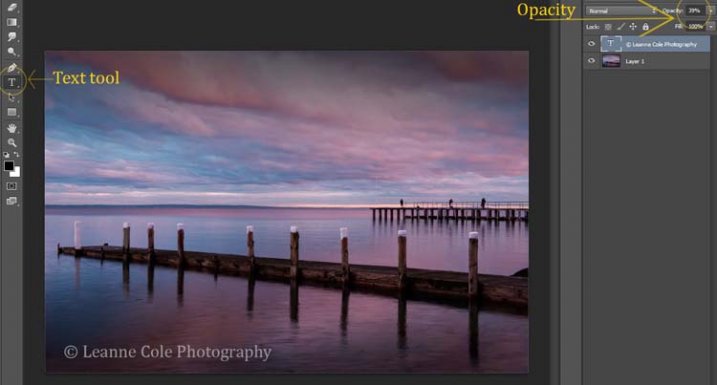
watermarking-7

Making Your Own Logo or Watermark

You always have the option of making a custom watermark, which can be saved and used any time you need it, and can also be used in Lightroom.

To start, go to File in the main menu and click New (File>New). I usually make the size of the new image match my final image size, so the longest side is 1000 pixels. Make the width that size for this example. For the height, it doesn’t have to be that big, it just depends on what you are going to do. For this one it was 300 pixels. You will also need to make sure the Background Contents setting is set to transparent, see below.
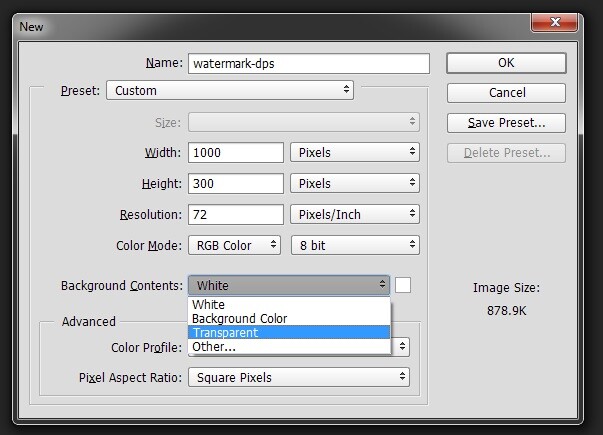
watermarking-8

So you can see what you are doing, you could add a new layer. Do that from the new layer icon at the bottom of the Layers Panel, or go to the main menu at the top and select Layer>New>Layer and click OK. Once that is in place use the Paint Bucket Tool which is in your tool bar, it is under the Gradient Tool icon. We are going to make the layer black, so make sure the foreground colour is black. The foreground and background colour selection is also in the tool bar, down near the bottom. There are two squares, one black and one white (click D on your keyboard which defaults the colors to black in the foreground, white in the background). Click on your new layer and it should be filled with all black.

Select the text tool (T) and make sure that white is now the foreground colour (click X on your keyboard to switch the foreground/background colors so white is now on top). Click on your image and start typing. Like you did for the Easy Watermark you can highlight it, then change the size. Once you’ve done that, you can crop it further so just the text appears.

Double click on text layer, towards the right side, and you should get the following window, Layer Style.
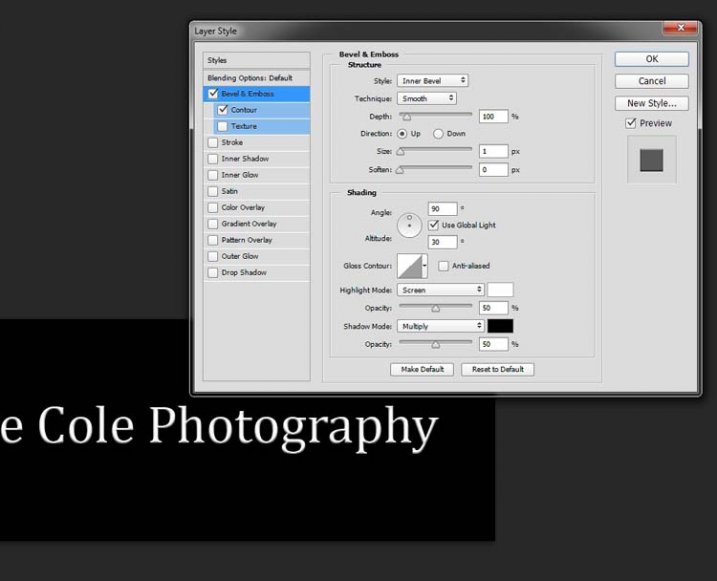
watermarking-10

You can see I have checked Bevel Emboss, and the Contour option underneath. You can play around with the sliders, but just ticking those did enough for this purpose. Then the black layer is deleted. You can do that by dragging it to the rubbish bin (trash can) in the bottom right corner. You can also right click on the layer and find delete. The easiest way is to highlight the layer by clicking on it, and pressing delete on the keyboard.

It is very important when you save this file that you do so as a .png or a .psd, otherwise the transparent part of the layer will be made white and you will no longer have the watermark that you desired.

watermarking-11

That is an easy way of doing a watermark that you can save so you can use again, but you could make a logo or something similar as well. One thing that quite a few people do is add a signature, like below.
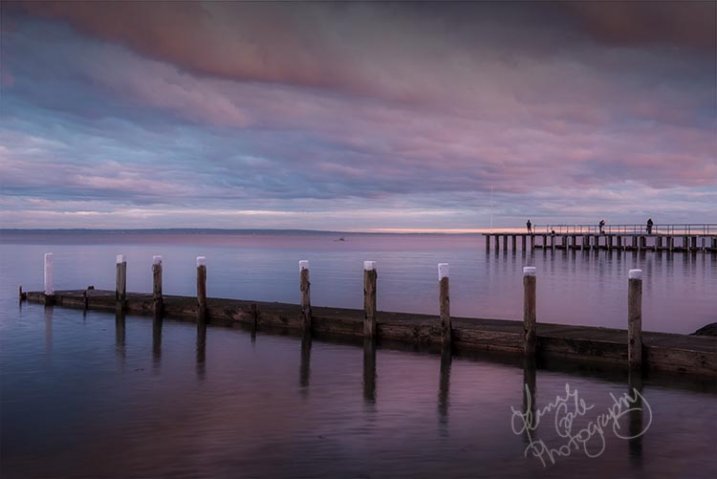
signature-watermark

There are a couple of ways of doing this, but the most common is using a tablet with a pen, I use a Wacom Intuos Pro. Do everything the same as you did for the last one, but instead of using the text tool, get your brush, make it small enough using the left square bracket key, then write your name.

If you find the surface too slippery, try putting a piece of paper over the top, it will help add some resistance. You can also try doing it with a mouse or touch pad. Again, save it the same way.

Easy Way of Adding Watermarks

One of the easiest ways to use the watermark you have just created is to open it, then select all (Ctrl+A on a PC and Command+A on a Mac), then copy it, (Control+C on a PC and Command+C on a Mac). Go over to your image and press Ctrl+V or Command+V to paste it; the watermark should now be in the middle of your image.

You can use the move tool (V), which is the first one in your tool panel, and move it to where you want, like you did with the Easy Watermark.

Hiding Your Watermark in the Image

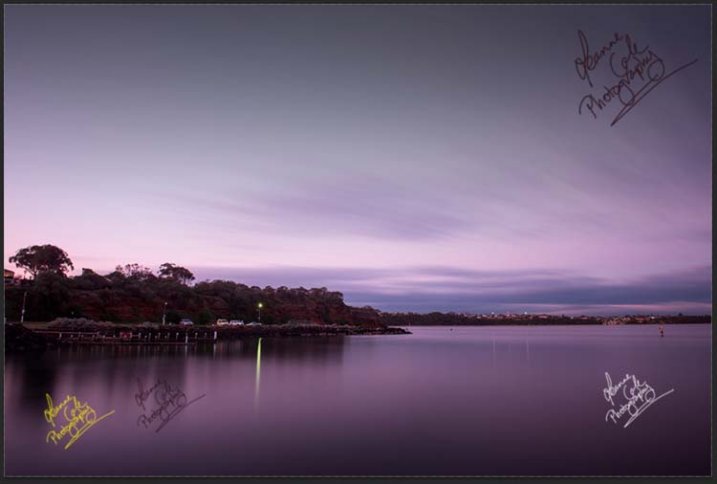
With a simple watermark you can also put it into the image and sort of hide it. This is the method I use for many of my fine art images. I try to place it where it isn’t obvious, and where it could be more difficult to remove.

Once your image is ready, copy and paste your watermark onto your image. Now you need Transform it; Edit>Transform in the main menu, or by pressing Ctrl+T/Command+T. You will notice a framework around your image, as shown below.
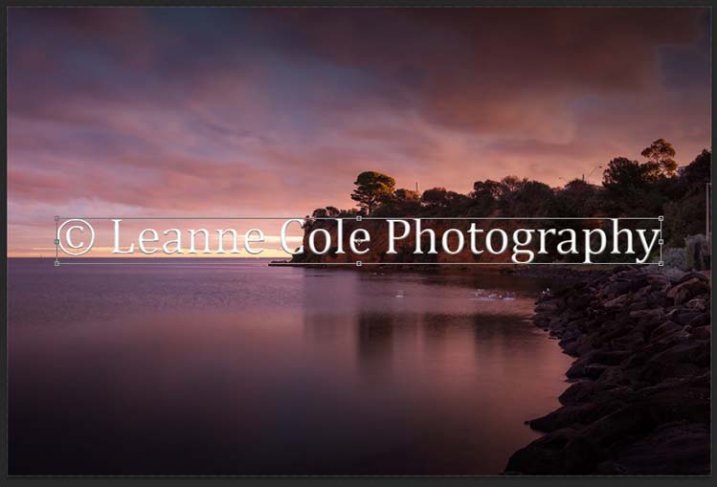
watermarking-12

By clicking and dragging on the corners, or in the middle of the lines, you can change the size. Click and drag to make it bigger or smaller (hold Shift down to keep the proportions the same, otherwise it will stretch out of shape). If you want to rotate it, hover around just outside a corner and a small curve arrow will appear, then you can turn it around. You can also move it by clicking in the middle and moving it where you want. As I said, find somewhere to hide your watermark in the image, hopefully somewhere not too noticeable, as demonstrated in the image below.
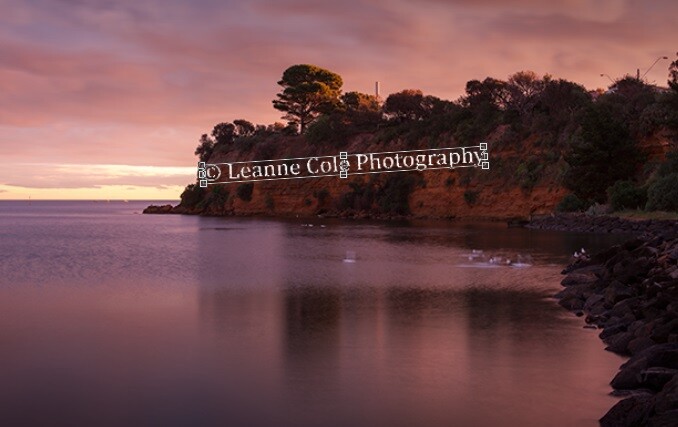
watermarking-13

To apply the Transform Tool you can double click inside the box, press Enter or click it with the move tool. Then the opacity of the watermark layer is changed to help it blend, see below.
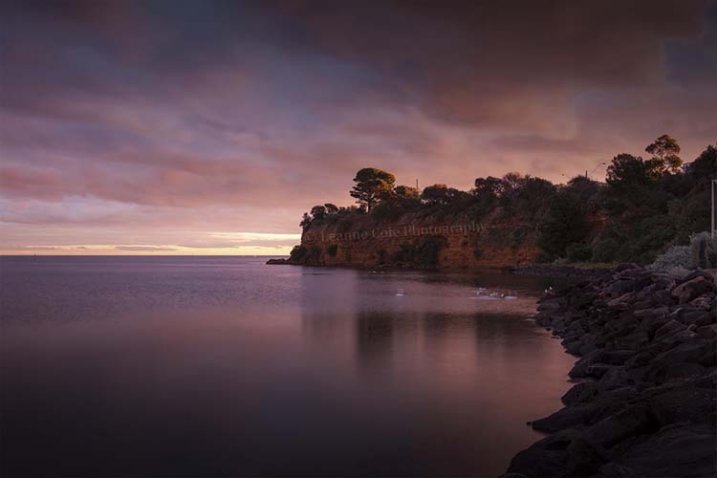
watkinsbaywatermarked-2

Once you get good using Transform, you can experiment with what else the tool does.

Using a Brush to Watermark Your Images
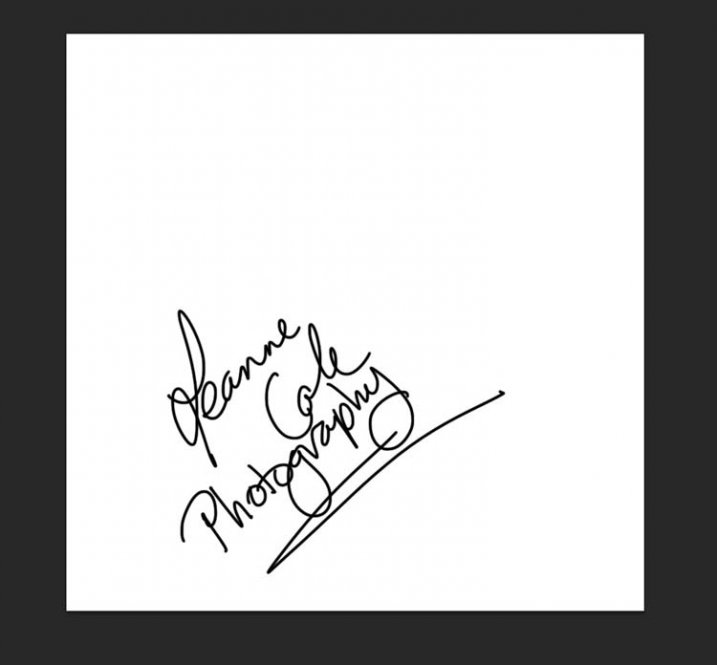
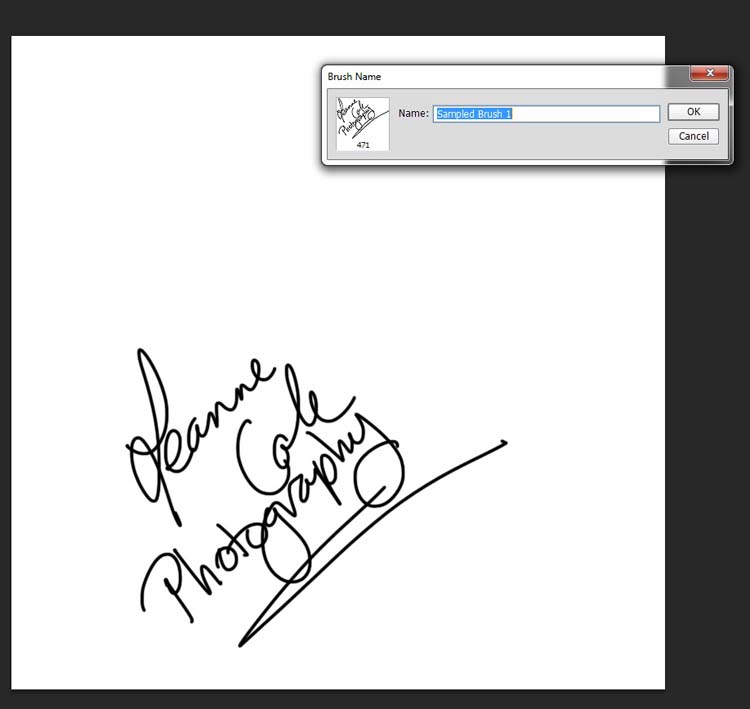
watermarking-14There is a very easy way of doing your watermark, but it takes a bit to set it up. Getting the watermark ready pretty much works the same as before, only this time you want a white background, and you need to use black to create it. Take a look at the image on the right.

Note: create your new file 2500 pixels wide as that is the maximum size for a brush. You can always make the brush smaller when you apply it to your image, but making it the largest size now will give you the best quality.

I created the signature with my Wacom Tablet, but you could also use a pen or black marker on a piece of paper and scan it, that will work just as well.

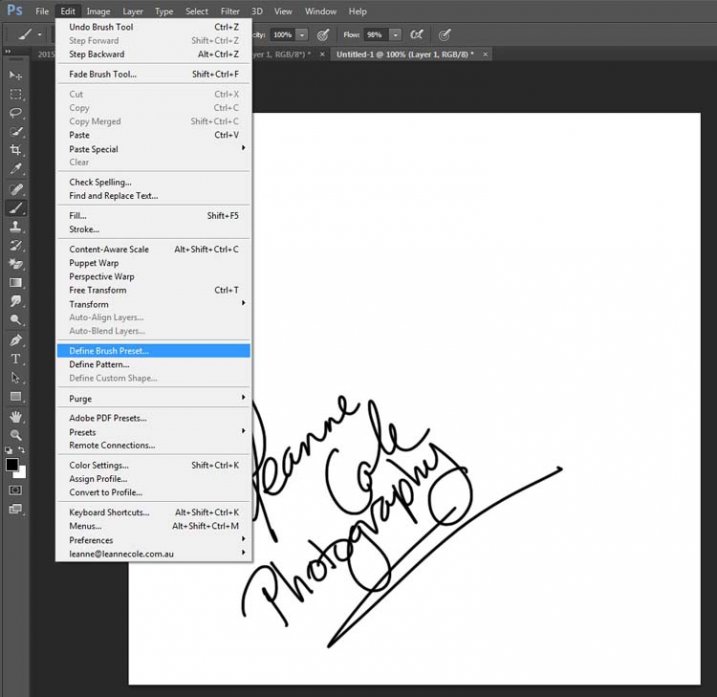
Once you have your signature, you can now make your custom brush. Go to the Edit menu and choose Define Brush Preset, and click on it.
watermarking-15

watermarking-16Next, you will see another window pop up window ,asking you to give your brush a name. You can name it what you like, perhaps something that will remind you what it is later; I called mine Brush Signature Watermark.

Now your watermark will work just like a brush, you can make it smaller or larger (remember if you made it 2500 pixels it will hold quality up to that size with out pixelating), you can also change the colour. It works exactly the same way as the normal brush does; use the square bracket keys to make it bigger or smaller. If you want to change the colour, click on the foreground colour and the Color Picker window will appear.

I would suggest adding your watermark to a new transparent layer, so you can also change the opacity as needed.

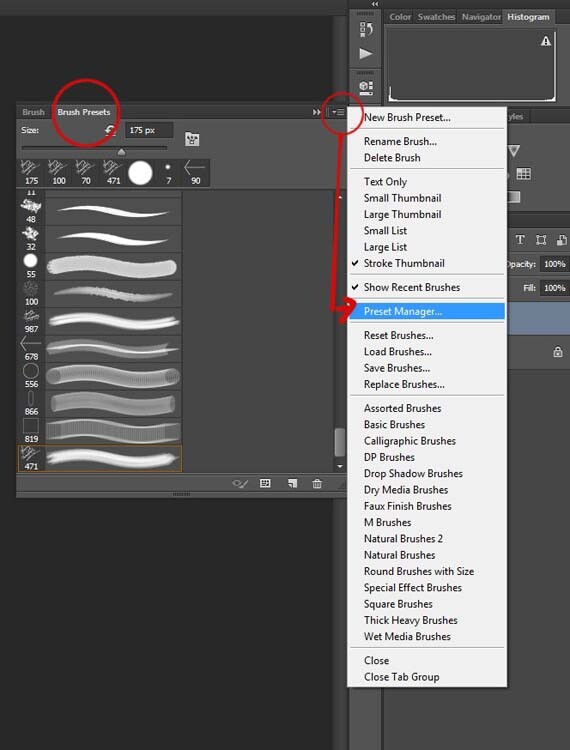
To find your new brush, go to your brush presets, they are over on the side of your layers panel, and click on the icon that looks like small lines at the top where a drop down menu should appear.
watermarking-18

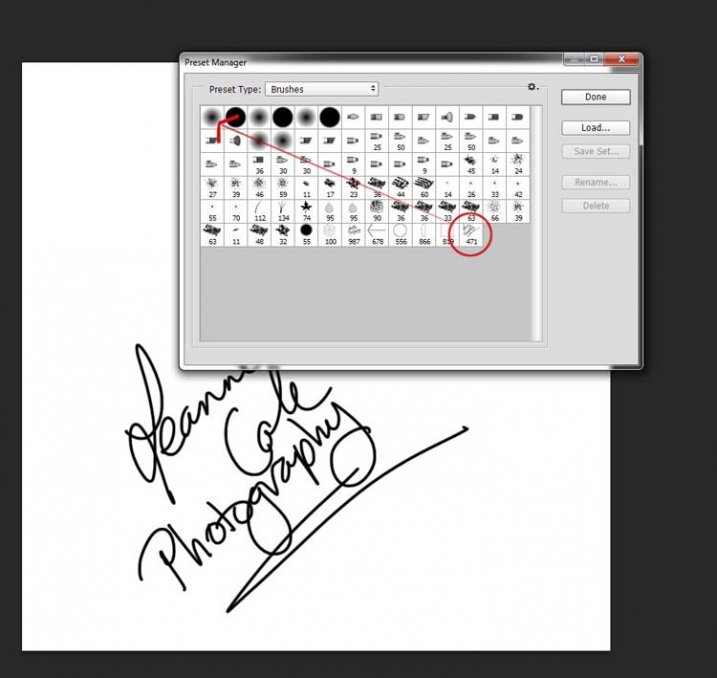
Go down to Preset Manager and click. A new window will appear with all your brushes. Now you can click, and drag the brush you just created to a spot where it will be easier to find, like up to the top.
watermarking-19

You are now ready to use your new watermark brush any time you want.

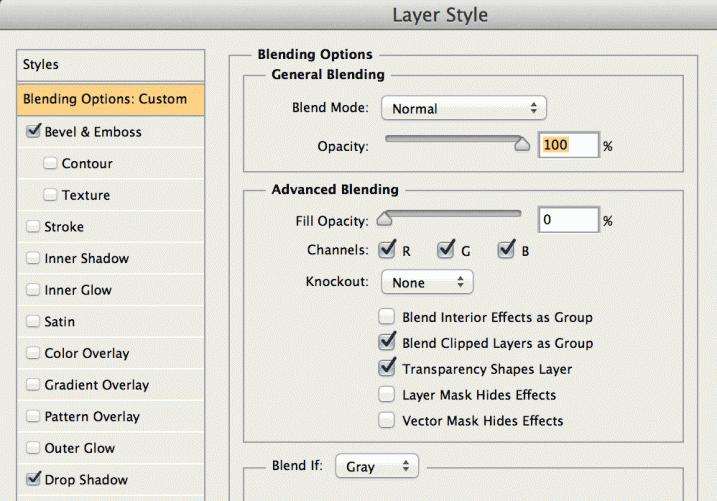
As I said, you can change the size of it using the square bracket keys [ ] on your keyboard. You can change its colour by clicking on the foreground colour in the tool panel and selecting a new one. You can also add layer effects like a drop shadow, emboss, etc., you can even make the text itself transparent and only leave behind the shadow.
layer-effects

To make text “invisible” change the Fill Opacity Under Blending Options, in the Advanced Blending section to 0%.

It will look something like this and will blend into any area:

layer-effects-transparent

Here is one I played with:

watermarking-17

There are so many different ways to do a watermark and it is really up to you to work out which one will work best for you. Do you have any other tips for watermarks or methods  you use to make them? Please share in the comments below.

googletag.cmd.push(function() {
tablet_slots.push( googletag.defineSlot( “/1005424/_dPSv4_tab-all-article-bottom_(300×250)”, [300, 250], “pb-ad-78623” ).addService( googletag.pubads() ) ); } );

googletag.cmd.push(function() {
mobile_slots.push( googletag.defineSlot( “/1005424/_dPSv4_mob-all-article-bottom_(300×250)”, [300, 250], “pb-ad-78158” ).addService( googletag.pubads() ) ); } );

The post How to Watermark Your Images Using Lightroom and Photoshop CC by Leanne Cole appeared first on Digital Photography School.


Digital Photography School
 
Comments Off on How to Watermark Your Images Using Lightroom and Photoshop CC

Posted in Photography


33 Blustery Bad Weather Images

26 Jun

When the weather turns wet and nasty, many photographers head for cover. But, if you are willing to tough it out, inclement weather is a great opportunity to capture some unique and fantastic images.

Here are some images by photographers who dared to brave the elements and got some bad weather images.

Photograph rain by Barbara Florczyk on 500px

rain by Barbara Florczyk on 500px

Photograph The Accidental Tourist by Miles Morgan on 500px

The Accidental Tourist by Miles Morgan on 500px

Photograph Champagne supercell by Max Conrad on 500px

Champagne supercell by Max Conrad on 500px

Photograph Black Umbrellas by Emin Zeynalov on 500px

Black Umbrellas by Emin Zeynalov on 500px

Photograph Singing in the rain by luca eugeni on 500px

Singing in the rain by luca eugeni on 500px

Photograph Averse Magnétique by Romain Matteï on 500px

Averse Magnétique by Romain Matteï on 500px

Photograph Seedling by Ursula Abresch on 500px

Seedling by Ursula Abresch on 500px

Photograph Wet Leaves by Jessica Drossin on 500px

Wet Leaves by Jessica Drossin on 500px

Photograph Barrage by Mike Olbinski on 500px

Barrage by Mike Olbinski on 500px

Photograph Fields by Sakis Pallas on 500px

Fields by Sakis Pallas on 500px

Photograph Under The Rain by Mustafa ILHAN on 500px

Under The Rain by Mustafa ILHAN on 500px

Photograph Standing in the rain... by Sham Jolimie on 500px

Standing in the rain… by Sham Jolimie on 500px

Photograph Islands weather by Lucyna Koch on 500px

Islands weather by Lucyna Koch on 500px

Photograph Last winter rain by Ivan Gevaerd on 500px

Last winter rain by Ivan Gevaerd on 500px

Photograph waiting for sunshine by  Irca Caplikas on 500px

waiting for sunshine by Irca Caplikas on 500px

Photograph Manhattan Showers by Terry Donnelly on 500px

Manhattan Showers by Terry Donnelly on 500px

Photograph rainy day by Ferdi Doussier on 500px

rainy day by Ferdi Doussier on 500px

Photograph TEARS OF CHARLES by Mr Friks  on 500px

TEARS OF CHARLES by Mr Friks on 500px

Photograph The place that stops the clock by Alessandro Cabras on 500px

The place that stops the clock by Alessandro Cabras on 500px

Photograph Storm at Llancayo by Alan Coles on 500px

Storm at Llancayo by Alan Coles on 500px

Photograph A new rainy day is coming by Dino Marsango on 500px

A new rainy day is coming by Dino Marsango on 500px

Photograph The Modern Force by Toby Harriman on 500px

The Modern Force by Toby Harriman on 500px

Photograph Porthleven Storm by Lloyd W.A. Cosway [DEVONshots.com] on 500px

Porthleven Storm by Lloyd W.A. Cosway [DEVONshots.com] on 500px

Photograph Hard Times 2 by Veselin Malinov on 500px

Hard Times 2 by Veselin Malinov on 500px

Photograph the storm by Reto Imhof on 500px

the storm by Reto Imhof on 500px

Photograph After Heavy Rain by Slim Letaief on 500px

After Heavy Rain by Slim Letaief on 500px

Photograph b&w by Vladimir Gordeev on 500px

b&w by Vladimir Gordeev on 500px

Photograph ra....!....n..!.ng  . .day ..!.  by bug eye :) on 500px

ra….!….n..!.ng . .day ..!. by bug eye :) on 500px

Photograph In the rain by Luu TrongDat on 500px

In the rain by Luu TrongDat on 500px

Photograph Rain by Kim Pennington on 500px

Rain by Kim Pennington on 500px

Photograph Viktorija by Igor Glavaš on 500px

Viktorija by Igor Glavaš on 500px

Photograph 1001 Nights :) by Tramont_ana on 500px

1001 Nights :) by Tramont_ana on 500px

Photograph The wet wooden path by Hanson Mao on 500px

The wet wooden path by Hanson Mao on 500px

googletag.cmd.push(function() {
tablet_slots.push( googletag.defineSlot( “/1005424/_dPSv4_tab-all-article-bottom_(300×250)”, [300, 250], “pb-ad-78623” ).addService( googletag.pubads() ) ); } );

googletag.cmd.push(function() {
mobile_slots.push( googletag.defineSlot( “/1005424/_dPSv4_mob-all-article-bottom_(300×250)”, [300, 250], “pb-ad-78158” ).addService( googletag.pubads() ) ); } );

The post 33 Blustery Bad Weather Images by Darlene Hildebrandt appeared first on Digital Photography School.


Digital Photography School

 
Comments Off on 33 Blustery Bad Weather Images

Posted in Photography


31 Mystical Night Photography Images

19 Jun

There is something magical, mystical about the night, and night photography. Things you can’t see with the human eye, a certain peacefulness.

Here on dPS night photography is a popular topic, with many articles to choose from if you want to learn how to do it.

In this collection let’s look at some stunning examples of night photography done well:

Photograph Black Lotus by Mathijs van den Bosch on 500px

Black Lotus by Mathijs van den Bosch on 500px

Photograph The beginning by Marco Bocelli on 500px

The beginning by Marco Bocelli on 500px

Photograph Along the Thames by Giuseppe Torre on 500px

Along the Thames by Giuseppe Torre on 500px

Photograph In New Orleans by Boberic Photography on 500px

In New Orleans by Boberic Photography on 500px

Photograph *H--H* by ömer yücel on 500px

*H–H* by ömer yücel on 500px

Photograph Shanghai at Night by Clemens Geiger on 500px

Shanghai at Night by Clemens Geiger on 500px

Photograph DUBAI by Ibrahim Albeshari on 500px

DUBAI by Ibrahim Albeshari on 500px

Photograph the queen by Ronny Behnert on 500px

the queen by Ronny Behnert on 500px

Photograph San Francisco, unseen night 2 by Ali Erturk on 500px

San Francisco, unseen night 2 by Ali Erturk on 500px

Photograph Belchite night 2 by Tony Goran on 500px

Belchite night 2 by Tony Goran on 500px

Photograph ?n Brugge by ?lhan Eroglu on 500px

?n Brugge by ?lhan Eroglu on 500px

Photograph Salamanca in the night by Isidoro M on 500px

Salamanca in the night by Isidoro M on 500px

Photograph A Night To Remember by Arild Heitmann on 500px

A Night To Remember by Arild Heitmann on 500px

Photograph Celestial Cypress by Paul Marcellini on 500px

Celestial Cypress by Paul Marcellini on 500px

Photograph Fossilized UFO by Sakhr Abdullah on 500px

Fossilized UFO by Sakhr Abdullah on 500px

Photograph Portal by Brad Goldpaint on 500px

Portal by Brad Goldpaint on 500px

Photograph Stars over Teton homestead by Royce's NightScapes on 500px

Stars over Teton homestead by Royce’s NightScapes on 500px

Photograph My bike! by Khatawut J on 500px

My bike! by Khatawut J on 500px

Photograph M11 By Winter's Night - London by Pete Dobson on 500px

M11 By Winter’s Night – London by Pete Dobson on 500px

Photograph What Once Was by Aaron J. Groen on 500px

What Once Was by Aaron J. Groen on 500px

Photograph Reaching for the stars by Dan Barr on 500px

Reaching for the stars by Dan Barr on 500px

Photograph Ball of Light by Richard Steinberger on 500px

Ball of Light by Richard Steinberger on 500px

Photograph Star Filled Sky over The Grand Tetons #2 by Matt Anderson on 500px

Star Filled Sky over The Grand Tetons #2 by Matt Anderson on 500px

Photograph Galiano Island Stars by James Wheeler on 500px

Galiano Island Stars by James Wheeler on 500px

Photograph Moonlight Dock by James Wheeler on 500px

Moonlight Dock by James Wheeler on 500px

Photograph An appropriate night for anything by Milos Savkovic on 500px

An appropriate night for anything by Milos Savkovic on 500px

Photograph Thousand star Hotel by shaiith on 500px

Thousand star Hotel by shaiith on 500px

Photograph Ai-Petry. Night, Full Moon. by Denis Belitsky on 500px

Ai-Petry. Night, Full Moon. by Denis Belitsky on 500px

Photograph industrial portrait by Alina Cürten on 500px

industrial portrait by Alina Cürten on 500px

Photograph Wat arun under loy krathong day ,Thailand by Prasit Rodphan on 500px

Wat arun under loy krathong day ,Thailand by Prasit Rodphan on 500px

Photograph Good night by Fehrum on 500px

Good night by Fehrum on 500px

googletag.cmd.push(function() {
tablet_slots.push( googletag.defineSlot( “/1005424/_dPSv4_tab-all-article-bottom_(300×250)”, [300, 250], “pb-ad-78623” ).addService( googletag.pubads() ) ); } );

googletag.cmd.push(function() {
mobile_slots.push( googletag.defineSlot( “/1005424/_dPSv4_mob-all-article-bottom_(300×250)”, [300, 250], “pb-ad-78158” ).addService( googletag.pubads() ) ); } );

The post 31 Mystical Night Photography Images by Darlene Hildebrandt appeared first on Digital Photography School.


Digital Photography School
 
Comments Off on 31 Mystical Night Photography Images

Posted in Photography


Facebook’s Moments app allows for private sharing of images

17 Jun

Facebook has announced a new standalone app for iOS and Android called Moments. Moments allows you to share and sync images from events, such as trips, weddings, parties and the like, between a private group of users, in a very similar way to the Kolektio app that was launched only two weeks ago. Read more

Articles: Digital Photography Review (dpreview.com)

 
Comments Off on Facebook’s Moments app allows for private sharing of images

Posted in Uncategorized


How to Shoot Images and Use Merge to HDR in Lightroom 6

15 Jun

Master teacher Phil Steele brings us a video on how to shoot bracketed images and merge them into and HDR image using the new Merge to HDR function in Lightroom 6 (or CC).

HDR is something that gets a bit of a bad rap and people seem to either love it or hate it. It’s one of those extreme things like opera and sushi. But the new Merge to HDR feature, inside Lightroom, makes it easy to try it and make realistic looking images in a snap – without the need for any other software or plugins.

Let’s have a look at Phil’s HDR shooting and LR processing tips:

If you enjoyed that and want to learn more about Lightroom you can check out Phil’s Lightroom course here.

googletag.cmd.push(function() {
tablet_slots.push( googletag.defineSlot( “/1005424/_dPSv4_tab-all-article-bottom_(300×250)”, [300, 250], “pb-ad-78623” ).addService( googletag.pubads() ) ); } );

googletag.cmd.push(function() {
mobile_slots.push( googletag.defineSlot( “/1005424/_dPSv4_mob-all-article-bottom_(300×250)”, [300, 250], “pb-ad-78158” ).addService( googletag.pubads() ) ); } );

The post How to Shoot Images and Use Merge to HDR in Lightroom 6 by Darlene Hildebrandt appeared first on Digital Photography School.


Digital Photography School
 
Comments Off on How to Shoot Images and Use Merge to HDR in Lightroom 6

Posted in Photography


39 Street Photography Images That Have Common Threads

05 Jun

Street photography is a popular genre which many photographers enjoy, just for the sake of doing photography. You can find many articles on it here on dPS. Let’s look at a few street photography images from around the world and see if we can’t find similarities, as well as differences between them all.

I got carried away selecting images for this collection because I found the inter-connections intriguing and it inspired me. I hope you can see it too.

Photographers shooting other photographers

Photograph Working the Scene by Shamas Malik on 500px
Working the Scene by Shamas Malik on 500px

Photograph He is nikon photographer. How long have you been doing photography? by Zachary Voo on 500px He is nikon photographer. How long have you been doing photography? by Zachary Voo on 500px

Photograph The spy by Alexander Dragunov on 500px
The spy by Alexander Dragunov on 500px

Photograph Strike Back by Vichaya Pop on 500px Strike Back by Vichaya Pop on 500px

Photograph Violinist And Photographer by Juha Roisko on 500px
Violinist And Photographer by Juha Roisko on 500px

Photograph fellow photographer by Nico Ouburg on 500px fellow photographer by Nico Ouburg on 500px

Photograph spring frame... by Konstantin Vodolazov on 500px
spring frame… by Konstantin Vodolazov on 500px

Subways, taxis, and transportation


Photograph Don't Forget to Smile by Liz Leeb on 500px
Don’t Forget to Smile by Liz Leeb on 500px

Photograph Subway In Lisboa by Damien Dohmen on 500px

Subway In Lisboa by Damien Dohmen on 500px

Photograph Munich Subway in Yelow by Darío Sastre on 500px
Munich Subway in Yelow by Darío Sastre on 500px

Photograph Waiting by Fabio Vittorelli on 500px

Waiting by Fabio Vittorelli on 500px

Photograph some day, the man of your dreams... by laurent aublé on 500px
some day, the man of your dreams… by laurent aublé on 500px

Photograph Youth by Olga Bekker on 500px

Youth by Olga Bekker on 500px

Photograph Taxi by Steffen Richter on 500px
Taxi by Steffen Richter on 500px

Photograph Paris Taxi by Manuel Orero on 500px

Paris Taxi by Manuel Orero on 500px

Photograph Trinidad Cuba - The Green Taxi by John Barclay on 500px
Trinidad Cuba – The Green Taxi by John Barclay on 500px

Photograph tuk tuk by Eo NaYa on 500px

tuk tuk by Eo NaYa on 500px

Photograph Tuk Tuk by Drew Hopper on 500px
Tuk Tuk by Drew Hopper on 500px

Photograph Pedicab by Kent Atwell on 500px

Pedicab by Kent Atwell on 500px

Photograph rickshaw by avenish jain on 500px
rickshaw by avenish jain on 500px

Markets and vendors

Photograph Enlightened Colours by Daniel Bosma on 500px

Enlightened Colours by Daniel Bosma on 500px

Photograph Under the Bridge by Michael Steverson on 500px
Under the Bridge by Michael Steverson on 500px

Photograph Crab Steam ! by Mardy Suong Photography on 500px

Crab Steam ! by Mardy Suong Photography on 500px

Photograph Ducky by Michael Steverson on 500px
Ducky by Michael Steverson on 500px

Photograph Date Seller by William Selviz on 500px

Date Seller by William Selviz on 500px

Photograph Scottish Cheeseshop /Monger by Benedikt D-rner on 500px
Scottish Cheeseshop /Monger by Benedikt D-rner on 500px

Photograph Morning time by Dikye Darling on 500px

Morning time by Dikye Darling on 500px

Photograph market by Omid Farrokh on 500px
market by Omid Farrokh on 500px

Photograph Taladromhub , Samutsongkham , Thailand by Atipan Khantalee (Thailand) on 500px

Taladromhub , Samutsongkham , Thailand by Atipan Khantalee (Thailand) on 500px

Photograph A Piece of Lokbaintan by Fauzan Maududdin on 500px
A Piece of Lokbaintan by Fauzan Maududdin on 500px

Buskers or musicians

Photograph sax player by Daniel Antunes on 500px

sax player by Daniel Antunes on 500px

Photograph The Accordionist by Joanna Lemanska on 500px
The Accordionist by Joanna Lemanska on 500px

Photograph Musicians  by Gazali © on 500px

Musicians by Gazali © on 500px

Photograph The street musician by Alina Voitkov? on 500px
The street musician by Alina Voitkov? on 500px

Photograph Clarinetist by Hai Hua on 500px

Clarinetist by Hai Hua on 500px

Photograph The Moroccan Street Crooner by Blindman shooting on 500px
The Moroccan Street Crooner by Blindman shooting on 500px

Photograph Prague by Eduardo González on 500px

Prague by Eduardo González on 500px

Photograph Busker by Marc Apers on 500px
Busker by Marc Apers on 500px

Photograph Street Musician in Cienfuegos by Nevzat Gökmen on 500px

Street Musician in Cienfuegos by Nevzat Gökmen on 500px

googletag.cmd.push(function() {
tablet_slots.push( googletag.defineSlot( “/1005424/_dPSv4_tab-all-article-bottom_(300×250)”, [300, 250], “pb-ad-78623” ).addService( googletag.pubads() ) ); } );

googletag.cmd.push(function() {
mobile_slots.push( googletag.defineSlot( “/1005424/_dPSv4_mob-all-article-bottom_(300×250)”, [300, 250], “pb-ad-78158” ).addService( googletag.pubads() ) ); } );

The post 39 Street Photography Images That Have Common Threads by Darlene Hildebrandt appeared first on Digital Photography School.


Digital Photography School
 
Comments Off on 39 Street Photography Images That Have Common Threads

Posted in Photography


Shortlisted images from Environmental Photographer of the Year 2015 to go on display

04 Jun

London’s Royal Geographical Society is set to play host to an exhibition of the shortlisted entries of the 2015 Environmental Photographer of the Year competition. The exhibition, which opens for three weeks on June 22nd, will feature 111 of the best images as selected by the competition’s five judges. The ultimate winners will be announced at a ceremony on 25th June. Read more

Articles: Digital Photography Review (dpreview.com)

 
Comments Off on Shortlisted images from Environmental Photographer of the Year 2015 to go on display

Posted in Uncategorized


World’s highest resolution panoramic photo is stitched from 70,000 images

03 Jun

A team of five photographers has created what they describe as the world’s highest resolution panoramic photograph by stitching 70,000 digital images together to create a 365 gigapixel photograph. Recorded using a Canon EOS 70D with the EF 400mm f/2.8L IS II USM lens on a 2x converter, the picture took 35 hours of shooting over the course of 15 days just to capture. Read more

Articles: Digital Photography Review (dpreview.com)

 
Comments Off on World’s highest resolution panoramic photo is stitched from 70,000 images

Posted in Uncategorized


26 Imaginative Images of Inanimate Objects

29 May

When you’re just learning photography non-living or inanimate objects make great subjects because they have infinite patience and don’t move. You can take your time getting your shot just right, checking the lighting, and composing the perfect image.

These images of objects, table top products, still lives, are great examples of what you can do with such subjects. See if you don’t get some ideas for your own photography.

Photograph Farewell, dear friend! by Victoria Ivanova on 500px

Farewell, dear friend! by Victoria Ivanova on 500px

Photograph Outsider by Gert Lavsen on 500px

Outsider by Gert Lavsen on 500px

Photograph Love... by Tiziano Giumelli on 500px

Love… by Tiziano Giumelli on 500px

Photograph pedal organ by Mills Brock on 500px

pedal organ by Mills Brock on 500px

Photograph The shining by Thomas Hufer on 500px

The shining by Thomas Hufer on 500px

Photograph The Weight of Time by Michael Lanzetta on 500px

The Weight of Time by Michael Lanzetta on 500px

Photograph Aquamarine by Randall Epp on 500px

Aquamarine by Randall Epp on 500px

Photograph Table Top by Ameya Godbole on 500px

Table Top by Ameya Godbole on 500px

Photograph Say cheese! by Oliver Jordan on 500px

Say cheese! by Oliver Jordan on 500px

Photograph play of light by Andrea Schuh on 500px

play of light by Andrea Schuh on 500px

Photograph Be good to me okey? by Andreas Hartanta on 500px

Be good to me okey? by Andreas Hartanta on 500px

Photograph Cølørful Symphøny by Silver Paul on 500px

Cølørful Symphøny by Silver Paul on 500px

Photograph Intimidation by Peter Baumgarten on 500px

Intimidation by Peter Baumgarten on 500px

Photograph *** by Igor Alekseev on 500px

*** by Igor Alekseev on 500px

Photograph Van Surf by Alvaro Perez on 500px

Van Surf by Alvaro Perez on 500px

Photograph Natural Light by Paolo Oliviéri on 500px

Natural Light by Paolo Oliviéri on 500px

Photograph Film & The Rail Road by Phoomin Karagate on 500px

Film & The Rail Road by Phoomin Karagate on 500px

Photograph Injured Teddy Bear by Teemu Tretjakov on 500px

Injured Teddy Bear by Teemu Tretjakov on 500px

Photograph Still life. by Mostapha Merab Samii on 500px

Still life. by Mostapha Merab Samii on 500px

Photograph See, does not see by Milan ?ar?anský on 500px

See, does not see by Milan ?ar?anský on 500px

Photograph Pirate Smiley by Sanjin Jukic on 500px

Pirate Smiley by Sanjin Jukic on 500px

Photograph Sunset Bottle by Andrew Crocker on 500px

Sunset Bottle by Andrew Crocker on 500px

Photograph Everything is in the books by Guillermo  Carballa on 500px

Everything is in the books by Guillermo Carballa on 500px

Photograph Remembrance. by Mostapha Merab Samii on 500px

Remembrance. by Mostapha Merab Samii on 500px

Photograph Old parchment by Miguel Angel Oliva on 500px

Old parchment by Miguel Angel Oliva on 500px

Photograph With my child scooter! by Adithetos ????????? on 500px

With my child scooter! by Adithetos ????????? on 500px

googletag.cmd.push(function() {
tablet_slots.push( googletag.defineSlot( “/1005424/_dPSv4_tab-all-article-bottom_(300×250)”, [300, 250], “pb-ad-78623” ).addService( googletag.pubads() ) ); } );

googletag.cmd.push(function() {
mobile_slots.push( googletag.defineSlot( “/1005424/_dPSv4_mob-all-article-bottom_(300×250)”, [300, 250], “pb-ad-78158” ).addService( googletag.pubads() ) ); } );

The post 26 Imaginative Images of Inanimate Objects by Darlene Hildebrandt appeared first on Digital Photography School.


Digital Photography School
 
Comments Off on 26 Imaginative Images of Inanimate Objects

Posted in Photography