Better images from capture to output
A comprehensive look at the essential steps and principles in an effective photo editing workflow with highlights of key tools.
Have you ever tried to find a digital photo you know you worked on, but couldn’t remember where you saved it, or even what it’s called? Do you find yourself re-editing photos you’re sure you finished before? Or are you stuck, staring at an image you know could be made better, but not sure which adjustments to make, or even where to start?
We’ve all been there: hundreds of images to sort through. Files scattered all around your hard drives; photos missing, others duplicated in unnecessary versions, who-knows-what lurking in mysterious places with confusing names. And prints coming back from the lab looking, well, crappy. All the while, knowing you have photographic gems just waiting to be discovered and brought to life.
If you’re feeling overwhelmed by digital photography, you’re not alone. Capturing digital images has become so easy in recent years that it’s easy to get stressed, if only because of the sheer volume of pictures you’re making.
For every serious photographer, capturing an image is only the beginning of a complex process with numerous pitfalls. So how can you streamline this tangled mess? The key to keeping your digital photography fun and productive is to adopt, and adapt, an effective, consistent workflow.
Why workflow matters
The concept is simple – your photography workflow is the sequence of steps and actions you take to edit your photos, work them up to a result you consider finished, and share them with the world. Editing photos can be like baking a cake or assembling flat pack furniture. You start with raw ingredients, or loose parts, and use an ordered sequence of steps to put the thing together. In a good photography workflow, the end result is a perfectly crafted image, securely stored for future use, all with the least possible effort.
Efficiency is important. Without a good workflow, at minimum you’re wasting time. Worse, you run the very real risk of losing your most precious photos. Forever. A couple of years ago I knew a wedding photographer, then aspiring to become professional, who lost an entire wedding shoot because of relatively simple errors in her workflow. (In short, the mistakes derived from a convoluted importing method and totally inadequate backups.)
Maybe you’re only taking pictures for fun? If you’re planning to continue with photography, you still need to use an effective workflow. If you don’t, your photo archive will become a beast, very difficult to tame. And your images won’t look as good as they could. No fun.
When you’re starting out in digital photography, you need to develop good habits early. Even if you’ve been shooting for years, it’s never too late to improve your process.
Now it’s personal
You can craft your digital photography workflow to suit your own situation and preferences. But every effective workflow shares common tasks, proven techniques and best practices. These established methods have evolved with real-world use across all genres of photography. They apply equally to beginning enthusiasts and seasoned pros.
I first began editing photos in the early 1990s, working in a magazine publishing environment. Under tight deadlines and managing many thousands of digital assets, a good workflow was crucial. As a working photographer, I’ve been refining my own workflow for over a decade and I still make little tweaks now and then.
Continually finding ways to tighten the screws helps eliminate the risk of disaster, while also making the practice of photography more fun and rewarding. You can master your own photography workflow, too. You first need to understand the most common problems and tasks you’re likely to encounter. Then learn the best tools and techniques for dealing with them. A good photo editing workflow:
- Uses the fewest steps possible.
- Is non-destructive and allows you to change your mind or redo steps without losing image quality< ./li>
- Protects your images now and for the future.
- Provides the best looking photos.
So let’s review the essential parts of a practical photo editing workflow.
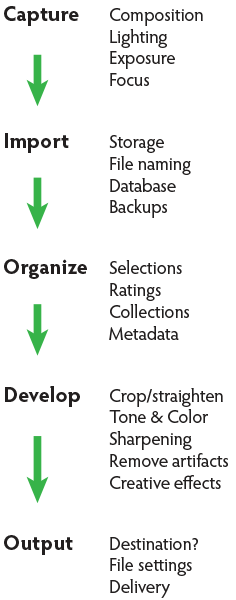
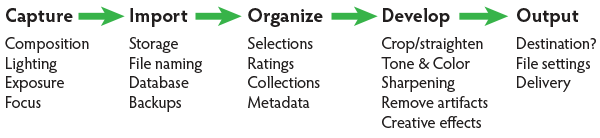
Stage 1. Capture
Whatever the end result you’re envisioning, great digital photographs begin with good data. You should always strive to make the best capture you can, and in most cases, try to finish the photo as much as possible in-camera. Work carefully to make the most accurate exposure with the ideal level of sharpness for the given scene or subject. Regardless of your capture format, you should always be working to master your camera techniques.
Stage 2. Import
Copying files from removable media onto more permanent storage is also variously called downloading, ingesting, transferring, etc., but the result is the same. Right after a shoot, copy all your images from the memory card into a new folder on at least one hard drive, then back up everything right away.
Backup. Backup. Back Up!
Every computer user knows the importance of backing up data. But too many people don’t do it, or don’t do it often enough. This isn’t a single step in the workflow; it’s something you should do frequently throughout the process. You should have your image files saved on at least three separate media sources:
- Your master working drive
- A current backup of the master drive
- A complete historical archive, preferably stored in a separate physical location from your master and working backups
(The topic of digital photo storage and backup is so important that we’ll revisit it repeatedly in the future!)
Stage 3. Organize
After your photos are copied onto your working storage media (and backed up!), sort through the pictures to separate your favorite images from the rest. The best way to do this is with ratings (e.g. stars) or other ranking methods (colors, flags, etc.).

Whichever system you prefer, keep all the photos from a single shoot together in one folder and use the ratings attributes to annotate your selections. During this stage you should also apply and enhance the metadata associated with your files. Keywords, copyright notices and contact information are just a few of the many types of textual information you can embed within a digital image.
Escaping folder hell
In the early days of digital media, it was common practice to move files from one folder to another during the editing workflow. For example, all the original images, often scans from film, would first be put into one folder. As individual photos were selected, processed and output, the files would be copied again (or moved) into other folders representing the stage of the workflow it was in. DON’T DO THIS! It creates a very unwieldy hierarchy of files and folders and makes good organization all but impossible.
Modern imaging software, and more specifically, metadata—allows you to more effectively organize files using virtual methods (such as Lightroom’s Collections and virtual copies) without the need to ever copy or move your original images on the hard drive. In an efficient workflow, there is no need to use separate folders for different types of files.
Stage 4. Develop
This is where you apply digital processing to make each image look as good as it can to fulfill your creative vision for the picture. Like Import, this stage has different names depending on who you’re talking to. Developing is the term most often used by Lightroom users. Enhancing, adjusting, post-processing, and simply editing are other common terms to describe this stage, which itself is comprised of several distinct steps.
The ideal order of operations for developing a photo depends on the characteristics of the original capture; some images will need very different enhancements than others. Still, it’s possible to define a typical sequence of steps as below.
TIP: Work global to local
Make the biggest changes first, then work your way to smaller details. In photo editing, this means first making global adjustments (those that apply to the entire image) before working on the local adjustments. And, earlier in the workflow, apply any changes relevant for large batches of images before moving on to fine tune individual photos.
Develop steps
- Crop and straighten. Since it changes the composition, cropping can be the most significant change you can make to a photograph. It’s best to do it early in the process, but you need to use a method that allows you to go back and refine the crop later if you change your mind.
- Correct distortion. Most camera lenses introduce various amounts of distortion to a picture; some more than others. Fix distortion as one of your first, regular steps.
- Adjust exposure and tones. The tonal range of an image refers to the various levels of brightness of each pixel, from pure white to solid black. Tone is independent from color. Simply setting the white and black points can have a huge impact on the overall appearance of an image, so you should normally do this before moving on to color. Tonal contrast should also be handled during this step; the variation between light and dark tones determines how much impact (or punch) a picture has. Naturally, some pictures will look best as low contrast.
- Adjust white balance and color. White balance plays the biggest role in the color of a photo. If the photo has a strong color cast — for example, an indoor photo captured using outdoor white balance settings — you should fix it before addressing tone. But for images with white balance that seems fairly accurate, set the tone before refining the white balance. After setting white balance, consider making other color adjustments, most notably saturation and vibrance, which affect how pure and vivid the colors appear. Alternatively, convert to black-and-white or apply special color effects during this step.
- Apply local adjustments. These are edits you make only to small areas of the picture. Examples are dodging and burning (lightening and darkening, respectively) and selective color adjustments. In general, you should try to make local adjustments after you’ve finished the global adjustments.
- Apply noise reduction. Noise appears in digital images as soft colored blobs or grainy speckles. Most images can be improved with varying amounts of noise reduction. Photos captured at high ISO, made in the dark, or ones that are significantly underexposed, will need more aggressive noise reduction. You’ll normally want to deal with noise reduction after you set tone and color, because those global adjustments will affect the appearance of noise. Zoom in for larger previews when adjusting noise reduction and sharpening.
- Apply sharpening. Sharpening is all about contrast. The appearance of sharpness in a digital image is based on the relative lightness or darkness of neighboring pixels along the edges of lines within the picture. More contrast along the edges equals more sharpness. As such, you shouldn’t try to refine the sharpening levels until you’ve already set the global tone range, because the overall contrast of the image will have a major effect on the appearance of sharpness. Do your sharpening a bit further into the workflow.
- Perform retouching. Many pictures contain elements that you want to remove altogether. In some cases, these are artifacts — undesirable results of digital processing or camera characteristics including noise, chromatic aberration, fringing and sensor dust spots. Other times, there’s something ugly in the frame, like a telephone pole sticking out of your mother-in-law’s head. Retouch your photos using Lightroom’s Spot Removal tool or Photoshop’s Clone Stamp and Healing Brush.Other processing can reduce or eliminate the need for retouching, so it can be a waste of time and effort to retouch photos earlier in the workflow. For example, you could spend twenty minutes removing dust spots around the edges of a photo and then decide you want to crop the picture tighter anyway.Do your retouching toward the end of the workflow.
- Apply special effects. All the previous developing steps will apply to most of your photographs. After you’ve corrected the technical issues and processed the photo to an acceptable baseline quality, consider applying further stylistic adjustments and special effects.

Stage 5. Output
After you edit photos to a level of perfection you’re happy with, think about sharing and reproducing them. In the digital realm, output generally refers to the many ways you can bring your images into the real world. To do this, from your finished master image, export derivative files, specifically for each intended purpose.
Sharing online is a great start. Most web sites have some important parameters you need to know for your images to look their best (and all web site specs are not the same). Take the time to research the best file settings for your file uploads.
High quality printed reproductions — photo books, notecards, calendars, fine art prints, etc. – also require you to follow specific parameters for exporting image files from your editing software.
TIP: About resizing photos
When you’re editing photos, you should always process your master images at their native resolution. In other words, whatever the pixel dimensions of the image as it came off your camera, do all your editing at that size. Any resizing should be done at the very end of the workflow and only on copies of the master file, each exported to the specifications for the output destination. Don’t resize your master files! (Lightroom keeps this simple – since there are no controls for resizing during the editing process, you can only do it only during an export.)
Conquer your photo editing workflow
When you don’t follow a good system, digital photography can become stressful. Losing pictures, redoing steps, and not getting the quality you’re hoping for are all side effects of an ineffective workflow. Who wants any of that?
Remember that everybody who’s mastered their personal photography workflow had to start somewhere. You’ve likely mastered some parts of the process already. Now, identify specific bottlenecks and key areas for improvement in your own photo workflow. Pick one aspect of the workflow that seems unfamiliar or challenging, and start there.
Crafting your ideal workflow doesn’t happen all at once, nor is it a purely linear process. With so many steps and potential traps, you’ll need to study and practice each of the different stages independently, then tie them together into a cohesive sequence.
TIP: The main reason Adobe Photoshop Lightroom is widely considered the best photo editing software is that it provides most of the capabilities you need to handle the complete photo workflow as describe above.
When you follow an optimized process for working with your pictures and develop a clear understanding of the principles behind your decisions, you’ll have more fun working on the things you enjoy, rather than struggling with tedious tasks.
Practicing good workflow techniques helps you make great photos – easier!
googletag.cmd.push(function() {
mobile_slots.push( googletag.defineSlot( “/1005424/_dPSv4_mob-all-article-bottom_(300×250)”, [300, 250], “pb-ad-78158” ).addService( googletag.pubads() ) );
} );
The post Digital Photo Editing Workflow – Better Images From Capture to Output by Nat Coalson appeared first on Digital Photography School.

Digital Photography School