Month: October 2013

  • Sony announces five full-frame E-mount ‘FE’ lenses, updates 70-200mm

    SEL2470.png

    Sony has announced no fewer than five ‘FE’ full frame E-mount lenses to accompany the A7 and A7R. First up is the FE 28-70mm F3.5-5.6 OSS, an image-stabilised ‘kit’ zoom for the A7. There are three premium lenses with Zeiss badges: the FE 55mm F1.8 ZA Carl Zeiss Sonnar T*, the FE 35mm F2.8 ZA Carl Zeiss Sonnar T*, and the FE 24-70mm F4 Carl Zeiss Vario Tessar T*. The fifth lens is a ‘G’ class telezoom, the FE 70-200mm F4 G OSS. Sony has also updated its Alpha-mount fast telezoom to make the 70-200mm F2.8G SSM II. 

    News: Digital Photography Review (dpreview.com)

  • Sony introduces large-sensor ‘high-zoom’ Cyber-shot RX10

    RX10_front_2.png

    Sony has announced an addition to its RX-series of premium fixed-lens cameras, the Cyber-shot DSC-RX10. With the same 1″ sensor as the RX100 II, the RX10 offers a Carl Zeiss Vario Sonnar T* 24-200mm equivalent zoom lens with an F2.8 constant maximum aperture. It uses a Bionz X image processor with offers improvements in resolution, noise reduction, and diffraction reduction. Other features include a tilting 3-inch LCD, OLED electronic viewfinder, Wi-Fi with NFC, and 60p video recording. Click through for more details.

    News: Digital Photography Review (dpreview.com)

  • Sony announces A7 and A7R: first full-frame mirrorless ILC cameras

    ILCE-7_wSEL2870_right.png

    Sony has announced the A7 and A7R – the world’s first full-frame mirrorless interchangeable lens cameras. Externally, the two bodies are nearly identical and feature a pentaprism-like EVF housing, generous handgrip and plenty of manual controls. The differences are internal – sporting a 36 megapixel sensor, the A7R has no optical low-pass filter and is limited to contrast-detect autofocus, while the less expensive A7 has a 24 megapixel sensor with a low-pass filter and on-chip phase detection. Both bodies are designed around the Sony NEX E-mount, though new ‘FE’ lenses are needed to take advantage of the larger sensor. Click through for more details.

    News: Digital Photography Review (dpreview.com)

  • Very big and very fast: Sony Cyber-shot RX10 first-impressions review

    rx10.jpg

    Sony’s new Cyber-shot RX10 marries the 20MP 1-inch BSI-CMOS sensor from the RX100 II with a 24-200mm Zeiss Vario-Sonnar zoom lens, with a constant maximum aperture of F2.8. On paper it’s an impressively versatile package for both still and video capture, and we’ve spent a few days with a pre-production sample to get a feel for how Sony’s most powerful Cyber-shot yet performs. Click through for a link to our first impressions review. 

    News: Digital Photography Review (dpreview.com)

  • First impressions review of the full-frame Sony A7 and A7R

    A7news.jpg

    Sony’s new A7 and A7R bring full-frame imaging to the company’s mirrorless ILC lineup, using the established E-mount. While they’re not quite the ‘full-frame NEX’ that some loyal Sony users might have been imagining, the 24MP A7 and 36MP A7R are impressive, innovative products that demand to be taken seriously (with a price-point to match). We’ve had the opportunity to use pre-production samples of both new models, and we’ve prepared a hands-on first impressions review covering off their key features, operation, and early indications of their performance. Click through to read more. 

    News: Digital Photography Review (dpreview.com)

  • Use Lightroom Collections to Improve your Workflow

    Using Lightroom Collections

    The main benefit of Lightroom’s Library module is that it gives you the tools you need to get organised and speed up your workflow. The end result is that you can spend more time in the Develop module – the place where you creatively process your photos.

    The best way to get organised is by using Collections and Collection Sets. There seem to be as many ways of using Collections as there are photographers. I’m going to look at two in this article. The first uses Collections, and the second Smart Collections. Together they will give you an insight into how you can use Collections to improve your workflow.

    Why use Collections?

    You may be wondering why you should use Collections in Lightroom instead of the Folders panel. Here’s why:

    1. The Folders panel is only available in the Library module.

    The Collections panel is accessible from every module. Adobe wants you to use the Collections panel as it is the most practical way to organise your images.

    2. Collections and Collection Sets give you far more freedom than the Folders panel.

    The contents of the Folders panel mirrors the file structure of your hard drive. Let’s say you take a photo of a friend called Amy in Hong Kong. In the Folders panel, that photo can only exist in one place – the physical folder where it has been saved on your hard drive.

    However, the same file can be stored in as many Collections as you like. It could be part of a Collection called ‘Amy’, another called ‘Hong Kong’, perhaps another called ‘Favourite photos’. There is no limit to the number of Collections you can add it to.

    It’s a little like using Playlists in iTunes. You can add a song to as many Playlists as you like. It’s the same in Lightroom with photos and Collections.

    Organise your images

    Hopefully you’re now beginning to see just how flexible and convenient Collections are. Now let’s take a look at how you can use them to organise your images.

    Other photographers’ methods

    When it comes to learning how to use Lightroom, don’t feel that you have to figure everything out yourself. There are plenty of outstanding websites dedicated to using Lightroom, and lots of photographers who share the way they work for others to use. There’s no need to re-invent the wheel – just find a way that works for you and tweak it to suit your needs.

    In that spirit, I’m going to look at two methods for using Collections I learnt from other photographers.

    Technique 1: Using multiple Collections

    Using Lightroom Collections

    This technique is based on a method I read about on Scott Kelby’s blog. I like it because it’s simple, and the easiest way that I’ve found to narrow down the images you take in a shoot to the ones that you want to process. The quicker you can do that, the sooner you can move on to the Develop module. Here’s a brief description of how it works:

    • Create a Collection Set and give it a name relevant to the shoot (i.e. the name of the place where the photos were taken, or the person in the photos etc.)
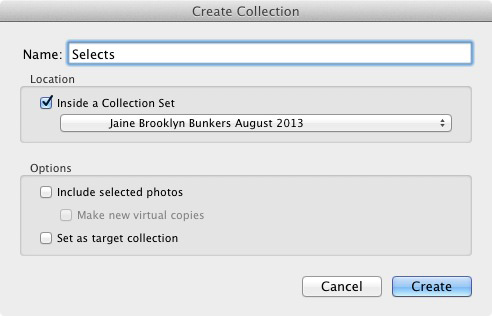
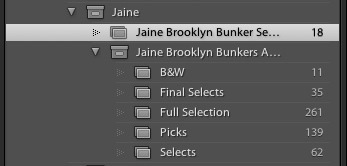
    • Create three Collections inside that Collection Set. Name them Full Shoot, Picks and Selects.
    • Send all the photos from the shoot to the Full Shoot Collection.
    • Flag your favourite photos from the Full Shoot Collection and send them to the Picks Collection. You don’t have to be really selective at this stage. You’re eliminating the worst images rather than picking the best.
    • Use flags to mark your best photos from the Picks Collection and send them to the Selects Collection. This is where you get really picky – the aim is to select only the very best photos from the shoot, the ones you intend to process.

    Of course, you can adapt this to you own needs. If you don’t take many photos during a shoot, you may only need two Collections to narrow them down. On the other hand, if you want to convert some of your photos to black and white, you could create an additional Collection to hold those images.

    Using Lightroom Collections

    As you can see, I ended up creating five Collections for the above shoot.

    The process is outlined in full here.

    Technique 2: Using Smart Collections

    Using Lightroom Collections

    The previous technique relies on you adding photos to each Collection manually. But it’s also possible to use Smart Collections that Lightroom populates automatically. Photographer Rob Knight has the following system:

    • Create a Collection Set – give it a relevant name (in Rob’s example he uses ‘Landscape’).
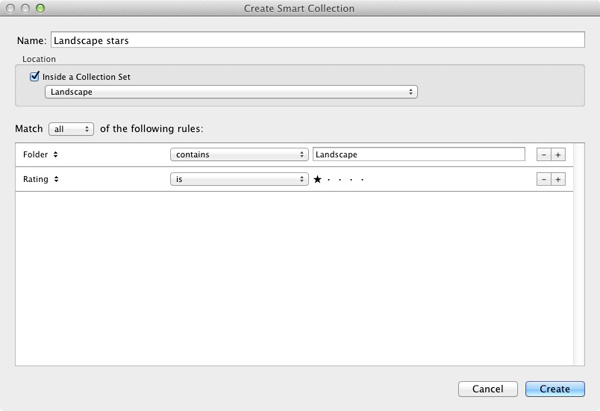
    • Create two Smart Collections inside the Collection Set. Rob names his ‘Landscape picks’ and ‘Landscape stars’. All he has done here is add the words ‘picks’ and ‘stars’ to the name of his Collection Set. The article (link below) explains what rules to set.
    • Go to the Folder containing the images, and flag the best as picks. They are sent automatically to the ‘Landscape picks’ Smart Collection.
    • Go to the ‘Landscape Picks’ Smart Collection and give the best images a one star rating. Lightroom adds them to the ‘Landscape stars’ Smart Collection. This Smart Collection contains the best images from the shoot.

    You can read about it  here.

    Over to you

    If you have an interesting way to use Collections yourself, then why not leave a comment? I would love it if readers could share some of their ideas – I’m also curious to see how other people use Collections.

    Mastering Lightroom Book One: The Library Module

    Using Lightroom Collections

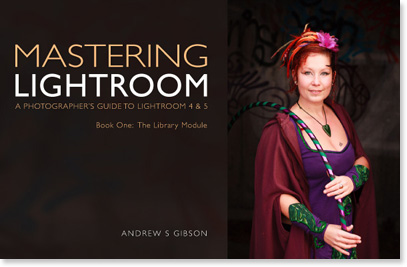
    My latest ebook Mastering Lightroom Book One: The Library Module is a complete guide to using Lightroom’s Library module to import, organise and search your photo files. You’ll learn how to tame your growing photo collection using Collections and Collection Sets, and how to save time so you can spend more time in the Develop module processing your photos.

    Post originally from: Digital Photography Tips.

    Check out our more Photography Tips at Photography Tips for Beginners, Portrait Photography Tips and Wedding Photography Tips.

    Use Lightroom Collections to Improve your Workflow

    The post Use Lightroom Collections to Improve your Workflow by Andrew Gibson appeared first on Digital Photography School.


    Digital Photography School

  • IM Creator: The Free Website Builder That Any Photographer Would Kill to Have!

    At Photodoto, we understand professional photographers perfectly. We know that one of the most important tools that professional photographers can have is a sharp, modern and attractive website. Without one, your professional life becomes so much harder and, naturally, less visible. So, by all means, get one! What better way to get one, though, than your very own free website Continue Reading

    The post IM Creator: The Free Website Builder That Any Photographer Would Kill to Have! appeared first on Photodoto.


    Photodoto

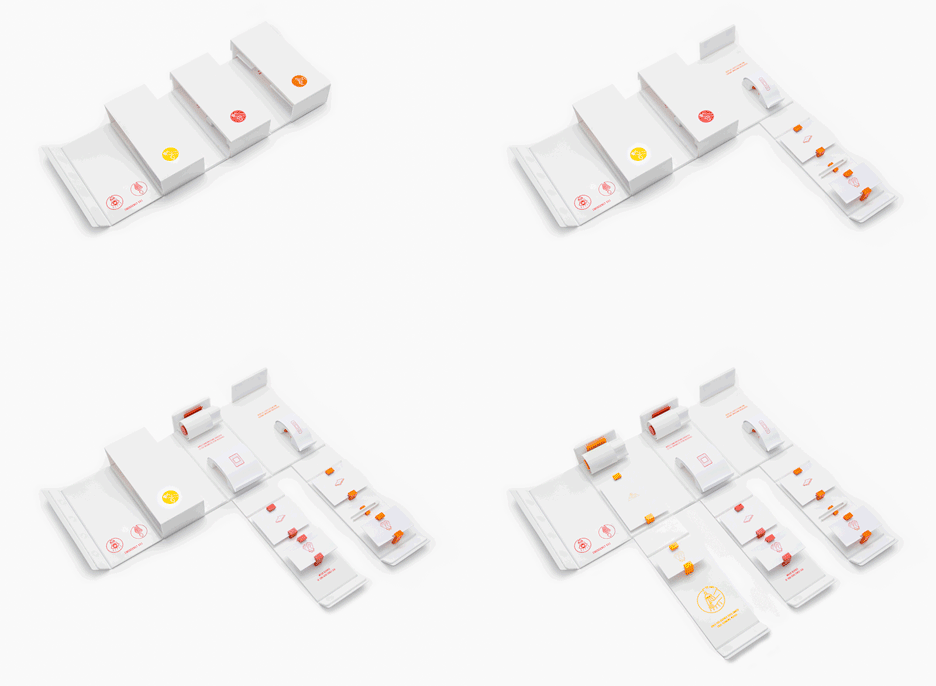
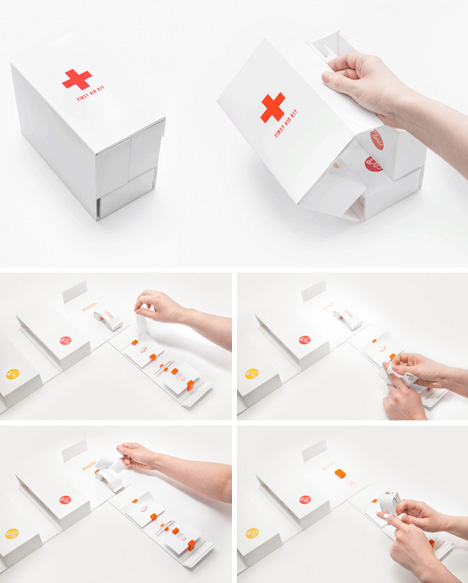
  • One-Handed, Color-Coded First Aid Kit for Fast & Easy Use

    [ By WebUrbanist in Design & Products & Packaging. ]

    emergency-kit-animation

    If any design should be simple and intuitive, surely it would be an emergency medical kit – something you make lack time, treatment expertise or even a clear head to operate well in a disaster situation.

    one handed first aid

    emergenciy kit

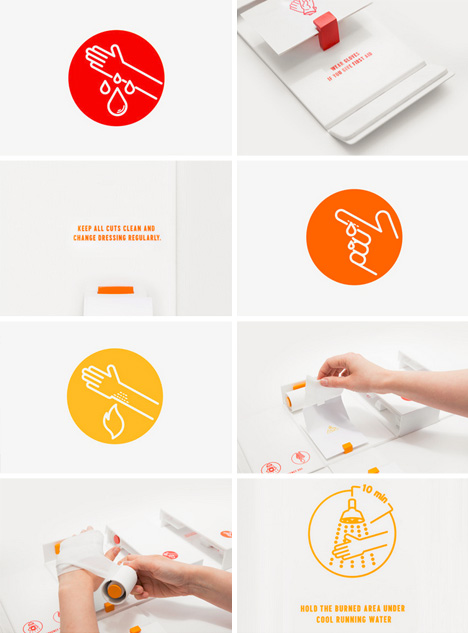
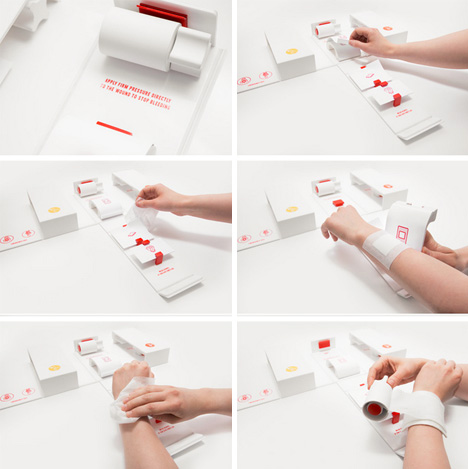
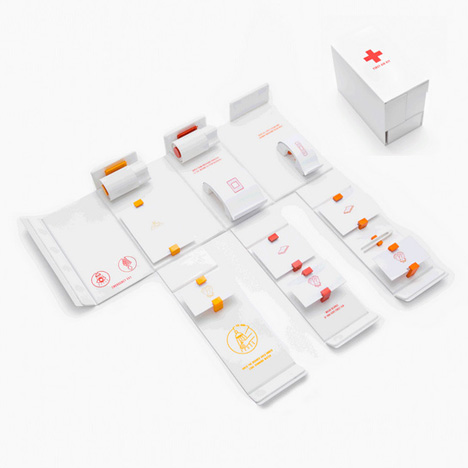
    This revamped version of the classic Home First Aid Kit by Gabriele Meldaikyte starts with a system colors assigned to different types of typical injury: yellow for burns and scalds, orange for minor cuts and scratches, and red for deep cuts and bleeding. Intuitively, the darker the color on the spectrum, the more serious the situation.

    one easy medical kit

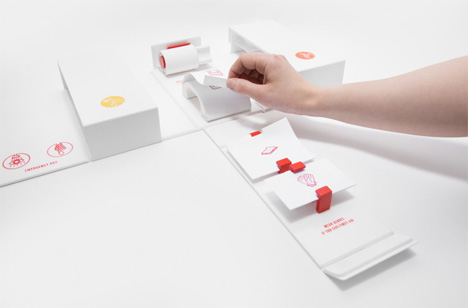
    Anyone who has had to work one-handed (due to an other-hand injury and being alone at the time) to open packages, unscrew containers, unroll gauze and treat a wound knows that most products do not make this easy. Hence the other critical aspect of the design: the box can be opened and its contents deployed and its strips of gauze cut by someone who lacks the normal range of human dexterity.

    one emergency injury instructions

    simple kit

    The idea is that someone who may not have familiarized themselves ahead of time can be walked through the process via clear visual cues and step-by-step instructions: “Every injury is described in steps, guiding the casualty through the treatment process. I have provided special tools to enable this one-handed treatment. These include a bandage applicator, where bandage can be applied much faster and can be cut off with integrated blades (replacing scissors). A plaster and dressing applicator that works like a stamp: where you tear off the top protection layer and then you stamp it on the cut, with the remaining layer working as a protection for the next plaster etc.”

    Share on Facebook


    [ By WebUrbanist in Design & Products & Packaging. ]

    [ WebUrbanist | Archives | Galleries | Privacy | TOS ]


    WebUrbanist

  • Flickr Rolls Out New Photo Preview Page to All Users

    Flickr Opens Up New Photo Preview Page to Users

    Yesterday Flickr opened up their new photo page preview to the world. I opted in to the new photo page this morning and here are my initial thoughts on it. Overall I like it.

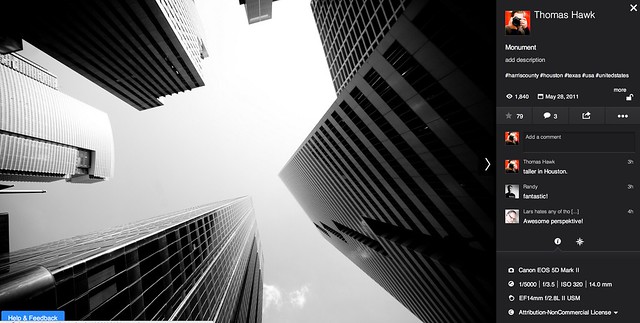
    1. Photos are bigger. The bigger the photo the better. Flickr eliminated top menu items on the page. They also eliminated the hint area to encourage people to scroll below the fold. By moving the top and bottom non-photo information to the side of the photo, this allows bigger photos.

    2. You no longer have to scroll to see a lot of the important information around a photo. Having a lot of the information that people care about to the side of the photo, makes it easier to get to this information. You know, sort of like how Google+ does it. ;)

    3. I’ve got mixed feelings on the new hashtags. I do like the fact that Flickr has added #tags to all Flickr tags… I think. This is the new methodology for tags in social media (i.e. Twitter, Instagram, Facebook, Google+ and everybody else in the world), so it would make sense that people would be more familiar with this concept, especially new users.

    On the other hand, hashtags don’t really work very well for multi word tags and descriptions (the space between words gets stripped out). So “Saved by the Deleteme Uncensored Group” on the old Flickr photo page now becomes #savedbythedeletemeuncensoredgroup, which looks like a big mess. A lot of Flickr users would tag phrases and thoughts in the tag section of their photos and these are now pretty much unreadable.

    Also Flickr now hides a lot of tags underneath a “more” button. This to me would seem to discourage users from using lots of descriptive tags, which I think are important for organizational and search reasons on Flickr. I don’t think any tags should be hidden under a “more” button. All tags should be shown on the photo page.

    Groups and others who relied on multi word tags for photo games, may not like the new tagging structure.

    4. A lot of the full functionality of the new photo page is being developed. This new photo page is by no means the final product. I think it’s good that Flickr lets people opt in and opt back out, to try it out. It’s a little bit of perpetual beta in a way and I like that Flickr is willing to put itself out there without having everything at 100%. Move fast and break things (as they say over at Facebook).

    5. The new Flickr photo page is an under-developed preview, this means that there are quite a few things that still need to be done (some of which are planned and in the works by Flickr).

    We need to be able to generate html code to blog images off site still (it’s coming). We need to be able to see all sizes of our photos and download our photos (it’s coming). We need to be able to click on favorites and see who has favorited an image. We need to be able to click on a date an image was taken and have it take us to the calendar archive view for that day of our photos. You can’t edit a comment on a photo after you make it (you can only delete your comment and start over). HTML formated links seem to be borked in photo descriptions.

    Lots of little things still need to be added in to the photo page. It’s missing a lot of functionality still. The design looks good though and I hope they implement all these little things quickly.

    6. My favorite thing about the new photo page is that it really highlights your sets. Sets are one of my favorite things on Flickr. I’ve made over 1,800 sets on Flickr. With the new photo page, Flickr now shows other thumbnails of photos from the same set and not just a link to the set. I think this will drive more views to people’s sets on Flickr, which is a great thing. [Note: this seemed to be working earlier today, but now it seems like this feature is not showing on my photos]

    7. According to Neil Howard, the new Flickr photo page doesn’t support secure SSL browsing. SSL is the “https://” that makes a connection encrypted which is used by a lot of people.

    8. I do like the new feedback forum that Flickr is also pushing with this preview. It has a way to vote answers up or down. This seems like an interesting way for staff to pay attention to the things that need to be fixed the most. The forum is already full of the “who moved my cheese” cheeshead bellyaching that comes with every Flickr change, but there is some useful criticism and feedback there that seems to bubble up to the top at the same time.

    One other thing worth noting with these new bigger photos. A lot of photographers have told me over the years that they only load small, low res images on social media sites like Flickr. They think that these smaller photos are “good enough” and fret about having their larger images “stolen.”

    I’ve always uploaded my full high res originals to the Flickr. As display sizes keep getting bigger and bigger, some of the people who have uploaded low res, small photos are going to see their photos begin to look bad in the larger size formats. On the other hand, those of us who always upload high res photos, our photos will still look good at these larger sizes. Especially as more and more photos are being consumed on things like the Flickr app on AppleTV, people ARE actually looking at your photos in much larger format than what you may have initially considered. Everything with photos on today’s web is going BIGGER — just something to think about.

    It is pretty cool that Flickr gives everyone a full terabyte of high res original sized images for free — which means virtually unlimited free storage for your high res photos on Flickr. Google and Facebook should do that too.

    These are my initial thoughts. Now I’m actually going to revert back to the old photo page (so that I can get the html code to blog the image in this post) and then revert back to the new page and keep testing it out.

    What do you think of the new Flickr Photo Page? Do you like it? Love it? Hate it? And why?

    More from The Verge here.


    Thomas Hawk Digital Connection

  • Olympus OM-D E-M1 Review

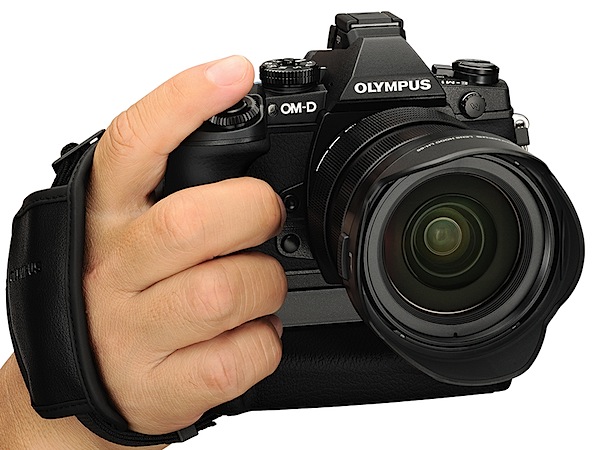
    Olympus OM-D E-M1 Review front.jpg

    I got the feeling the opposition was spooked by the news that this one was coming. Suddenly, major makers all over town announced press chats to bellow their wares from the heights.

    Olympus has a disturbing habit of delivering tasty morsels resembling full-on meals (!) in a manner far beyond its size. In the past companies such as Nikon and Canon have been justifiably wary of the O company and its moves on the market. This looks like another one.

    The retro-styled, magnesium alloy bodied E-M1 is Olympus’ flagship compact system camera and, in some very obvious ways, announces that Micro Four Thirds has well and truly arrived. Farewell Four Thirds!

    The review camera was supplied with the f2.8/12-40mm lens which has the same type of sealing as the camera body. The E-M1 was loaned to me for only a few days, so this review will have to be a tad cursory … but, please forgive me if I lean on the hyperbole a bit!

    First up, as far as handling goes, we see the benefits of the Micro Four Thirds system: the camera and lens are not a bulky package.

    Olympus OM-D E-M1 Review back.jpg

    Olympus OM-D E-M1 Review top.jpg

    Olympus OM-D E-M1 Features

    The first (and still current) model in the OM-D series was the E-M5 … don’t you just love the numbering system!

    • The 16.3 megapixel LiveMOS sensor has on-chip Phase Detection AF, True Pic VII image processor and a new electronic view finder. No anti-aliasing filter.
    • Dual Fast AF Technology supports both Contrast AF and On-chip Phase Detection AF, which allows users of both the Four Thirds and Micro Four Thirds systems to use their lenses.
    • There’s an enhanced 5-axis image stabiliser for improved stabilisation at lower shutter speeds.
    • ISO range: 200 – 25600.
    • Manual focus with focus peaking.
    • Focus points: 81-area multiple contrast detection AF with 37-area multiple AF phase detection AF.
    • In-camera HDR.
    • Flash: no built-in flash. Flash sync (for external unit): 1/320 sec.
    • Built-in WiFi.
    • Weather sealing: dust, splash, freeze resistance (-10?C).
    • The LCD screen tilts up and down in a vertical plane but does not tilt up and forward for self portraits.
    • Customizable buttons: two on the front.
    • Built-in microphone socket.
    • Interface: AP2 accessory port, AV/USB, HDMI connector.
    • The maximum image size is 4608×3456 pixels, which leads to a 39×29 cm print. Video is in Full HD 1920x1080pixel resolution. If you shoot a still mid video recording the video is interrupted.
    • Continuous shoot at up to 10fps.
    • The intervalometer can shoot up to 999 shots with a movie compilation at the end.
    • The Color Creator mode allows you to adjust the camera’s colour response, accessed from the Function 2 button and allows a live preview of its effects with a navigable colour wheel that changes the hue and saturation of the image.

    Daisies 2.JPG

    Kayak.JPG

    People and model yacht.JPG

    People near lake.JPG

    Yachts 2.JPG

    Olympus OM-D E-M1 Controls

    At first, the camera appears to have a crowded control layout: but this is only because the whole kit is so modest in size!

    Flanking the lens mount are a pair of buttons that offer instant, one touch white balance (targetting a white card) and a preview button that gives you an idea of the scene when stopped down. These buttons are devilishly hard to activate too!

    The first — and only — shock is that the power lever is located at the left of the camera’s top deck, tucked in between two buttons which access AF options and HDR/sequential shooting. It takes some adjusting to feel relaxed with this location!

    Off to the right is the mode dial. This has something I have never seen before: a two way lock to set or release the dial.
    Art Filter.JPG

    Scene Filter.JPG

    This dial gives access to auto, PASM, Art Filters (13), Photo story (in this mode you can shoot multiple shots, then combine them into one image and then add handwritten text), Scene Filters (24), video.

    Nearby are the shutter button, a front and rear control dial, Function 2 button and the familiar video record button. Tucked awkwardly into the far right corner is the Function 1 button.

    On the brow of the top deck and rear panel are the top/LCD viewfinder button and a two position lever that swings from AE to AF options.

    Rear: buttons for Info (screen display options) and menu plus replay and trash.
    The four way jog dial has a central OK button that quickly gives access to ISO, AF/MF, flash choices, image sizes,single/continuous shooting, white balance, etc.

    As you can see, there is a whole forest of choices with often more than one way to get where you’re going.

    It’s worth mentioning there are three options for the touch screen: off, tap and shoot, tap to display a resizeable AF target — then tap to shoot!

    Olympus OM-D E-M1 ISO Tests

    Olympus  OM-D E-M1 ISO 100.JPG

    Olympus  OM-D E-M1 ISO 400.JPG

    Olympus  OM-D E-M1 ISO 800.JPG

    Olympus  OM-D E-M1 ISO 1600.JPG

    Olympus  OM-D E-M1 ISO 3200.JPG

    Olympus  OM-D E-M1 ISO 6400.JPG

    Olympus  OM-D E-M1 ISO 12800.JPG

    Olympus  OM-D E-M1 ISO 25600.JPG

    Only at ISO 6400 is noise slightly noticeable. At ISO 12800 noise is up a little more but still useable. Surprisingly, ISO 25600 would be useable for certain subjects, ie those with no large areas of continuous tone.

    Some Notes

    The viewing setup is to to die for: while the rear screen is excellent, the top finder is superb, sharp and bright, while seeming so close to an actual optical finder. Remember this is a mirrorless camera!

    And note: there’s an underwater case for the Olympus OM-D E-M1, allowing shooting down to 45 metres. It’s equipped with a wireless flash control function and a waterproof lens port can be attached.

    Olympus OM-D E-M1 Review Verdict

    Quality: truly superb quality with tons of access to image management.

    Why you’d buy the Olympus OM-D E-M1: excellent stabiliser for video shooting; arguably the best Micro Four Thirds camera on the market.

    Why you wouldn’t: you don’t have the expertise to drive it!

    And now a confession: in my rush to get shooting I found myself with a lens that was determinedly manual in operation. No way could I get it onto AF. Then I found a tiny leaflet in the lens box that imparted the secret: slip the focus ring forward and you enter auto focus; reverse it and you’re in manual.

    So I ran the E-M1 for a while in manual focus and can’t rave enough about the focus peaking approach which gives a superb confirmation in the viewfinder that you’re on the right spot.

    A truly remarkable camera. Want one!

    Olympus OM-D E-M1 Specifications

    Image Sensor: 16.28 million effective pixels.
    Metering: Multi pattern, centre-weighted averaging, spot.
    Exposure Modes: Auto, Program AE, shutter and aperture priority, manual.
    Effective Sensor Size: 17.3×13.0mm (22.5mm diagonal) Live MOS.
    Lens Mount: Micro Four Thirds.
    35 SLR Lens Factor: 2x.
    Shutter Speed: 60 sec to 1/8000 second, Time, Bulb. Internal/external flash sync: 1/320/250 sec.
    Continuous Shooting: up to 10 fps.
    Memory: SD/SDHC/SDXC cards and Eye-Fi.
    Image Sizes (pixels): 4608×3456 to 640×480. Movies: 1920×1080, 1280×720, 640×480.
    LCD Screen: Viewfinder (2,360,000 pixels), 7.6cm LCD (1,040,000 pixels).
    File Formats: JPEG, RAW, JPEG+RAW, MPEG4.
    Colour Space: sRGB, Adobe RGB.
    ISO Sensitivity: Auto, 200 to 25600.
    Interface: USB 2.0, HDMI mini, AV, flash, mic, WiFi.
    Power: Rechargeable lithium ion battery, DC input.
    Dimensions: 130.4×93.5×63.1 WHDmm.
    Weight: 497 g (inc battery and card).
    Prices: Get a price on the Olympus OM-D E-M1 (Body Only) or the Olympus Om-d E-m1 with 12-40mm F2.8 Lens.

    Post originally from: Digital Photography Tips.

    Check out our more Photography Tips at Photography Tips for Beginners, Portrait Photography Tips and Wedding Photography Tips.

    Olympus OM-D E-M1 Review

    The post Olympus OM-D E-M1 Review by Barrie Smith appeared first on Digital Photography School.


    Digital Photography School