RSS
 

Posts Tagged ‘File’

Review: JPEGmini – Reducing Photo File Size, Not Quality

12 Sep

JPEGmini is a company that has a unique approach to optimizing your JPEG format images in an effort to help you save storage space. I took a quick look at their offering and shared my thoughts on it with Sarah Perez in a recent TechCrunch article New Startup JPEGmini Reduces Photos’ Size, Not Their Quality. I thought I would share a little more about my take on the service in the event it’s something you feel is worthy of trying or using.
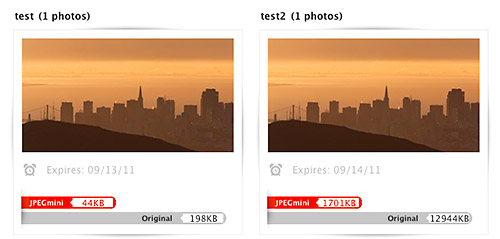

Test1 – Web sized image (800 px x 500 px)
Test2 – Full size image (5616 px x 3744 px)

What is JPEGmini?

  • JPEGmini is NOT a new file format.
  • JPEGmini is a re-compression engine with a twist:

    JPEGmini works by analyzing the input image using a unique quality detector which imitates the human visual system, and based on this analysis applying the maximum amount of compression which will not cause visible artifacts. For further details, see the technology section

  • JPEGmini is an online service… for now

Does It Work?
The quick answer is yes and no. JPEGmini excels at compressing larger images versus smaller images. Compression gains are also made most significantly on “first-generation photos created by digital cameras”. In other words if you’ve edited a photo already in photo editing software you may not see huge file size reduction namely because the file has already undergone some level of compression.

I was a skeptic when I learned about this site. I ran a quick test to compare the following:

I tested two images of different types.

  • An image with not a lot of detail and similar tones. Such images have a lot of similar data that is easily compressed resulting in higher compression savings.
  • An image with a lot of detail and varied tones. Such images do not have a lot of similar data to compress resulting in less compression savings.

I also tested two different files sizes for each image:

  • Web sized image (800 px x 500 px)
  • Full size image (5616 px x 3744 px)

The results were notable with file size saving from 67% to 87%. But I also ran each image through Photoshop’s “Save for Web & Devices” at 60% quality to attain savings from 71% to 85%. Bottom line Photoshop reduces file size for web sized images better in this simplified test by 4-7%. On the other hand larger images attained greater file size reduction with JPEGmini over Photoshop by  4-7%.
Note: Photoshop is not optimized for compressing very large images with their “Save for Web & Devices” function and JPEGmini states they perform better with larger images.

Full Test Details

Pros, Cons & Thoughts
The pros clearly are that you can reduce the size of your large image files with the JPEGmini. In scale this could help you save money by reducing your demand for new hard drives. You can compress images without buying expensive software like Photoshop. All metadata is preserved.  Image quality suffered very little when comparing the original image and the JPEGmini version of the image at 100%. In fact most people would not notice a difference. That being said I did not run print comparisons of each file before and after JPEGmini compression.

On the other hand the service is only available online requiring you to upload images, wait for the compression engine to process your files (can range from minutes to hours) and then spend the time to download them. It’s also important to note that the service only works with JPEGs. The significance of this is that you’re compressing your image files multiple times and each compression ultimately results in loss of data. Compress an image repeatedly and you can impact image quality. For more on this refer to my previous article (pre-blog) guest written by Oskar Breuning JPEG Compression: Data Loss & Image Impact. Lastly the biggest concern I have surrounds the JPEGmini Terms of Service (TOS) namely the following User Submission section:

You hereby grant ICVT and our designees a worldwide, non-exclusive, sublicenseable (through multiple tiers), assignable, royalty-free, fully paid-up, perpetual, irrevocable right to use, host, store, index, reproduce, distribute, create derivative works of, and display and perform your Content on the web and on mobile devices, solely in connection with our provision of the Service

Uploading an image places the image on their server. While files are only kept for roughly 1 week, images can be used by JPEGmini’s parent company to market their service. Personally the broad nature of this section makes me too uncomfortable to use the service beyond testing. Of specific concern is the right claimed to sublicense images that they deem irrevocable. Not very photographer friendly in my eyes. Note: Dror Gill the CTO of the company has stated that photos are not used for promotion without confirmation from the owner in a comment on the TechCrunch article.

My hope is two fold for JPEGmini…

  1. Clarify Modify the ToS to be more photographer friendly and less JPEGmini-centric
  2. License their technology so it can be utilized in established programs and mobile applications or launch their own desktop & mobile applications.

Technorati Tags: photography, technology, JPEGmini, Photoshop, compression, JPEG

Copyright Jim M. Goldstein, All Rights Reserved

Review: JPEGmini – Reducing Photo File Size, Not Quality

flattr this!


JMG-Galleries – Jim M. Goldstein Photography

 
Comments Off on Review: JPEGmini – Reducing Photo File Size, Not Quality

Posted in Equipment


Free Online File Convertors

13 Aug

All2Convert – A fast way to convert videos from Youtube– a popular video sharing site.

Any Video Converter – Any Video converter provides support for conversion of almost all video file tyes like AVI, DivX, FLV, RM and more. Users are also provided with transfer options to devices like iPod and PSP.

Apple iPod Video Converter – Apple’s DVD2iPod allows users to convert DVD files to iPod, WMV, AVI and MPEG files.

AVS Video – A quality converter for DVD and VCD file formats.

Cellsea – Cellsea is an online video editor converting video files from desktop or online locations. It provides video conversion support for sites like Break.com, iFilm.com, Youtube.com, Metacafe.com, Google Video to name a few.

Convert Tube – Convert Tube is a quick online video converter for conversion to MP3, MP4, MOV and 3GP.

Easy Video Converter – A powerful utility for converting between video file formats like AVI, Realmedia, WMV/ASF, Quicktime, 3GP, MP4, FLV etc.

Flvix.com – An online free video converter for converting YouTube, Googlevideos into format compatible with PC, Mobile, iPod etc.

Hey Watch! – Hey Watch! Is an online video conversion utility for iPod like devices.

Koyote – Koyote can convert FLV,DIVX and other video formats into an iPod ready video format.

Media Convert – A cool media conversion utility which enables the users with various options for videos.

MediaConverter – A web-based video conversion utility including conversion from sites like YouTube.

SOSTV.de – A Weblog about German Cable and Pay TV, Films and addictive Series.

Movavi – Movavi allows users to convert video files to formats like AVI, Mpeg, iPod, PSP video, 3gp etc.

Reganam – 3GP Converter – A 3GP converter with support for conversion for various video files like MP3, QuickTime, AVI, Real Media and MPEG.

Tubefish – Tubefish video converter is a powerful video conversion service for converting videos to MPEG, AVI, MOV, 3GP and Divx.

Vconvert – Vconvert is an online converter for flv file format and YouTube videos. It converts videos to compatible formats for iPod/iPhone and mobile phone.

VIDEO4IPOD.ORG – A video and movie conversion utility for Apple’s Video iPod.

Video codezone – Simply enter the video URL which needs to be converted and choose the file format like iPod, 3GP, Quicktime, FLV, m4, AVI, mp3.

Vixy – A conversion utility allowing users to convert web-based Flash application to other video formats.

Xconv – Xconv offers free file conversion support for multiple file formats: word, wmv, PowerPoint, real audio, jpeg etc.

You convert it – A multi-purpose conversion utility with conversion support for images, audio, video and units.

Zune Online Audio-Video Converter – An online file converter with support for Zune compatible formats in audio and video.

Enjoy converting your videos online and drop us a line if one of the services listed above i not working anymore. Sometimes the servers are running out of traffic and the services are stopped until the end of the month. The Video converters are free of charge at the time we wrote this article. If a video conversion service changed to charging money for the video conversion please write a note in our comments. We do not remove the Video Converters but we want to mark them as commercial service.

Any suggestions, ideas? Feel free to comment on this article!

Back to Top

BlogPhoto

 
Comments Off on Free Online File Convertors

Posted in Equipment


Awesome File Back Up and Recovery for Photo Editing – Thermaltake BlacX Duet Hard Drives Dock

03 Jul

artoftheimage.blogspot.com – If you’re like me, you’re always looking to add more hard drives for photo storage and photo editing. The Thermaltake BlacX Duet eSATA and USB2.0 Hard Drives Dock is one AWESOME little gem! I have the single hard drive version, but just picked up the DUET which features spots for two hard drives in a single dock! It hooks up via eSATA for SUPER FAST speed, and also via USB 2.0 for greater compatability with devices that don’t have eSATA.


Microsoft PowerPoint 2010 – Change Default AutoRecover and Presentation File Locations

20 May

Change the default directory where PowerPoint 2010 presentations are saved as well as where AutoRecover files are kept.

By default, as with other Office 2010 applications, Microsoft PowerPoint 2010 defaults to the user Documents directory to save presentations. AutoRecover files, useful if PowerPoint 2010 or your system crashes before a document is saved, are placed in the user’s AppData directory. For example, on standard Windows 7 installations, documents default to the C:\ Users\ YOUR_USER_NAME\ Documents folder, and AutoRecover files are stored at C:\ Users\ YOUR_USER_NAME\ AppData\ Roaming\ Microsoft\ PowerPoint.

If you have multiple hard drives and/or partitions, you may have one designated to keep data files and documents separate from programs and your operating system. Thus, moving these default locations to the other hard drive or partition might prove quite useful. And here’s how to do so:…

Read more at MalekTips.
New Computer and Technology Help and Tips – MalekTips.Com

 
Comments Off on Microsoft PowerPoint 2010 – Change Default AutoRecover and Presentation File Locations

Posted in Technology


File Renamers – Freeware Panda Batch File Renamer for Windows

14 Mar

Panda Batch File Renamer offers a wide variety of rename options, and can show thumbnails of queued photos to help during the rename process.

Panda Batch File Renamer is a freeware (for non-commercial use) file rename utility for Windows. The software offers features standard in most renaming packages including adding, replacing, and deleting text. Additional functions include removing accents, reversing text, and regular expression support. File, image, music, and photo information can be added, allowing for filenames including image dimensions, parent folder names, and song artists, for example.

Files may be added to the rename queue via the menu bar, “Add files” button, or Explorer drag-and-drop. You can choose to rename all files in the queue or only selected files. If after the renaming you realize you made a mistake, the program supports an undo function. You can also choose to undo all or only a few renames, offering extra flexibility….

Read more at MalekTips.
New Computer and Technology Help and Tips – MalekTips.Com

 
Comments Off on File Renamers – Freeware Panda Batch File Renamer for Windows

Posted in Technology


File Renamers – spacetornado Renamer for Windows

16 Oct

A free file renamer for Windows that performs basic operations – adding, replacing, and removing text, as well as changing text case.

Though it doesn’t handle ID3, EXIF, and other metadata, spacetornado Renamer for Windows can handle other basic file operations on a group of files – and it’s free. Plus, it includes a “Preview” button so you can see how filenames will appear before performing actual renaming.

Using spacetornado Renamer is simple – add files and folders from any path. Choose which file operations you wish to perform, in what order, and whether or not operations should be performed on file names and/or extensions. Then click the “Preview” button, and if all looks Ok, click “Rename” to perform the operation(s). …

Read more at MalekTips.
New Computer and Technology Help and Tips – MalekTips.Com

 
Comments Off on File Renamers – spacetornado Renamer for Windows

Posted in Technology


Lightroom 3 Tutorial – Editing a RAW file

30 Aug

www.FroKnowsPhoto.com Wow are you in for a treat. The video below will take you on a journey form start to finish of fully tweaking a RAW file from a D3X from out of the camera to finished product. You may need to watch this video a few times to really pick up on all of the tricks that Greg is using here. As you can tell there is a huge difference between the unedited RAW file and the fully edited RAW file. Look at how the image pops off the screen and almost looks 3d. That is thanks to the Dynamic Range of the Nikon D3X RAW file. Sign up for your FREE EBOOK at www.FroKnowsPhoto.com