Month: December 2017

  • Review of the Lensbaby Velvet 85

    Lensbaby has been producing lenses that create interesting effects since 2004. During that time people have been experimenting and trying out different ways of using them. In the spring of 2015, they introduced the Velvet 56 to the joy of many photographers, especially those doing macro. This year, their newest lens in the line-up was released, the Lensbaby Velvet 85.

    leannecole-review-lensbaby-velvet85-

    The Lensbaby Velvet 85

    The Velvet 85 promises to be a great lens for portraiture creating impressionist-like portraits of people. It does indeed do that, but you can use it for so much more. It is a great lens for photographers who like images with mood and which concentrate more on the subject with a lot of bokeh.

    First Impressions

    The lens is very well made and when you hold it in your hand you can feel the coolness of the metal it is made from. It is not an overly heavy lens, but it’s also not light. It is bigger than the Velvet 56, which is to be expected, though not a lot heavier. They are both very well made, high-quality lenses.

    Using the Lensbaby Velvet 85

    Like most lenses that are available on the market today, the Velvet 85 can be used for many different types of photography. I use it mainly for macro photography and find it really good. However, you can also use it for portraiture, city photography, and landscapes. It doesn’t work the same as other lenses as you get a really soft-focus effect with it, but for most people, that is exactly why they buy it.

    Review of the Lensbaby Velvet 85

    A macro image that was taken with the Lensbaby Velvet 85.

    Manual Lens

    The lens is completely manual and you cannot use your camera to control it, as you can with other lenses. You need to change the aperture and focus it yourself. You will not be able to see what aperture you used when you download the images to your computer either.

    Manual Focus

    Focusing is also manual and you need to adjust it as you take your photos. It does turn a long way and you have to twist the focusing ring a lot. Some cameras can tell you when the image is in focus, for example, Nikon does. When you are at that spot of good clarification, then the round dot in the viewfinder appears. However, as you get used to the lens you will need to rely on that less.

    Review of the Lensbaby Velvet 85

    Opening up the aperture gives you images with a lot of soft-focus.

    For macro photography, most people tend to use manual focus anyway and it is easier with this lens. You can focus where you want and then move yourself and the camera to a spot where the image will be in focus.

    For landscape photography, you can set it to infinity and you should get images that are sharp, depending on your aperture. For objects in between macro and infinity, you will have to practice and see it goes. That is probably the area I found the hardest, though as I did it more, it became easier.

    Controlling the Lens

    With many lenses now you can change the aperture with the camera, however, the Velvet 85 is more like a vintage lens from older style cameras. It does not communicate with your camera and you need to control the aperture yourself. To change it there is an aperture ring on the lens which you turn to adjust it to the setting you want.

    Aperture

    Unlike other sorts of dedicated macro lenses, the Velvet 85 doesn’t use aperture in the same way. You can take photos of flowers at f/2.8 and get a fairly decent image. If you tried doing that with, say a Nikon macro lens, you will find the photo would almost be an abstract version of the flower with very little in focus.

    The aperture starts at f/1.8 on the Velvet 85 and goes up to f/16. At the latter, you will get the greatest depth of field and if using the lens for landscape photography it is a good one to choose. If you are taking macro images of flowers then the wider end is much better.
    Review of the Lensbaby Velvet 85

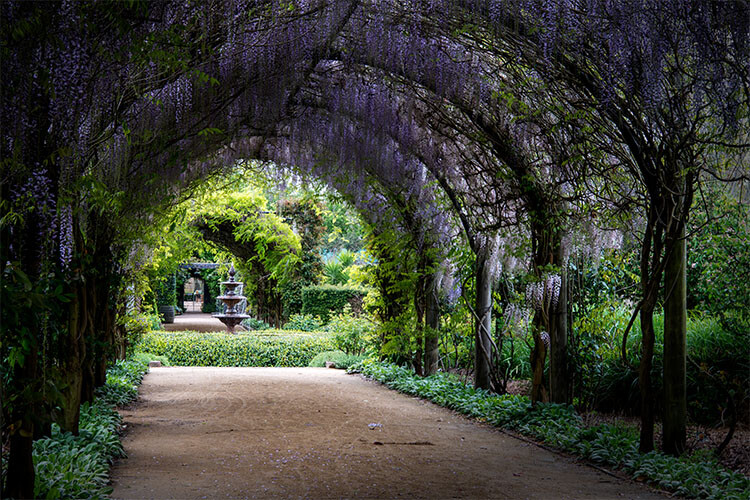
    Using a smaller aperture such as f/11 gives less soft-focus and you get more of a natural looking image.

    One thing the lens is really good for is the soft-focus effect that is possible. You can control how much of it you want by using different apertures. The wider it is the more of the effect appears, and the opposite happens as you close it down.

    Interesting effects

    If you like to get different effects with your lens then the Velvet 85 will be fantastic for you. You can get interesting results for portraits, though I don’t do them if you go to the Lensbaby website you can see some good examples. If you want to give your clients images that are not the same as what others are doing then you should consider adding this lens to your kit. Click here for images.

    Bokeh Effect

    Without a doubt one of the most special and addictive aspects of the Velvet lenses, and perhaps more so with the 85, is the blurring you can do with it. You won’t find any other lenses available that will give you the same effects. You can play around with the aperture to change how much blur you achieve in your images.

    Review of the Lensbaby Velvet 85

    Creating a bokeh effect with a poppy flower and bee.

    Whether you are photographing a landscape or a macro image you can use the aperture and blurring effect to highlight your subject. The Velvet 85 is fantastic for this. You can change the aperture to different widths and that will determine how much blur you will get. From that, you can decide what level of blurring you want in your image.

    Tilt-Shift Effect

    This was a popular effect a few years ago, though, there is no reason it can’t be again. This is where you use blurring effects to make objects in your image look like they are miniature or toy-like. By controlling the aperture and giving the images a lot more of the blur you can get images that look as though your subject is miniature. The lens does not do it all, but it gives you a good starting point.

    Review of the Lensbaby Velvet 85

    The soft-focus is a good start to creating tilt-shift images.

    Moody Images

    Using blurring effects is a great tool for giving your images a moody feel. You can apply it to most types of photography and get those sorts of images that people love. You can use it for most types of photography, try it out if you can.

    Review of the Lensbaby Velvet 85

    Playing with the aperture you can create a mood in your image.

    Comparing the Velvet 85 with the Velvet 56

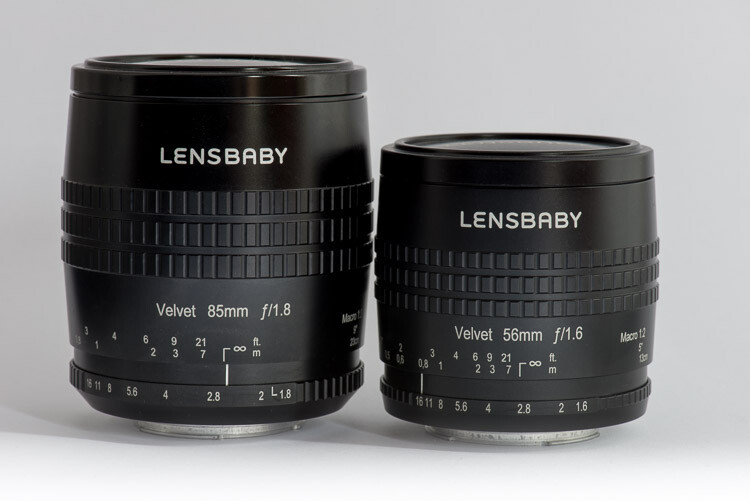
    There is an obvious difference between the size of the two lenses, which you can see in the image below. However, you will find the same with most fixed or prime lenses.
    Review of the Lensbaby Velvet 85

    The Lensbaby Velvet 85 next to the Velvet 56.

    If you change the focus to point so that you can get as close as you can to what you are photographing, they both seem to capture the same image.

    Review of the Lensbaby Velvet 85

    How close you can get with each lens, the Velvet 85 on the left and the Velvet 56 on the right.

    However, if you are trying to photograph something from a fixed point, then the Velvet 85 will allow you to get closer images. This is great if you are taking photos in a location like a garden, you can photograph those flowers that are at the back and harder to get to.

    Review of the Lensbaby Velvet 85

    Standing in the same place, the difference can be seen with the Velvet 85 on the left, and the Velvet 56 on the right.

    If I had to choose between the two lenses, I think I would want the Velvet 85. The longer reach is appealing, and the soft-focus effect is really interesting. There isn’t a great deal of difference in the price, so it would be my choice.

    Adding the lens to your kit

    It is not an overly expensive lens, Lensbaby sells the Velvet 85 for $ 499. It is available for most cameras on the market today. You can get a full list on the website.

    If you are looking for a lens that is capable of macro photography, then this is a good alternative to the more expensive macro lenses that many companies make. It would also suit a portrait photographer, however, don’t forget street photography and landscape. It is a versatile lens which you will enjoy, but don’t expect to get the same results that you’d achieve with normal lenses.


    The post Review of the Lensbaby Velvet 85 by Leanne Cole appeared first on Digital Photography School.


    Digital Photography School

  • How to Avoid Being Overwhelmed When Learning Photography

    Likely, you are working hard to improve your photography. You are trying to master all the settings on your camera, trying to control things like depth of field while trying to improve your focus and the sharpness of your photos. And then there are all those rules of composition to think about as well. That is a lot to remember, and it can be overwhelming. Frankly, it is enough to make you nostalgic for the good old days when you put your camera in Auto mode and fired off snapshots.

    How to Avoid Being Overwhelmed When Learning Photography

    Before you revert to that, however, let’s take a look at a few ways you can avoid that feeling of overwhelm, and continue to grow as a photographer.

    #1 – Use Swing Keys

    First, you can take a page from other areas of life that subject people to being overwhelmed. Perhaps no activity involves a feeling of overwhelm for the beginner more so than golf. When you are learning a golf swing, it is not uncommon for there to be 12 to 15 different thoughts going through your mind. If you try to do them all at once, the result is inevitably a disaster.

    Therefore it is common to hear golfers talk about “swing keys.” This is about limiting your thoughts to one thing that you want to do in that particular swing. The physical nature of the swing key will vary from golfer to golfer. For one it might be to keep the wrist straight, for another, it might be to follow through. It just depends on their swing and weaknesses. It just gives the golfer something to think about to improve their swings and also keeps them from being overwhelmed.

    Works for photography as well

    I find this a useful analogy for photographers as well. When you are out in the field getting ready to shoot, you may have a thousand different thoughts going through your head. You might be worried about the overall exposure level, setting the right depth of field, avoiding digital noise, watching the focus point, keeping the picture sharp, placing the subject in the right part of the frame, creating an interesting foreground, looking for leading lines, trying to create some emotion, and so on. All this can lead to overload. Having one or two swing keys in your mind can help add some clarity.

    How to Avoid Being Overwhelmed When Learning Photography

    Personally, I am always thinking about the foreground. Doing so helps me keep my thoughts together. It also specifically addresses issues of focus, depth of field, subject, and overall composition. For you, it might be something different. It doesn’t matter what it is – and it can evolve over time – just try to simplify things. Remember that often the best photos are the simplest. Further, as we’ll see in a moment, you can add more things later.

    Create a Checklist

    Another way to keep from worrying about all the things you want to accomplish is to create a checklist. When I was starting out, I found that I would get home from a shoot and kick myself for all the things I forgot to do. I would look at a series of shots I took and wonder why I didn’t bracket some of them, or zoom in on something, or add a neutral density filter in a certain spot, and so on.

    Having a checklist will keep you from forgetting these things. At the same time, it will allow you to relax and not worry about missing anything when you are in the field. The checklist can be as simple or elaborate as you want. It can be a folded up sheet of paper or a laminated page – it doesn’t matter. Once you have gotten the shots you want, just consult your checklist and make sure you didn’t overlook anything.

    How to Avoid Being Overwhelmed When Learning Photography

    Having a checklist can remind you to do things like adding a shot using a neutral density filter.

    Use a Building Process

    Another way to keep from being overwhelmed is to avoid attempting to do too much at once. Instead, use a building process to create your pictures step-by-step. You’ll be amazed at how simple photography can be when you use this process.

    What do I mean by that? Let’s start with an example of a dramatically lit portrait. Trying to create the whole thing in one shot could result in failure and frustration. Therefore, break the final picture down into steps. You might start with a few shots that get the background lighting correct. Once you have that right, then add your flash or strobe, but even then don’t try to control or shape the light yet. Spend a few shots getting the quantity of light the way you want it, and only then move the light off to the side and start working on shape and directions.

    In this way, you’ll find that what seems overwhelming at first, actually becomes pretty simple. I have been to enough photography workshops and seminars to confidently state that many masters of photography work this way.

    How to Avoid Being Overwhelmed When Learning Photography

    In night sky photos, I find it works best to start by just getting the sky right and then worrying about the foreground elements later.

    Build a landscape the same way

    It works in other contexts as well. A landscaper photographer might find a great background and work on setting that part of their shot up before they start looking for a foreground. Once they have built that part of the picture they might look for additional aspects to use as a subject or center of interest. After that, they might wait for something to happen to add interest to the picture. As a result, the final picture looks very complicated, but it was built step-by-step.

    In fact, the famous street photographer Henri Cartier-Bresson worked this way. You may know him as the master of the “decisive moment,” but he was always building to that moment. He would find a great spot to use as a background, set everything up, and then wait for something to happen. That way when the decisive moment happened he was ready for it and created an overall wonderful picture. It didn’t just come together in an instant as it might otherwise appear.

    The point of all this is to show you that if you start simple, you can avoid being overwhelmed. Once you have established one building block of your picture, add another one. This will not only improve your pictures but will result in you having more fun – and certainly fewer feelings of being overwhelmed – while you are doing it.

    Ideas for How to Avoid Overwhelm When Doing Photography

    This started as a simple shot of a barn. We added lights as we went. The white streamers were ultimately lit by a person with a flashlight.

    Take Advantage of Digital Technology

    Finally, as you take your photos, keep one thing in your mind.  Remember the magic of digital photography is that you get to take as many exposures as you want and it costs nothing. There should not be any pressure!

    Not only that, but you are getting instant feedback on what you just did via your LCD screen. You can just delete the bad ones (and we all have bad ones) and move on. No one is going to look at your SD card and judge you on the pictures that don’t work out. They’ll only see the ones you show them.

    Ideas for How to Avoid Overwhelm When Doing Photography

    Similarly, don’t worry about any sort of “hit rate.” Frankly, if you end up with a high hit rate, that probably just means you need to take additional pictures and experiment more.

    A Never Ending Quest

    Done correctly, photography always involves learning and experimentation. Therefore, while I have aimed these comments at those just starting out, these things really apply to everybody. The feeling of overwhelm never really goes away.

    Once you master the controls on your camera you will add other elements to your pictures. Ultimately, you have to find your own way to relax and keep everything fun. Hopefully, these tips will help a little in that regard though.

    The post How to Avoid Being Overwhelmed When Learning Photography by Jim Hamel appeared first on Digital Photography School.


    Digital Photography School

  • These are the best cameras you can buy right now

    Best cameras you can buy right now

    Suppose you’re the kind of person who reads movie spoilers online, or unwraps all of your presents on Christmas Eve. Does that make you a monster? Sure, but we’re not here to judge. You’d probably also like to know which are the very best cameras on the market right now without reading our meticulously prepared and exhaustively researched buying guides. That’s fine. You can cut right to the chase and find out which cameras we picked as category winners right here, you utter fiend.

    Canon EOS M6

    It’s light, offers a healthy dose of direct controls and includes Canon’s excellent Dual Pixel autofocus technology. It’s our pick for parents, but it’s a great option for someone who wants DSLR-like capabilities and controls in a compact package.

    Read more about the Canon EOS M6

    Canon EOS M100

    It’s an incarnation of the M6 with less direct control, but it’s also several hundred dollars cheaper. We think it’s an ideal lightweight point-and-shoot and it’s our top pick if you’re looking to spend around $ 500 on a new camera.

    Read more about the Canon EOS M100

    Canon EOS Rebel SL2

    Beginners looking for an unfussy DSLR to get started will feel right at home with the SL2. We think its Feature Assistant is useful, and it offers all of the same guts of the M6 in a more approachable form.

    Read more about the Canon SL2

    Fujifilm X100F

    You love it. We love it. Everyone loves the X100F. It’s truly the photography press’s darling, and it’s our pick in the fixed prime lens category thanks to its excellent JPEG processing and dreamy form factor. To a large chunk of the photo-taking population it’s an impractical novelty, but it sure is nice if you just want to enjoy the heck out of making photos.

    Read more about Fujifilm X100F

    Nikon D5600

    The D5600 is our pick for both photography students and anyone looking to spend less than $ 1000. It’s not sexy, but it’s reliable, versatile, and offers modern refinements like a touchscreen and Wi-Fi with Bluetooth.

    Read more about the Nikon D5600

    Nikon D7500

    We recommend the D7500 in the sub-$ 1500 category for many of the reasons we picked the D5600 in the category below it: it’s just an extremely well-rounded camera. Impressive subject tracking, good AF, and a proven 20.9MP sensor all contribute to making this the best buy in its price category.

    Read more about the Nikon D7500

    Nikon D750

    Speaking of cameras that just don’t quit, the D750 is over three years old but it’s still competitive – and is attractively priced lately. Despite its age we think it’s the best you can do for under $ 2000 thanks to reliable autofocus and excellent image quality.

    Read more about the Nikon D750

    Nikon D850

    The D850 shares a spot with the Sony a7R III as a top pick for landscape photographers and cameras over $ 2000. ISO 64 gives it a slight edge for photographers who need the ultimate in dynamic range, and it inherits a highly capable autofocus system from the D5. It comes up a little short in terms of pro video capabilities, but outside of that it’s simply one of the best all-around performers you can buy now.

    Read more about the Nikon D850

    Nikon D5

    For sports, the D5 is hands-down the most capable camera out there. It’s ultra-tough and couples 14 fps shooting with the best phase-detection AF on the market. Plenty of shooters would find its smaller sibling, the D500 to be more than enough to suit their needs, but for the pro who needs the absolute best, there’s nothing to top it at the moment.

    Read more about the Nikon D5

    Panasonic Lumix GH5

    If you’re serious about video and you want the best hybrid camera money can buy, get the GH5. It’s outfitted with pro-level tools and boasts excellent stabilization for handheld shots. Oh, and it’s a pretty darn good stills camera too.

    Read more about the Panasonic GH5

    Sony a7R III

    The a7R III ranks as one of the very best cameras we tested this year, tying the equally impressive Nikon D850 as winner in the best for landscape photography and $ 2000 and up category. It’s also our top pick for event photography, thanks to incredibly fast and accurate Eye-AF.

    Read more about the Sony a7R III

    Sony Cyber-shot RX10 III

    Our top pick for travelers is the previous-generation RX10, which saves you several hundred dollars off the price of the Mark IV if you can live without a touchscreen and state-of-the-art autofocus. You’ll still get that generous 24-600mm equiv. zoom range and top notch 4K video capture for all of those vacation memories.

    Read more about the Sony RX10 III

    Sony Cyber-shot RX10 IV

    If we’re going to talk about the very best cameras available now, we do need to mention the latest and greatest in the RX10 series. If there’s a superzoom that can convince us we’re shooting with a pro sports camera, this is it. It’s incredibly pricey but its hybrid AF, 24 fps shooting and oversampled 4K are unparalleled in its class.

    Read more about the Sony RX10 IV

    Sony Cyber-shot RX100 V

    Ten years ago, if you’d told us that a camera that fits in your pocket can record incredible 4K video, shoot 24 fps, and offer 315 point phase detection AF we’d have laughed in your face. Yet here we are in the year 2017, and the RX100 V has made fools of us all. Do you pay handsomely for all of that cutting edge technology? Of course. But if you’re looking for the best of the best, look no further.

    Read more about the Sony RX100 V

    Articles: Digital Photography Review (dpreview.com)

  • 2017 Buying Guide: Best cameras under $1500

    If you’re getting serious about photography and don’t mind spending a bit more money, you’ll find some amazing cameras in the $ 1000-1500 price range. In this buying guide, we’ve rounded up our recommendations for the category.

    Articles: Digital Photography Review (dpreview.com)

  • How to Create a Minimal Desktop Background Using Photoshop

    Ever seen those flowy, innocuous desktop backgrounds that to show up on default computer screens? That’s the exact image I thought of when I messing around with Photoshop for this tutorial. Though they aren’t exact, these simple gradients and shapes come together to spur on a little nostalgia.

    This project is pretty straightforward – but it introduced me to a couple techniques I had never come across before. Photoshop has opened up worlds of image-making technology. But when you boil it all down, the culmination of a photographer’s work is in shades of light dispersed within shapes.

    I had a good time putting together this tutorial  – I even tried out a few on my own desktop. It’s a great way to get familiar with Photoshop operations. But it’s just as fun for a pro, with a bit of photographic downtime on their hands. So let’s dig in.

    Getting Started

    First, open a new document in Photoshop. Change the dimensions of the canvas to the average desktop background size – 1920 pixels by 1080 pixels, as shown below.How to Create Minimal Desktop Background Using Photoshop

    Add a Gradient

    Select Layer via the Layers tab on the top toolbar and click on New Fill Layer and then Gradient.

    How to Create Minimal Desktop Background Using Photoshop

    In the pop-up Gradient panel, click on the drop-down arrow and select Simple Gradients.

    How to Create Minimal Desktop Background Using Photoshop

    Select a color from the swatches in the Simple tab.

    How to Create Minimal Desktop Background Using Photoshop

    Choose a color that appeals to you most – whichever one you like best!

    Click directly on the panel for the gradient color and a new panel will pop up. This will allow you to further customize your color scheme.  Click on the white node below the gradient bar. A color picker will pop up, allowing you to change the white parts of our original gradient to another shade.

    At this stage, I would recommend a color similar in shade to your original color. I’m a big fan of pink, so I went with subtle, light shade of pink to complement my overall color scheme. But It’s totally up to you!

    How to Create Minimal Desktop Background Using Photoshop

    Accept the color of the gradient. Select Radial as the style and the scale as 150.

    How to Create Minimal Desktop Background Using Photoshop

    How to Create Minimal Desktop Background Using Photoshop

    Clicking the Radial setting makes the lighter shade emanate from the center of your image.

    Add Another Layer

    Next, create a new layer via the layers tab at the top of the screen. Select New in the drop-down menu and select Layer… Click OK at the prompt.

    How to Create Minimal Desktop Background Using Photoshop

    Add a Shape

    Click on the Elliptical Marquee Tool. This may be obscured by the Rectangular Marquee Tool, so click and hold the mouse over the tool for a moment to reveal the other options.

    How to Create Minimal Desktop Background Using Photoshop

    With the Elliptical Marquee Tool selected, draw a circle that intersects with the top corner of your image. To keep the elliptical tool even on all sides (in other words, a circle), hold down the Shift key as you drag part of the shape over the top corner.

    How to Create Minimal Desktop Background Using Photoshop

    Open the paintbrush tool and select a nice, soft-edged brush. Set the brush size between 200 to 400 pixels and the hardness level to zero. Select a color in a slightly darker shade. I selected a peachy color.

    With the Elliptical Tool still selected, brush around the very outer rim of the quarter-circle with the paintbrush, relying on the softness of the brush to dust the inner rim.

    paintbrush - How to Create Minimal Desktop Background Using Photoshop

    How to Create Minimal Desktop Background Using Photoshop

    Use a slightly different shade to emphasize the edge of the circle you created.

    How to Create Minimal Desktop Background Using Photoshop

    Duplicate the shape layer as many times as you would like to create an interesting pattern.

    Add Dimension

    Next, we’ll add a new dimension to the image by using the Rectangular Marquee Tool rather than the Ellipse Tool.

    How to Create Minimal Desktop Background Using Photoshop

    Create a New Layer and then select the Rectangular Marquee tool from the panel. Stretch the Rectangular Marquee Tool across your image so that about half of it is selected, as shown below.

    How to Create Minimal Desktop Background Using Photoshop

    Rectangular selection.

    With the same technique and color you used on the ellipse, brush along the perimeter of the shape, leaving only the slightest shadow.

    How to Create Minimal Desktop Background Using Photoshop

    With the rectangle still selected, click on Edit > Transform > Warp.  Slowly drag the different points of the rectangular selection to adjust the whole shape of the layer. Try to make gradual edits at first, to keep the line free of sharp angles.

    How to Create Minimal Desktop Background Using Photoshop

    Transform the rectangle.

    How to Create Minimal Desktop Background Using Photoshop

    How to Create Minimal Desktop Backgrounds Using Photoshop

    The edge of the rectangle after transforming.

    Blend Modes

    Now to add a little more depth to the image, you can apply blending modes to bring out highlights in the background. Select a layer and click on Blending Modes usually located above the Layers panel. Select a setting from the list of Blending Modes available. I usually use the Color Burn option, but feel free to experiment!

    How to Create Minimal Desktop Backgrounds Using Photoshop

    Blend modes.

    How to Create Minimal Desktop Backgrounds Using Photoshop

    And there you have it! Not bad huh? Amazing what you can do with a few circles and shadows.

    Liquify

    If you like, try experimenting with the Liquefy tool. It’s found in the Filter tab on the top tools panel.

    How to Create Minimal Desktop Backgrounds Using Photoshop

    How to Create Minimal Desktop Backgrounds Using Photoshop

    Before using the liquify tool on an image I constructed using the steps above.

    How to Create Minimal Desktop Backgrounds Using Photoshop

    After using the Liquefy tool. You can see that the shapes are now a little more organic.

    Over to you!

    Here are a few more of my creations. I’d love you see how your desktop background has turned out, please share in the comments below.

    How to Create Minimal Desktop Backgrounds Using Photoshop

    How to Create Minimal Desktop Backgrounds Using Photoshop

    How to Create Minimal Desktop Backgrounds Using Photoshop

    How to Create Minimal Desktop Backgrounds Using Photoshop

    A minimalist approach created by twisting a rectangular edge with the Warp Tool.

    Now it’s your turn! Show me how it went in the comments.

    The post How to Create a Minimal Desktop Background Using Photoshop by Megan Kennedy appeared first on Digital Photography School.


    Digital Photography School

  • How to Use an On-Camera Speedlight as Fill Flash for Portraits

    Using a flash or speedlight on-camera can be daunting at first. This was certainly how I felt when I first purchased my Nikon speedlight. My biggest worry was calculating all the light ratios involved to get a proper exposure as you cannot take into account the actual flash output when metering in-camera. I was also nervous about using a light meter – all that trial and error and faffing, the thought of it all used to make me quake in my boots and swear I’d forever be a natural light photographer. But that was not to be, thankfully.

    My main reservation about using flash is the harshness of the light. I hate the “flashed” look on people’s faces, the shadows under the jaws, the bright circular catchlights right in the middle of the iris. As well, the flatness of the face with the direct flash obliterating all possibility of sculpting shadows on the face.

    But I live in London where it rains quite a bit, it’s hardly sunny at all, and half the year is cold. All these factors affect natural light and I felt I just had to put aside my reservations and take the leap. And I’m so glad I did.

    How to Use an On-Camera Speedlight as Fill-Flash for Portraits

    Let me share with you how I use flash to help me achieve the look I am after and without having to do the mental calculations of light ratios!

    #1 Put a diffuser on the flash

    It may only be a little plastic thing that goes on top the flash head but I find it makes a difference.  The light is less harsh – I know many will disagree about whether it softens the light or not as that is mainly due to the size of light and distance to subject  – but I notice a softness from a diffused flash head compared to a bare one.

    Left: without a diffuser. Right: with a diffuser.

    I only use a flash bare and pointed towards the camera when I am using it as a kicker light and want starburst effects coming from it.

    #2 Control the flash manually

    Set your flash to manual and choose the power. I’m usually at 1/32 or 1/16 and leave it there. Adjust the flash power only when absolutely necessary. Instead, make the frequent necessary adjustments to your camera settings.

    Now I know there are many big fans of ETTL / TTL mode out there. I have tried it too. However, I have gone back to Manual as I find the TTL does not give me the look I want. Essentially, I only want my flash to be a fill light, not the main light and never too strong so that you can see a huge difference between the light coming from the flash and the ambient light. The ETTL / TTL mode is too smart for my needs and increases the output to a pretty high level if it senses that the ambient light is too weak, and vice versa. I felt I’d get an inconsistent output of light for the look I am after although that output may be “correct” in terms of the calculations.

    For portraits, I find that the greater the contrast between the dark background and the illumination of the subject with a flash gun, the more I dislike the image. For dancing shots (like at a wedding), however, where I want to illuminate the subject well and freeze the action, I DO point my flash directly at the subject, stop down my aperture to between f/5.6 and f/8 and lower my shutter speed between 1/20th and 1/60th in order to capture ambient light and light trails or background blurring to give the effect of movement.

    This image was created using a bare bulb flash (no diffuser) located behind and pointing directly at the couple (off-camera flash). I also had a second flash on-camera with a diffuser, and the flash aimed upward.

    This image was created with a diffused flash pointed directly at the couple (camera in front of the couple, flash on-camera) while they were dancing. The motion blur was created by using a slow shutter speed and “dragging the shutter” after the flash has fired.

    What I’m after is always a natural look, which, depending on where the main light is coming from, may not be achieved well without some kind of fill or reflected light to illuminate areas that are too dark for my intentions. This is the reason why I always bounce or angle my flash gun for most scenarios other than dancing as explained above.

    #3 Bounce it

    On some newer models, there is also a little white pull-out bounce card that is extremely useful if your ceilings are too high for the light to bounce off or you just want to point reflected light in a particular direction. When I shoot weddings where the rooms have very high ceilings or dark beams and ceilings. So I pull out the bounce card and use it to deflect the light coming from the flash. The handy swivel action helps me direct the reflected light wherever I want it to go.

    My speedlight with the white bounce card extended.

    As an aside, I use this setup for off-camera flash too. When I’m putting two speedlights opposite each other in a room to provide directional light during speeches, I point the flash heads upwards and pull out the diffuser so that all the reflected light is pointed inwards towards the center of the room.

    #4 Angle it

    The head of most speedlights can swivel right and left up to 90 degrees each way and forward and upward to 90 degrees in incremental angles. It is an awesome functionality that you should take advantage of especially for fill flash.

    In the photos below, bright sunlight was coming from camera right at 45 degrees on a bright day. All I wanted was a bit of fill flash on their shadowed faces, just enough to lift the shadows a tad. What I really wanted to avoid was for the image to look like there was another light source other than that from the sun. To achieve this, I angled my speedlight upwards towards the back by one increment.

    How to Use an On-Camera Speedlight as Fill Flash for Portraits

    Flash as a fill light

    As you can see, these photos below have very strong sunlight coming directly at the subjects and towards the camera, a very strong backlit light. It is extremely difficult to overpower this type of light without using a strong flash.  What I did was angle myself slightly to one side and pointed my flash directly at the subjects’ faces to try and counteract the sunlight.

    This is when I adjust my flash power and increase it accordingly. The result is not as clean and sharp as if I had a big softbox firing at 70% ratio to the sun’s power but it still shows the faces clearly enough with some diffused hazy light in the background, which was also my intention for these shots.

    How to Use an On-Camera Speedlight as Fill Flash for Portraits

    Compare the two images below. The one on the left was taken in a big open space with a dense foliage background which blocked the light. There was enough light here to illuminate their faces that I could have done away with the flash altogether, but I pointed the flash backward to add just a tiny bit of light over my head. I don’t think it made a huge difference but it made me feel better and consistent!

    The image on the right was taken in a shaded open area surrounded by tall trees which diffused the light coming from the background. Without the trees, it would have had the unfiltered effect as above, but despite the trees, this is still very much a backlit position as the background was very bright still. More fill light was needed there so I pointed the speedlight slightly upwards, with one increment down towards the subjects but not directly at their faces.

    How to Use an On-Camera Speedlight as Fill Flash for Portraits

    You can see the same flash angle as above on these close-up portraits below.

    How to Use an On-Camera Speedlight as Fill Flash for Portraits

    Make it moody

    In the same spot as above, I wanted a look that was a little moodier than those close-ups so I pointed the speedlight directly upwards this time. So although their faces are still amply lit up, the image to feels like they are being enveloped by the diffused light behind them.

    How to Use an On-Camera Speedlight as Fill Flash for Portraits

    Tricky situations

    The couple wanted a shot showing the lake and the trees in the far distance. The distance was too great to get the couple and the background sharp enough without using a really small aperture and a lot of artificial light (flash). Note that we were also in the shaded part of the lake which made it more difficult. I decided therefore that I would take a cozy shot that focused mainly on the background. The couple looking towards the trees, although they are not the lit focal point, they are still clearly visible and sharp. I pointed the speedlight slightly forwards to give them just a hint of light and shot with a small aperture.

    Contrast the top image below to the photo directly underneath it where the depth of field has changed massively – the background now is blurry and the couple is in focus. This had the same angle of flash, slightly forwards, but of course, my camera settings changed to a wider aperture and lower ISO to balance the exposure. Now with the couple still in the same shaded spot, the angled flash was clearly essential here. Had I pointed the flash directly to their faces, it would have been too obvious and would kill the natural light ambiance that I was aiming for.

    How to Use an On-Camera Speedlight as Fill Flash for Portraits

    For this ring shot below, we sat on a bench with the sunlight coming from camera left. I put the ring on my phone to get a dark background and a nice reflection. With ring shots, I always stop down to at least f/7 with a macro lens. Therefore I need to make sure there is plenty of light for the shot as macro lenses tend to suck light.

    I also always use a speedlight pointed directly opposite the main light. So in this case where the light is at camera left at 8 o’clock (if you’re looking at a clock face with the diamond at 6 o’clock), I swiveled my flash head to the opposite at around 4 o’clock to give off a bit of reflected light on the right side of the ring.

    How to Use an On-Camera Speedlight as Fill Flash for Portraits

    Likewise, on the photo below, you can clearly see where the sunlight is coming from so I pointed my speedlight slightly upwards to camera left, opposite the sunlight. This angle helped me achieve a gradual decrease of light from right to left as opposed to a dramatic one where you can see a clear cut-off from light to dark.

    How to Use an On-Camera Speedlight as Fill Flash for Portraits

    Your turn to try doing fill flash

    If you haven’t tried using flash like this before, I encourage you to do so. Experiment and see how it could work for you. You don’t need to learn the lighting ratios and calculations off by heart to be able to get images you are after, although that could be handy.

    Sometimes all you need is confidence, common sense, and a willingness to try. I hope you found this little tutorial useful. If you have more tips, share them in the comments below.

    The post How to Use an On-Camera Speedlight as Fill Flash for Portraits by Lily Sawyer appeared first on Digital Photography School.


    Digital Photography School

  • Photo story of the week: The Milky Way over the Dolomites

    Gazing at the Milky Way over Tre Cime in the Dolomites

    I have wanted to visit these mountains for a very long time. The incredible shapes and formations found in the Dolomites are like something out of a fairytale.

    The hike up to Tre Cime was absolutely gorgeous and the location is really accessible. On this night, hiking under the stars wth my girlfriend Serena, who is also a landscape photographer, barely felt like reality… okay, I suppose once the wind picked up, it started to feel a bit real again.

    Once we got up there, we walked around a little bit to check out different views and angles. The night was particularly chilly and we weren’t prepared for it. We hunkered down by some rocks and halfway through the night, noticed an incredible flash of light that lit up the sky for a few seconds. It was one of the brightest shooting stars that I’ve ever seen in my life. The whole evening just felt really magical.

    I used the Sony A7S with Canon 16-35 for this Panorama image, the wide perspective was created by 8 vertical images, stitched together. The orange glow on the horizon is light bouncing off nearby towns and creating light pollution.

    The photograph was processed and color corrected using both Lightroom and Photoshop.


    Michael Shainblum is is a landscape, timelapse and aerial photographer based in San Francisco, California. He has been working professionally as a photographer and filmmaker for 11 years since the age of 16.

    To see more of his work, visit his website or give him a follow on Facebook, Instagram, and YouTube.

    Articles: Digital Photography Review (dpreview.com)

  • 2017 Buying Guide: Best cameras under $1000

    More direct controls, better autofocus, and in many cases 4K video capture – they’re a step above ‘budget,’ but cameras in this category provide a whole lot of bang for your buck. Here are our top picks in the range.

    Articles: Digital Photography Review (dpreview.com)

  • Gear of the Year 2017 – Richard’s choice: Sony NP-FZ100

    I wrote, two years ago, that I thought the distinction between DSLRs and mirrorless cameras would disappear. Not that mirrorless would eclipse DSLRs, more that the differences would reduce to the point that the presence or absence of a mirror becomes the least relevant part of a discussion of two cameras.

    As I was writing a comparison of the Sony a7R III and Nikon D850 today, I was suddenly struck by the realization that it might have already happened. I think there are a lot of interesting differences between the two cameras but very few of them have anything to do with the way we’d tend to categorize them.

    With this in mind, my gear of the year is the Sony NP-FZ100. Or, to those of you not obsessed with product codes, the a9 and a7R III’s battery. The simple reason for this is the role it plays in rendering the difference between mirror-less and mirror-full cameras moot.

    Good enough: the threshold beyond which any further excess is superfluous

    It all comes down to the idea of ‘good enough.’ And please don’t misunderstand me, I’m not talking about accepting the mediocre or tolerating the barely sufficient. Instead I’m referring to the threshold beyond which any further excess is, if not excessive, then at least superfluous: it offers no practical benefit.

    Once I have enough battery life to get me through a demanding day of shooting, then any extra left in the tank is all very nice, but not exactly necessary. I recently spent a morning shooting both stills and video of a cyclocross race with the a7R III. Shooting a mixture of JPEGs, uncompressed Raws and 4K video, I comfortably churned out more than the 64GB capacity of my memory card and had to switch to a second. What I didn’t come close to doing was running the battery out. At the end of the racing, I still had more than 27% charge left, despite the sub-10°C temperatures.

    The move to the ‘Z-Type’ battery on the right is the difference between me having to worry about charging and carrying spare batteries and me never having to think about it.

    This suddenly eliminates the constant battery anxiety I’ve always felt with previous Sony mirrorless cameras (and that’s without including the RX1R II, an otherwise fabulous camera whose butterfly-like lifespan prompts even its proponents joke “it’s like shooting film: you need to think about what you’re going to do with your 36 exposures”). Because when I’m shooting, I don’t ever want to be worrying about whether I’ve brought enough batteries, and which ones are charged. I don’t even want to have to think about it.

    In fairness Panasonic got here first, having put a big battery in its GH models as far back as the GH3, but I didn’t notice it to the same extent because I was primarily shooting video with those models.

    This eliminates the constant battery anxiety I’ve previously felt with many mirrorless cameras

    More demanding shooters, be they photojournalists or longer-form filmmakers, can always attach a battery grip for longer duration, but for me, the FZ100 means the a7R III is able to surpass my ‘good enough’ threshold. So, while the D850 can boast a very impressive 1840 shots per charge, for me and my photography, that’s well into the territory of overkill.

    So, as a technology that allows mirrorless cameras (hopefully of all brands) to offer the same practical benefits as their DSLR rivals, my gear of the year is a battery. Because it makes the a9 and a7R III into significantly better cameras, not just because it pulls another leg out from under all those tired ‘mirrorless vs DSLR’ arguments.

    Articles: Digital Photography Review (dpreview.com)

  • Pixelmator reveals Pixelmator Pro, an Adobe competitor for Mac users

    Pixelmator’s new high-end Mac photo editor Pixelmator Pro, which the company partially revealed back in September, is officially live and available to purchase through the Mac App Store.

    In case you’ve forgotten, Pixelmator Pro is a nondestructive single-window application with some editing features powered by machine learning, GPU-based image editing tools, and what the company describes as “an incredibly intuitive and accessible design.” Users get a fully native Mac experience, says Pixelmator, which designed Pixelmator Pro with a look inspired by macOS.

    Thanks to Core ML framework, Pixelmator Pro also features integrated machine learning to power features like automatic horizon detection and layer naming, intelligent quick selection, and realistic object removal.

    Ultimately, the company is hoping that Pixelmator Pro will represent the perfect marriage between pro-tier features and accessible design.

    Other notable features include full Mac integration, including support for iCloud, compatibility with Adobe Photoshop, support for raw images and multiple raw layers, HEIF compatibility, and vector tools, among many other things. And if you feel that a major feature is missing, you’ll be happy to know that multiple free updates bringing major new features are already in the pipeline for release in the near future.

    Until then, you can pick up Pixelmator Pro 1.0 is through the Mac App Store for $ 60 USD.

    Articles: Digital Photography Review (dpreview.com)