Month: October 2013

  • Panasonic Lumix DMC-GX7 samples gallery updated

    D8959A4BA6094431A49A0BE6BFE10BDE.jpg

    We’ve been taking plenty of photos while working on our upcoming review of the Panasonic Lumix DMC-GX7. Our samples gallery has been updated with an additional fifteen photos to tide you over until the review is posted. Follow the link to see glass sculptures, a beautiful sunset, and a defunct nuclear plant.

    News: Digital Photography Review (dpreview.com)

  • Q&A: Margo Seibert

    You had a lot of good questions after the Margo Seibert shoot last week, even to the point of telling me I was breaking a Scott Kelby Rule. (For the record, I lurve breaking Scott Kelby rules.)

    (And who is he to say you shouldn't shoot a portrait with a 50mm, anyway?)

    Besides — and believe it or not — that lens selection was totally driven by the light. No joke. That, and more of your Q's answered, below.

    Read more »
    Strobist

  • Flickr announces auto-upload feature for iOS app

    TS250x0~cms_posts-0200950401-flickr_ios72.png

    Good news for iPhone photographers. Flickr has released an update to its iOS application that allows users to automatically upload their photos to Flickr’s free terabyte of cloud storage. In addition to the automatic uploading feature, users now have access to an easy auto-straightening tool. Read more on connect.dpreview.com.

    News: Digital Photography Review (dpreview.com)

  • Secret Graffiti: Railings Reveal Art Only at the Right Angle

    [ By WebUrbanist in Art & Street Art & Graffiti. ]

    angled rail street art

    Railings, shutters, sun shades and other surfaces with separate-but-repeating elements are all potential canvasses for this unique semi-secretive approach to street art.

    angled rail various perspectives

    angled graffiti approach

    angled graffiti right perspective

    Zebrating is the German artist group behind these pieces, carefully calculated, printed and glued onto surfaces with a balance of color and simplicity that lets them stand out but seem also like part of their environment.

    angle graffiti evil eye

    angled graffiti whole building

    angled graffiti horizontal slats

    Though sometimes seen in process and stopped by the cops, this crew continues to paint their lenticular-style pictures both on public urban surfaces and in more sanctioned venues like museum galleries or approved architecture.

    Next Page:
    Secret Graffiti Railings Reveal Art Only At The Right Angle

    Share on Facebook


    [ By WebUrbanist in Art & Street Art & Graffiti. ]

    [ WebUrbanist | Archives | Galleries | Privacy | TOS ]


    WebUrbanist

  • Using Smart Previews in Lightroom 5

    Smart Previews in Lightroom opener

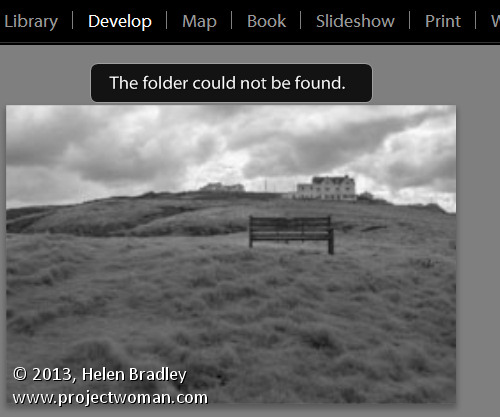
    If you’ve ever encountered a “The Folder Could Not Be Found” message in the Lightroom Develop module or seen a question mark over a folder name in the Library module you’ll love the new Smart Previews in Lightroom 5.

    Smart Previews are an editable preview image and they make working with Lightroom when you are using removable drives a cinch.

    Here I’ll explain what smart previews are and why you might use them.

    Understanding the problem
    Lightroom can only work with images that have been imported into its catalog. When your import your images Lightroom notes where the images are on your disk so it can access them when you want to edit them.

    As Lightroom doesn’t store the actual images you will encounter problems if the drive the images are stored on is not connected to your computer when you try to edit them. In this case, you will see a preview of the image in the Library module but if you select the image and open the Develop module you will see a message saying “The folder could not be found”. The editing tools are all disabled and you can’t proceed.

    Lightroom 5 smart previews 2

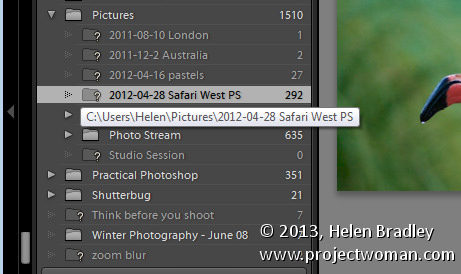
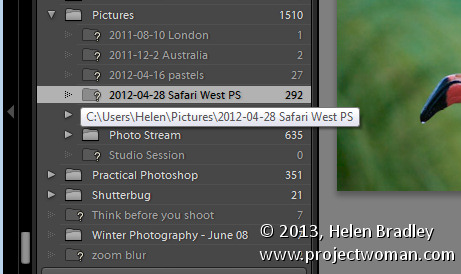
    If you look at that same folder of images in the Library, the folder name will appear in the Folders panel but with a question mark over it. This is because the folder is on a drive that is not currently attached to your computer.

    Lightroom 5 smart previews 2

    In earlier versions of Lightroom, the only solution for this issue was to reattach the drive so the original images would be available to Lightroom.

    With Lightroom 5 the situation has changed to the extent that, with a little forethought and some spare disk space, you can edit images even if they are stored on a disk not attached to your computer. The solution is provided by the new Smart Previews feature.

    What are Smart Previews in Lightroom?

    Smart Previews are lossy DNG files which are a maximum size of 2540 pixels on their longest edge. They are created from the original raw files and they are stored in a folder in the same location as the Lightroom catalog.

    You can use these Smart Previews if the original images are not available not only in the Library module but also in the Develop module.

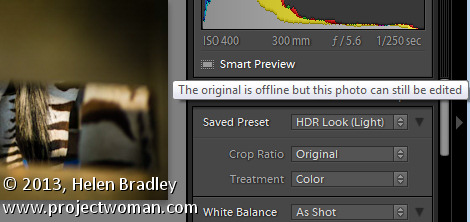
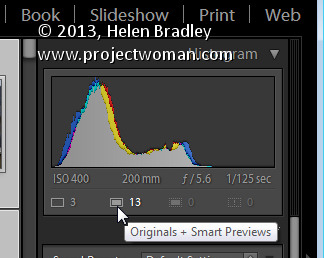
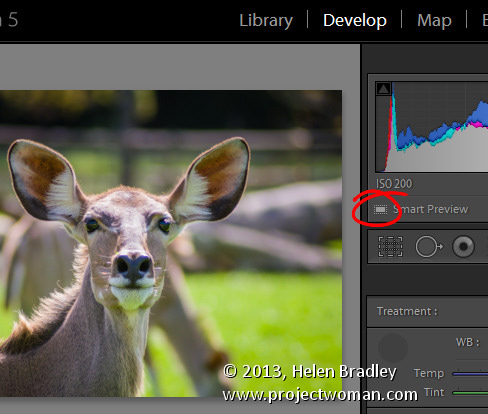
    If you have Smart Previews rendered for an images you will still see a question mark in the Library module indicating that the folder is not available but below the histogram there will be a small white icon indicating that a Smart Preview is available for this image. The Smart Preview can be edited in the Develop module just like the original image and it can be exported too.

    Lightroom 5 smart previews 3

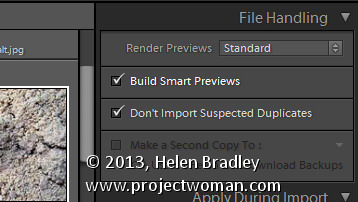
    Smart Previews can be created for DNG and for Camera Raw images as well as for TIF and JPG. You can create them on import by selecting the Create Smart Preview checkbox in the Import dialog.

    Lightroom 5 smart previews 4

    You should note that Smart Previews and regular Previews are two different types of previews so you should continue to choose the same option in the Render Preview list that you have chosen in the past. So, I choose to Render Standard previews at a size appropriate for my monitor size – as well as rendering Smart Previews for those images I want to be able to edit even if the drive they are stored on is not connected.

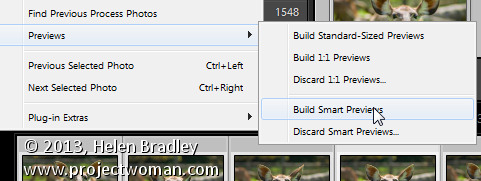
    You can also create Smart Previews at any time – provided the original images are available at the time you are making them – using a menu option in the Library module. To do this, select the images to build Smart Previews for and choose Library > Previews > Build Smart Previews. You’ll be prompted to build smart previews for all photos or just one. Select Build All to create smart previews for all the selected images.

    Lightroom 5 smart previews 5

    You can also build smart previews using an icon in the histogram. For example if you select either a folder of images or a selection of images in the Library module you can learn the smart preview status of those images by reading the information below the histogram. You’ll see the number of images without smart previews and the number with.

    Lightroom 5 smart previews 6

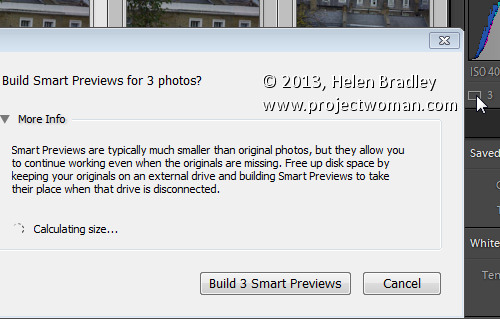
    Click the originals without smart previews box and you’ll be prompted to build smart previews for these images. There is a slight glitch with the numbering – if you have a large number of images selected then the actual numbers in the histogram won’t be correct but the process still works for all the selected images.

    Lightroom 5 smart previews 7

    If you have rendered Smart Previews for your images and if you later decide you no longer want them you can delete them by clicking the smart preview indicator below the histogram.

    Editing Smart Previews

    You can edit an image for which you have rendered a Smart Preview in the Develop module. The smart preview will only be used if the original image is not available. Any changes you make to the smart preview will be written back into the original image when it is next available in Lightroom.

    In this case I am editing the Smart Preview as the original is not available:

    Lightroom 5 smart previews 8

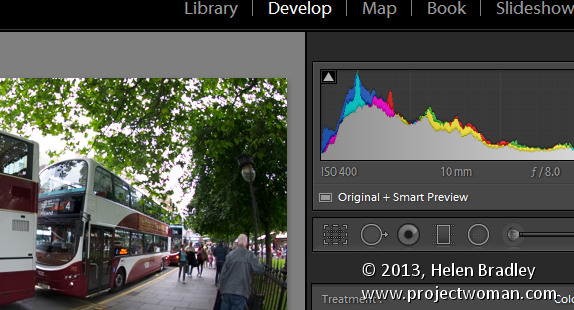
    Here both the original and smart preview are available, so the original is being edited:

    Lightroom 5 smart previews 9

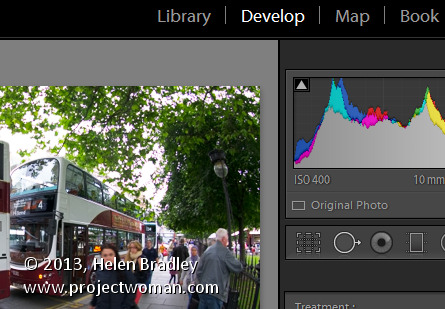
    In this case there is no smart preview available, the original is being edited and if it were not available, then editing would not be possible:

    Lightroom 5 smart previews 10

    If you store all your photos on the same drive as you store your Lightroom catalog then you may find you have no use for smart previews. However if you, like me, store your images or some of them on a drive other than the one on which your Lightroom catalog is stored then you’ll find that smart previews useful. Create smart previews for those images that are not stored on the same drive as your Lightroom catalog and you will have those images accessible and editable even when the originals are not available.

    Post originally from: Digital Photography Tips.

    Check out our more Photography Tips at Photography Tips for Beginners, Portrait Photography Tips and Wedding Photography Tips.

    Using Smart Previews in Lightroom 5

    The post Using Smart Previews in Lightroom 5 by Helen Bradley appeared first on Digital Photography School.


    Digital Photography School

  • Zwischen Wunsch und Wirklichkeit

    Ein Beitrag von: Kristina Leimkühler

    Es war ziemlich heiß, den ganzen Tag über, und jetzt auf dem Meer gen Abend endlich kühler, sogar schon kühl genug, um ins Fleece zu schlüpfen. Über dem Schiff tauchen die ersten Sterne auf, je mehr Zeit vergeht, desto düsterer werden Wasser und Himmel und umso funkelnder die Lichter der Insel in der Ferne.

    Durch die rostigen Stufen hindurch sehe ich die meist weißen Autos im Bauch der Fähre schaukeln. Die Vorhersage, dass beim Verreisen mit Großformatkamera sowieso gleich ein Koffer voll sei, habe ich zunächst nicht glauben wollen, bis es zum Packtag kam und dann, zusammen mit digitalem Equipment und Zubehör, mein Handgepäck von zwölf Kilogramm ausgefüllt war.

    Die Linhof wiegt auf ihrer Stange nur etwa so viel wie eine Mamiya Rb67, also um die drei Kilogramm, aber mit Tuch, den Kassetten, fünf an der Zahl, dem Film, einem Puster, Wasserwaage, Putztuch, Wechselsack und Drahtauslöser addiert sich so einiges an Gewicht auf. Was noch auf die zwölf Kilogramm fehlte, habe ich dann mit einer 5D mit 50mm und 100mm aufgefüllt.

    Ich war nun zum dritten Mal im Oman, konnte mir also genug Gedanken machen, was ich abbilden möchte bzw. was ich da überhaupt sehe. Es war unkompliziert, die Kamera mitzunehmen, auf der Hinreise musste ich sie nicht auspacken. Vor Ort hatten wir ein Auto gemietet, also ideale Bedingungen für Großformat.

    Die Berge und die Weite im Oman machen mich staunen. Das Format 13x18cm sollte genau das richtige sein, um sie abzubilden. Während ich mit einem Mal all die Farben wirklich sah, an die ich mich von meinen vorherigen Bildern nur noch traumartig erinnert hatte, verloren wir uns zwischen grauem Staub und Steinen, zwischen rotem Sand und Geröll.

    © Kristina Leimkühler

    Die Kamera war schnell auf- und abgebaut. Schwieriger, viel schwieriger war es, den wirklich richtigen Punkt für eine Aufnahme zu finden. Auch, weil das Gelände schwer zugänglich ist. Während ich einige Bilder bereits im Kopf hatte, überkamen mich während der Reise Zweifel, zu wenige Bilder gemacht zu haben und Unglaube, dass ich das, was ich abbilden wollte, schon in der silbernen Schachtel hatte.

    Die Filme habe ich immer nachts gewechselt, im Zelt, im Wechselsack. Fünf Kassetten hatte ich dabei, das war auch am besten Tag genug. Die Hitze der Tage machte es unmöglich, sich während des Bildermachens zu enthusiastisch zu gebärden, allerdings war ich jeden Abend voller Vorfreude, wenn ich ein oder zwei Blatt Film mehr in meine selbst gebaute, lichtdichte Aufbewahrungsdose gelegt hatte.

    In einem Fall haben wir uns entschlossen, die Kamera mit in einen Wadi zu nehmen, zum Glück hat B. die meiste Zeit den Koffer getragen. Hier hatte ich die Kamera aufgebaut, um ein Bild von mir zu machen, beziehungsweise machen zu lassen, und obwohl wir an einem schwer zugänglichen Ort waren, kam eine Gruppe Saudis vorbei, die tatsächlich an der Kamera interessiert war.

    Da ich zunächst noch auf irgendeinem Felsbrocken klettern war, hörte ich amüsiert zu, wie der Liebste den Jungs das erklärte, was ich ihm wiederum Minuten zuvor erklärt hatte, damit er das Bild machen könne und stelle mich dann dazu: Hier Blende und Belichtung einstellen, da drunter schlüpfen, um Bild und Schärfe einzustellen, da dann die Filmkassette einschieben und dann auslösen. Und dass die Kamera etwa 40 Jahre alt sei.

    © Kristina Leimkühler

    Eines Mittags, am Ende einer Ebene, nach einem kurvenreichen, langen Aufstieg durch leeres Land, durch frisch gesprengten Fels und rotbraunes Geröll, eröffnete sich vor uns plötzlich eine Weite, in der ich Berge sah, wie ich sie bisher nur gezeichnet kannte. Ich stellte die Linhof auf eine Anhöhe und kroch unters Tuch. Ein Auto schlich langsam hinter uns vorbei, daraus schauten drei Paar misstrauische Augen.

    Die Fotos von diesem Tag sind, als einzige, auf mir nicht erklärbare Weise ins Licht gekommen; so bleiben sie denn nur in meinem Kopf. Zurück in Berlin habe ich die Negative bei Fotoimpex entwickeln lassen. Auf dem Stapel war dann vermerkt, dass ich den Belichtungsmesser checken sollte, weil die Bilder alle unterbelichtet seien. Zuvor hatte ich keine Probleme mit dem Belichtungsmesser gehabt. Vielleicht war mein f/45-Projekt nicht die beste Idee.

    Ich habe einige wenige perfekt belichtete Fotos und viele, die leider nur ein recht dünnes Negativ abgeben. Noch habe ich keine exzessive Dunkelkammerarbeit betreiben können, um zu sehen, was sich rausholen lässt. Die digitalen Scans lassen mich in Details verlieren und durch graue Riesengebirge tauchen. Ich glaube, dass meine Idee, die Größe dessen, was ich im Oman sehen kann, mit einem umso größeren Negativ besser darstellen zu können, nicht aufgegangen ist.

    Detail © Kristina Leimkühler

    Zumindest nicht, wenn ich in meinen bisherigen Maßen denke, mit denen ich Bilder im Internet oder meinem Vergrößerer erzeuge und betrachte. Es ist vorstellbar, dass das Ausmaß dessen, was zu sehen ist, sich auf Abzügen ab einer Größe von A2 erschließt. Vielleicht hat der außerordentlich hell strahlende Himmel das Ergebnis der Belichtungsmessung verfälscht. Vielleicht ist aber auch einfach der Größe des Negativs wegen viel mehr Detailarbeit nötig, die sich auch bereits jetzt bei den Scans sichtbar auszahlt.

    Mit den Bildern bin ich eigentlich nur in zwei Fällen zufrieden. Bei manchen mag ich Details. Ich stelle die Bilder also nicht rein unter der Idee zu dem Artikel, weil ich sie top gelungen finde, sondern um zu zeigen, was (mir) möglich war und um zu bebildern, wie es mir damit ergangen ist. Die Kosten halten sich übrigens, sofern man bei schwarzweiß bleibt, in relativen Grenzen.

    Adox wird diesen Planfilm nicht weiter produzieren (hier lag man bei einem Euro pro Negativ), dann bleibt Ilford, was dann, soweit ich mich erinnere, 1,50€ pro Negativ bedeutet. Die Entwicklung kostet ab vier Stück 2,26€. Ich weiß nicht so recht, ob ich die Kamera weiterhin für Außenaufnahmen nutzen werde, denn ich denke bei der Motivauswahl bedarf es da mehr Sorgfalt.

    Im Innenraum habe ich gute Erfahrungen gemacht mit ihr; auch, was die Belichtung angeht. Da war es dann genau der Großformateffekt, den ich mir vorgestellt hatte und von einer Sinar kannte – wow.


    kwerfeldein – Fotografie Magazin

  • How to Photograph Dramatic Clouds at Sunset

    The difference between a nice sunset and a dramatic sunset is all about the clouds.

    Of course, the difference between a dramatic sunset and no sunset is all about the clouds too!

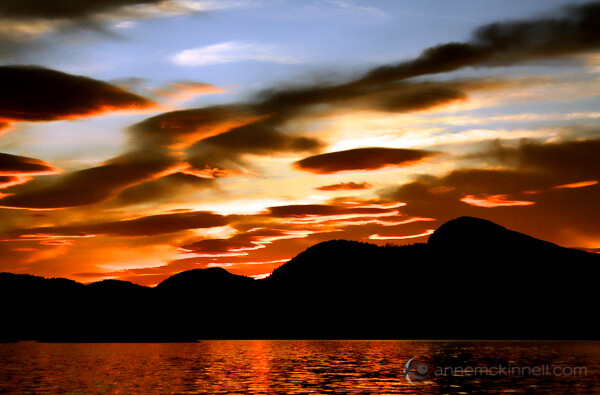
    A clear sky at sunset might turn a shade of pale blue or pink, which is beautiful and calming, but with just the right amount of clouds the sky becomes alive with fire and drama as the day’s last rays reflect off the clouds making them red, orange, purple and pink.

    Desolation Sound Marine Park, British Columbia, by Anne McKinnell

    Not all clouds are created equal though. They come in many shapes, sizes, densities, and altitudes, and they all refract or absorb the light in different ways that can drastically change the quality of your photographs.
    Types of Clouds

    Clouds that hang low in the sky and form a band on the horizon or appear like a thick blanket covering the sky will block the sun’s high-flying rays and make the sunset pretty anti-climactic, if you can see it at all.

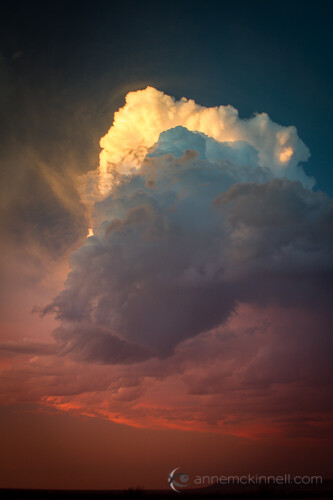
    Sometimes large and lumpy clouds that are brighter on the top and dark on the bottom can create a lot of contrast, making for a very moody atmosphere. Rain, snow, and hail clouds fall under this category, as the weight of the excess moisture weighs them down.

    Storm Cloud by Anne McKinnell

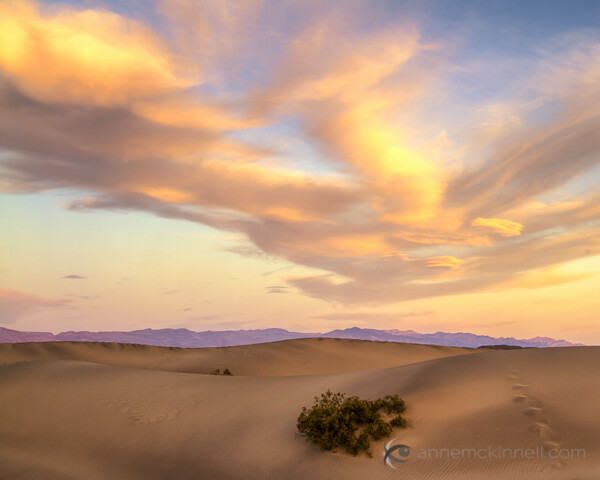
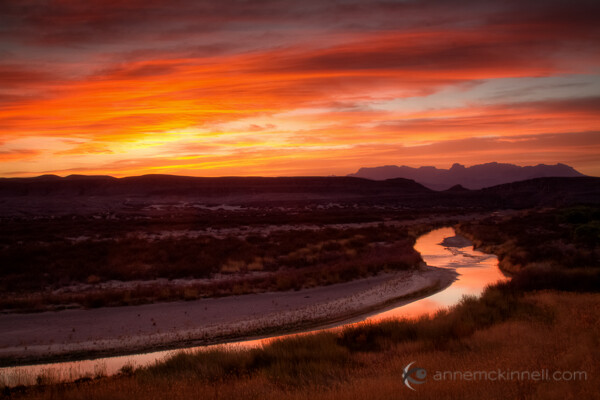
    The most radiant displays of colour emerge when the clouds are very high in the sky. They are usually smaller, whiter, and thinner than the low-lying clouds, and they are able to catch the sunlight from beneath, allowing us to view those fiery colours from the ground.

    These are more likely to occur when the weather is hot and dry, which is why desert landscapes are famous for their magnificent sunsets. When you want to create a dazzling sunset photo, these are the clouds you want to look out for.

    Mesquite Sand Dunes, Death Valley National Park, California, by Anne McKinnell

    Predicting the Weather

    Sunsets don’t last very long, so it takes a little planning and a lot of luck to have nature set up the perfect sky for you. You never know when the ideal conditions are going to present themselves, but if you tune your senses to the weather and its patterns, you will start to get an idea of when you can expect to see the right amount of clouds in a sunset sky.

    Watch the sky over the course of the day to see what kinds of clouds are forming and how fast they’re drifting overhead. Check your local weather forecast to find out when the sun will go down, and try to judge if they’ll be sticking around based on the time of day and the speed of their movement. Keep informed about any storms coming in that will bring low-hanging clouds along with them.

    If you have a great view from your back yard, all you have to do is keep your camera at hand so you can dart out when you see a great sky. On the other hand, if your aim is to travel to a more distant location to get your shot, you’ll have to be a little more precise in your calculations to avoid hauling all your gear up a mountain only to have the clouds dissipate. Your best bet is to choose a location that will be beautiful with or without clouds – that way, if nature doesn’t cooperate, you haven’t wasted the trip.

    Rio Grande, Big Bend National Park, Texas, by Anne McKinnell

    The Perfect Exposure

    The most effective way of bringing out the natural saturation of coloured light is to underexpose very slightly – between a half-stop and a full stop. This darkens the rest of the image, making the colour pop in comparison. Use your exposure compensation to adjust this.

    To make sure you get the best possible exposure, bracket your shots. This means taking several images at different exposures, so you can analyze them on your computer at home in order to determine which is the most successful. This can be done manually using your exposure compensation setting – take one image using the camera’s default settings, then take one that is underexposed by half a stop and one that is overexposed by half a stop. Some cameras will have an automatic bracketing option that you can utilize to change these settings for you.

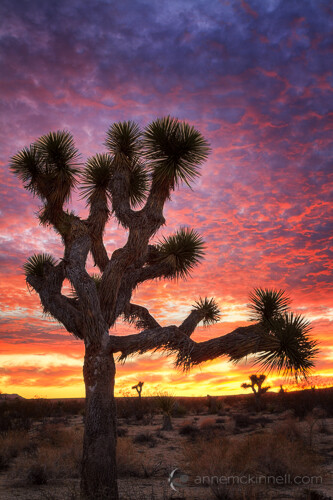
    Another option is to create a high-dynamic range (HDR) image by combining multiple exposures as I did in this photo of a Joshua Tree. I made one exposure for the sky, another for the mid-tones, and another for the shadows and combined them in post-processing.

    Joshua Tree National Park, California, by Anne McKinnell

    If you want to soften the appearance of moving clouds, use a long shutter speed to blur them slightly. If they are drifting slowly you’ll need a longer exposure to achieve this than if they’re gliding swiftly across the sky.

    Foreground

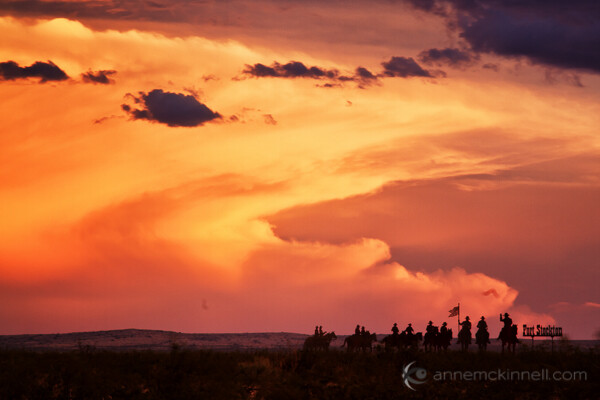
    When you’re going after sunset-specific shots, there’s a good chance that your foreground is going to be silhouetted against the sky. When this happens, it’s easy to forget about the foreground all together. This is a mistake. Remember that every part of your frame is important. The darkened foreground is simply negative space, and should be composed just like the rest of the image. Look for interesting shapes or objects to place in the frame to create a focal point that enhances the picture. If you want your foreground to be more visible, use fill flash (flash with the brightness turned down) to lighten the subject slightly without overexposing.

    Fort Stockton, Texas, by Anne McKinnell

    Post-Processing

    When you bring your photos into an image editing program, you might have the urge to crank up the saturation and make the colours really bold. Resist the urge to go overboard on this feature; a 5% increase is all right, but much more than that can cause your image to take on a cartoonish look that could make it appear inauthentic. If your software allows you to, change the “vibrance” instead. This option is similar to saturation, but it focuses its effects on the pixels with lower colour intensity, preventing over saturation. Be ginger with your adjustments, and when in doubt dial them back a little bit to ensure the alterations are subtle and the final image looks natural.

    Post originally from: Digital Photography Tips.

    Check out our more Photography Tips at Photography Tips for Beginners, Portrait Photography Tips and Wedding Photography Tips.

    How to Photograph Dramatic Clouds at Sunset

    The post How to Photograph Dramatic Clouds at Sunset by Anne McKinnell appeared first on Digital Photography School.


    Digital Photography School

  • 3D Printer Bot Creates Perfect Replicas of Classic Paintings

    [ By Steph in Gadgets & Geekery & Technology. ]

    3D Printer Classic Paintings 1

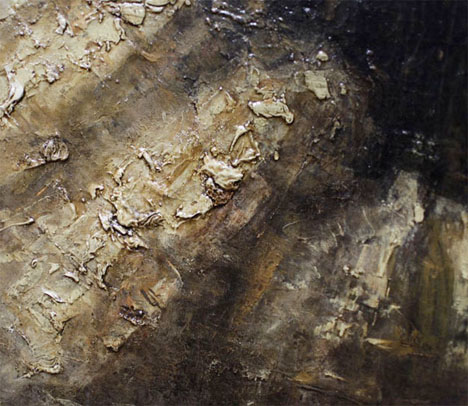
    You can’t really get a feel for a Rembrandt painting by looking at a flat print – there’s just so much detail missing in the texture of the brushstrokes, the physicality of the paint. But just like it’s revolutionizing so many other areas from medical devices to full-scale architecture, 3D printing is making it possible to experience some of the world’s most valuable classic paintings as they were meant to be seen.

    3D Printer Classic Paintings 3

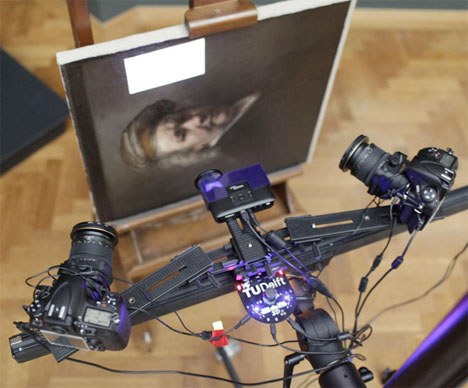
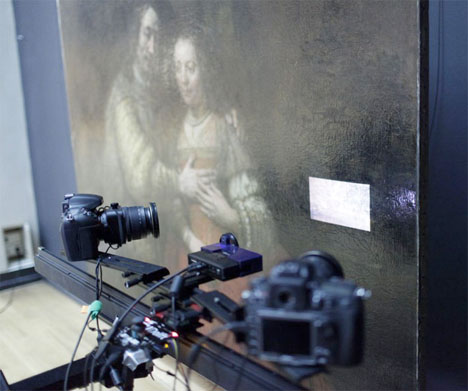
    Dutch researcher Tim Zaman has built a photographic scanning system that uses two cameras and fringe projection to scan the surface of a painting. An exact reproduction is then generated with a high-resolution 3D printer. That replica maintains all of the surface texture of the original, revealing paint build-up and every little brushstroke.

    3D Printer Classic Paintings 2

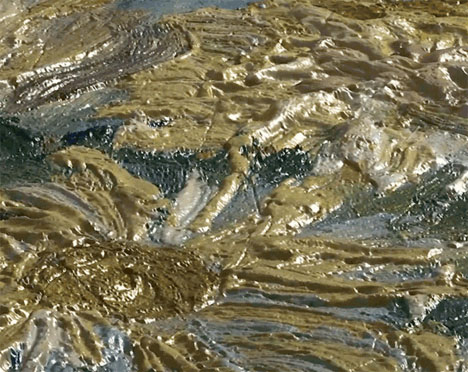
    In fact, extreme close-ups captured with the digital scans show the paint from angles in which it’s never been seen before, even on iconic images like Van Gogh’s sunflowers. “Paintings are not unlike sculptures, paint as a material has a huge impact on the way a painting looks. By illuminating a painting with light, it automatically gives highlights and shadows that form the way we see it,” says Zaman.

    3D Printer Classic Paintings 4

    The 3-D imaging method used to create the prints yields an enormous depth map while also capturing exact color. The resulting print has a resolution of 50 microns, easily fooling the average observer into thinking it’s an original. Look closely and you’ll see the tiny drops, painted mechanically with the nozzle. “We noticed that things like glossiness and transparency that are in each painting are very distinguishing in the original, and we are not yet able to reproduce.”

    Share on Facebook


    [ By Steph in Gadgets & Geekery & Technology. ]

    [ WebUrbanist | Archives | Galleries | Privacy | TOS ]


    WebUrbanist