RSS
 

LumaFusion gets 10-bit HDR video editing, exporting and more in its 2.4 update

18 Nov

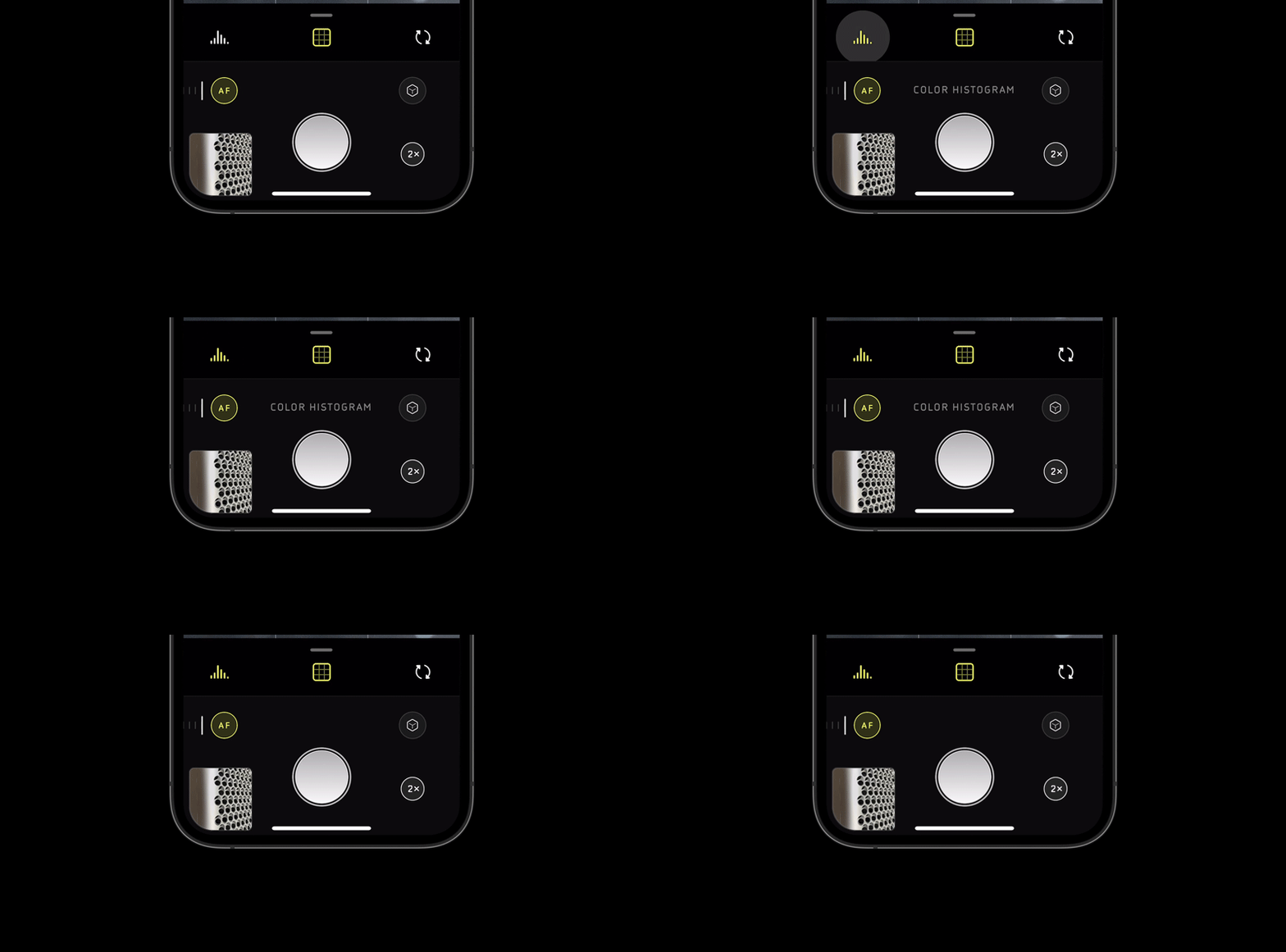
LumaFusion, one of the most powerful video editing apps for iOS and iPadOS devices, has received a major 2.4 update that adds support for editing and exporting 10-bit HDR video, including footage captured with Apple’s new iPhone 12 Pro devices.

The version 2.4 update for LumaFusion, which is free for existing customers, now makes it possible to create projects for HLG, PQ P3 and Rec-709 10-bit color spaces. In addition to creating an end-to-end workflow for Apple’s new HDR-capable iPhone 12 Pro devices, this also opens the door for editing and exporting HDR footage captured on cameras such as Canon’s R5, Panasonic’s Lumix GH5, Sony’s a7S III and others.

The new color space options reside in the project settings menu and can be turned on by default so future projects start in whatever color space you tend to use. Exporting 10-bit footage is as simple as selecting it as the color space while going through the export dialog box.

LumaFusion has also added the option to export H.265 video with transparency if you’re making custom title cards or animations and a new automated project settings feature that will define the frame rate, aspect ratio and color space of the project based on the first clip imported into the timeline. Other features include an improved color picker, a new Chroma Keyer with automated key color detection and a new Luma Keyer the offers adjustments for luma range, roll-off, erosion distance and edge blur radius for fine-tuned edits.

LumaFusion version 2.4 is available to download in the iOS App Store for $ 30.

Articles: Digital Photography Review (dpreview.com)

 
Comments Off on LumaFusion gets 10-bit HDR video editing, exporting and more in its 2.4 update

Posted in Uncategorized


How to Use Photoshop to Add Lightning to Your Stormy Photographs

18 Nov

The post How to Use Photoshop to Add Lightning to Your Stormy Photographs appeared first on Digital Photography School. It was authored by Ana Mireles.

Did you know you can use Photoshop to add lightning bolts to your images?

use photoshop to add lightning before and after

Thunderstorms are a great photographic subject, and bolts of lightning can add drama to your photos. Unfortunately, they don’t necessarily occur when you want them.

And you can’t always base your photoshoots around natural events. That’s when post-processing comes to your aid.

How to use Photoshop to add lightning

Have you ever seen a thunderstorm and wished it had happened the day before when you were out doing an urbex photoshoot? Or have you ever you looked at one of your photos and thought that a thunderstorm would have added the perfect ambiance?

how to use photoshop to add lightning tutorial

Unless you’re a professional that specializes in this kind of photography and purposely chases storms, you’ll rarely have a thunderstorm when you’re in the right location with the proper equipment.

And even if you are in the right place at the right time, it’s not always easy to photograph lightning.

Not to worry.

Because there are several different ways to use Photoshop to add lightning – and create the perfect thunderstorm in your photos.

how to use photoshop to add lightning Intro

In this tutorial, I’ll show you two ways of adding lightning to your images. The first way is by making a composite. The second way is to create a lightning bolt inside Photoshop.

So choose the one that’s better for you, and let’s get started.

Use Photoshop to add lightning via compositing

This technique is very easy to do, but you must already have a lightning photograph on hand.

Step 1: Choose and open your images

Use Photoshop to composite a thunderstorm

First, you need to choose the two images that you’re going to use. One of them will be the background where the lightning bolt is going to be added.

This method will work best if the image has a moody sky. You can always place a bolt of lightning into a clear blue sky, but an already-moody sky will look more realistic and have more drama. So pick an image with lots of clouds and contrast.

The second image is the one with the lightning bolt in it. If you’ve photographed thunderstorms in the past, then you can use one of those images. If not, you can always get a lightning bolt from a free stock photography website.

Open both images in Photoshop. Then drag the lightning photo onto the new background; this will automatically paste it into a new layer.

Alternatively, you can use the commands Edit>Copy and Edit>Paste.

Step 2: Use Photoshop’s blending modes to add lightning

Photoshop simple composite technique

Your new layer should be covering the background, so you need to blend both layers together and integrate the lightning bolt.

I prefer to keep the original color, but you can also make your lightning image black and white and then make it darker to make the blending easier.

Whether you decide to leave the lightning in color or change it to black and white, you need to change the blend mode. You can do this by opening the drop-down menu in the Layers panel and selecting your desired mode.

For my example, Overlay is the most appropriate. And it can be a good starting point for you, too, but feel free to experiment with other options.

Step 3: Fine-tune your composite

use Photoshop blending modes to add lightning

Move and adjust the lightning bolt until it’s positioned the way you want it in the background image. Once everything is in place, you need to do some advanced blending in the Layer Style dialog box.

To open the Layer Style box, just double-click on the layer next to its name. Don’t click on the thumbnail or the name itself, because those are different tools. A pop-up window will appear; that’s the Layer Style box. At the bottom, you’ll find the Blend If option.

Here, you need to move the sliders to the right. Start with the top slider (which controls the current layer). Hold Alt while you drag to split the slider and create a more gradual effect. Then, if necessary, do the same with the slider on the underlying layer. Once the lightning looks integrated into the photo, you can click OK to close the dialog box.

You can now add a layer mask to further fine-tune the effect. The source of the lightning is always lighter than the rest of the sky, so you might need to add a gradient to create that effect.

You can also color black any residual elements that didn’t disappear via the Blend If settings.

That’s it! Your composite is now ready. You can add other filters or do some more editing to finalize your picture.

How to use Photoshop to add (and create) lightning bolts

For this method, you only need to have a background image. Again, the choice is yours, but a cloudy day or dramatic scenery will help create more impact.

Step 1: Create a lightning bolt

add lightning using Photoshop - before

Open the background image in Photoshop and create an empty new layer at the top of the layer stack.

To fill it, grab the Gradient tool, set it to Linear Gradient, and drag the tool across the canvas. Make sure that your gradient goes from black to white. These choices can be found in the Options bar at the top of the screen.

With the same layer selected, go to Filter>Render>Difference Clouds. There are no settings (or previews) for this kind of filter; it just generates a pattern using random values.

Use Difference Cloud filter

Now invert it by going to Image>Adjustments>Invert. You can also use the shortcut Ctrl/Cmd + I.

Then go to Image>Adjustments>Levels. In the pop-up window, you’ll find a histogram with a slider (this is the Levels adjustment). Drag it to the right until the background is all black and only white lines are visible. You’ll notice that some of these white lines resemble lightning bolts.

Create fake lightning bolts

Pick a “lightning bolt” and start painting with black to cover the other lines using the Brush tool. Keep going until you leave only a line that looks like lightning. The size and shape are up to you; there’s no specific formula.

If you only want to add that lightning bolt, then just adjust the blend mode of the layer and position it where you want it (see the composite technique explained in the first part of this article).

If you’d like to add several lightning bolts or one lightning bolt with a more complex shape and multiple branches, then I recommend you make a brush.

Step 2: Make a custom brush

Create a custom brush

To create a brush, you have to select the lightning bolt you just made. To do that, you can use any selection tool that is comfortable for you. In this case, I’d recommend using Color Range.

Once you’ve selected your lightning bolt, click on Edit>Define Brush Preset and give it a name. To make the lightning more dynamic, you can adjust the settings and make it change size and direction.

Now you have a lightning bolt brush that you can use in any photograph without having to create one again and again. At this point, you can hide or delete the lightning layer.

Step 3: Add lightning bolts in Photoshop

create a thunderstorm in Photoshop

Create a new empty layer on top of the background. That way, you can have the lightning bolts in a separate layer to edit and modify them as required.

Start painting one or more lightning bolts until you’re satisfied with the thunderstorm effect.

Step 4: Fine-tune the effect

add lightning using Photoshop - after

You can add a layer mask to integrate the lightning using a gradient to make it look more natural.

You can also add a Solid Color layer above the lightning layer. You can then use the Blend If tool to color only the lightning bolts.

Your thunderstorm is ready now! However, you can continue to post-process the final image if you want to give it a specific look. Black and white usually works very well for these type of images, so give that a try.

How to use Photoshop to add lightning: conclusion

I hope this article helped you see how easy it is to use Photoshop to add lightning.

Feel free to share tips and your own amazing images in the comments section below!

The post How to Use Photoshop to Add Lightning to Your Stormy Photographs appeared first on Digital Photography School. It was authored by Ana Mireles.


Digital Photography School

 
Comments Off on How to Use Photoshop to Add Lightning to Your Stormy Photographs

Posted in Photography


Adobe releases Photoshop beta for Apple Silicon and Windows ARM

18 Nov

As new M1-equipped Macs arrive to early adopters this week, Adobe has released a beta ARM version of Photoshop. The beta allows owners of the Microsoft Surface Pro X and M1-powered Macs to run Photoshop natively. The current public release version of Photoshop runs emulated on both Windows and macOS.

Looking at the beta version of Photoshop for Apple Silicon, there are missing features, but Adobe states that many core features are fully operational. The beta will only run on Apple hardware using the M1 chip, so the M1-equipped MacBook Air, 13″ MacBook Pro and Mac mini.

M1-equipped 13″ MacBook Pro. Image credit: Apple

There are a variety of known issues, the full list of them can be found here. As Adobe states, many features are not yet available, including Camera RAW, Select Sky/Sky Replacement, Content Aware Fill/Scale/Move, Auto-Blend Layers, Photomerge, Spot Healing Brush and much more. Further, some included features have bugs, including opening hundreds of files, performing object selection, certain upscaling methods and more. For additional details, refer here.

For the Windows ARM beta, many of the same issues persist. To use this beta, you must have a Surface Pro X with at least 8GB of RAM and be running Windows 10 build 19041.488. Specific to the Windows ARM version, users must install the Microsoft OpenCL and OpenGL Compatibility Pack in order to take advantage of OpenCL- and OpenGL-related functions, of which there are many inside of Photoshop.

Microsoft Surface Pro X. Image credit: Microsoft

Despite the missing features and known issues, Adobe says, ‘We are excited to announce the first Beta release of Photoshop running natively on Apple Silicon Hardware and Windows ARM devices.’ Adobe also promises that more features will be added in short order. Since the software is in beta, it’s not officially supported yet, but Adobe wants users to try it and provide feedback. You can post issues not listed in the ‘Known Issues’ sections found in the above links by visiting the Photoshop (Beta) forum.

To reiterate, the current beta version is not quite ready to act as your daily Photoshop application, nor does it fully showcase what the new Windows ARM and Apple M1 architectures are capable of when it comes to running Adobe Photoshop. In fact, the beta has been released exclusively for early feedback. Nonetheless, the beta represents a critical and important step in the development process and paves the way for what we all expect to be very fast, efficient versions of Adobe Photoshop. Early reports from users of the new Apple M1 machines showcase remarkable performance and benchmarks, and there’s ample reason to expect Adobe will be able to extract that power in its software.

(Via The Verge)

Articles: Digital Photography Review (dpreview.com)

 
Comments Off on Adobe releases Photoshop beta for Apple Silicon and Windows ARM

Posted in Uncategorized


Firmware update: Olympus E-M1X gets bird AF along with Raw video

17 Nov

Olympus has announced a firmware update that will enhance the capabilities of its flagship E-M1X sports camera. Some of the features will be cascaded down to the E-M1 III, E-M1 II and E-M5 III.

Exclusive to the E-M1X is ‘Bird detection AF’, which expands the camera’s AI-trained subject recognition system. Bird AF will focus on the eyes of birds, or their bodies if the eye isn’t visible. This subject-aware AF can be used in conjunction with the camera’s Pro Capture pre-buffering mode, to increase your chances of getting the perfect birding shot.

Both the E-M1X and E-M1 III will gain the ability to output Raw video data streams that can be encoded as ProRes RAW if the cameras are connected to an Atomos Ninja V external recorder. The output is 12-bit with Olympus saying it allows ‘exposure adjustment,’ which we’re hoping means the resulting ProRes RAW footage will be compatible with a full range of post-shot adjustments.

These two cameras will also gain a ‘Focus Indicator Display’ mode that provides a focus guide, based on phase-detection distance information, when manually focusing.

In addition, the E-M1X, E-M1 III, E-M1 II and E-M5 III will all receive an update to improve the image stabilization performance while shooting video. The company explicitly mentions panning, which suggests it will be better at distinguishing between accidental and intentional camera movement. Finally, the firmware will provide all four cameras with the ability to use focus-stacking mode with the new 150-400mm F4.5 TC1.25x IS PRO lens.

Press release

FIRMWARE VERSION 2.0 FOR THE OLYMPUS OM-D® E-M1X

Introducing Bird Detection for Intelligent Subject Detection Autofocus

Center Valley, PA, November 17, 2020 – Olympus is pleased to announce the latest firmware upgrade for the Olympus OM-D E-M1X mirrorless camera, Version 2.0. Scheduled for release on December 2, 2020, this new version of firmware adds Bird Detection to Intelligent Subject Detection Autofocus, an AI-based deep learning technology. With this new function, the camera automatically prioritizes detection of a bird’s eye, for focusing and tracking, so the photographer can concentrate on composing images and capturing the moment. The new firmware also includes various functional improvements, such as RAW video data output to support professional video production. Additional firmware upgrades are available for the OM-D E-M1 Mark III, E-M1 Mark II and E-M5 Mark III. All available updates can be accessed at: https://getolympus.com/firmware.

OM-D E-M1X Firmware Version 2.0 with Bird Detection

Bird detection has been added to Intelligent Subject Detection Autofocus, and can recognize a variety of birds of all sizes. When using this version of firmware, the camera focuses primarily on the bird’s eye and switches to detect and track the bird’s head or body if its eye is not detected. This feature performs well even in birds’ natural habitats, where trees, plants and other obstructions tend to come between photographer and subject, allowing the photographer to concentrate on framing. This functionality can be used in conjunction with Pro Capture, which is also a popular feature for photographing birds. Pro Capture mode virtually eliminates shutter lag and reaction time by recording sequential frames before the shutter release is pressed fully, and ensures the camera never misses decisive moments, as when a bird takes flight or captures its prey. Birds are detected across the entire AF coverage area when shooting with all M.Zuiko® Digital lenses, inclusive of super telephoto zoom lenses. The functionality works even at the periphery of the screen, offering a greater level of freedom for framing.

RAW Video Data Output to the Atomos Ninja V HDR Monitor Recorder

4K 30P/25P/24P and Cinema 4K 24P video recorded on the OM-D E-M1X can be output as 12-bit RAW data and recorded in ProRes RAW format on the Atomos Ninja V HDR monitor recorder, enabling advanced professional video production post-processing tasks, such as adjusting exposure and color grading of recorded footage. The latest firmware for the Atomos Ninja V HDR Monitor Recorder will be required to enable this support. The firmware can be accessed here: https://www.atomos.com/firmware/ninja-v .

Focus Stacking Support for the M.Zuiko Digital ED 150-400mm F4.5 TC1.25x IS PRO Lens

With this firmware, the M.Zuiko Digital ED 150-400mm F4.5 TC1.25x IS PRO supports in-camera Focus Stacking, bringing the total to 11[i] compatible lenses.

Improved Video Image Stabilization Performance

The video image stabilization algorithm has been updated for natural recording with minimal shake, even when panning.

Supports Focus Indicator Display

This feature makes it possible to quickly check the focusing direction and approximate focus position during manual focusing.

OM-D E-M1X, OM-D E-M1 Mark III, OM-D E-M1 Mark II, and OM-D E-M5 Mark III Firmware Upgrades

Firmware Version 1.2 for the OM-D E-M1 Mark III, Version 3.4 for the OM-D E-M1 Mark II, and Version 1.3 for the OM-D E-M5 Mark III will be released simultaneously with firmware Version 2.0 for the OM-D E-M1X on December 2, 2020. Visit the following website for further details: https://getolympus.com/firmware.

Firmware Upgrade Compatibility Table

E-M1X

Firmware Ver.2.0

E-M1 Mark III Firmware Ver.1.2

E-M1 Mark II Firmware Ver.3.4

E-M5 Mark III Firmware Ver.1.3

1. Bird detection

Yes

No

No

No

2. RAW video data output

Yes

Yes

No

No

3. Lens that supports Focus Stacking added

Yes

Yes

Yes

Yes

4. Improved video image stabilization

Yes

Yes

Yes

Yes

5. Supports focus indicator display

Yes

Yes

No

No

Pricing, Configurations, Availability & Specifications

Olympus Firmware Upgrade Version 2.0, along with the other firmware upgrade versions mentioned here within are available free of charge on the Olympus website beginning on December 2, 2020.

[i] OM-D E-M1X Focus Stacking compatible lenses:

M.Zuiko Digital ED 8mm F1.8 Fisheye PRO / ED 30mm F3.5 Macro / ED 60mm F2.8 Macro /

ED 300mm F4.0 IS PRO / ED 7-14mm F2.8 PRO / ED 12-40mm F2.8 PRO /

ED 12-45mm F4.0 PRO / ED 40-150mm F2.8 PRO / ED 12-100mm F4.0 IS PRO /

ED 100-400mm F5.0-6.3 IS / ED 150-400mm F4.5 TC1.25x IS PRO

Articles: Digital Photography Review (dpreview.com)

 
Comments Off on Firmware update: Olympus E-M1X gets bird AF along with Raw video

Posted in Uncategorized


Olympus 150-400mm F4.5 TC1.25x initial sample gallery

17 Nov

$ (document).ready(function() { SampleGalleryV2({“containerId”:”embeddedSampleGallery_3034258563″,”galleryId”:”3034258563″,”isEmbeddedWidget”:true,”selectedImageIndex”:0,”isMobile”:false}) });

Olympus’ new 150-400mm F4.5 TC1.25x is one seriously-impressive piece of kit. Offering 1000mm equiv. of reach when using the built-in teleconverter, it’s a great option for wildlife photography. Handling-wise, we found it a bit lighter and smaller than its massive focal range suggests and the perfect companion for the twin-grip OM-D E-M1X.

This is an initial sample gallery; we’ll update it again soon when we get a break from the pervasive Pacific Northwest rain. In the meantime, these should at least give you some idea of this lens’ potential.

See our Olympus 150-400mm F4.5 TC1.25x initial sample gallery

Articles: Digital Photography Review (dpreview.com)

 
Comments Off on Olympus 150-400mm F4.5 TC1.25x initial sample gallery

Posted in Uncategorized


How to Read and Use Histograms

17 Nov

The post How to Read and Use Histograms appeared first on Digital Photography School. It was authored by Darlene Hildebrandt.

The histogram is a useful but often misunderstood tool that your camera provides to help you get the correct exposure in your images.

In this article, we’re going to look at how to read a histogram, and how to use it to your advantage. Getting the best exposure (there is no such thing as the “correct” exposure, as it’s all subjective) in-camera should be your goal every time you click the shutter.

Using these tips should help you increase your photographic success rate!

What is a histogram?

Here’s the dictionary definition: 

A histogram is a bar graph of a frequency distribution in which the widths of the bars are proportional to the classes into which the variable has been divided and the heights of the bars are proportional to the class frequencies.

Huh? Anyone else confused? So what does a histogram really do? And how do you read it?

Let’s have a look!

How to read the histogram

A histogram is a graphical representation of the pixels in your image. The left side of the graph represents the blacks or shadows, the right side represents the highlights or bright areas, and the middle section represents the midtones (middle or 18% gray). 

The heights of the peaks represent the number of pixels of a particular tone (with each peak corresponding to a different tone). Each tone from 0-255 (0 being black and 255 being white) is one pixel wide on the graph, so imagine the histogram as a bar graph all squished together with no spaces between each bar.

Have a look at the diagrams below:

how to use the histogram

What can we learn from a histogram?

There are many things we can learn about an image just by looking at its histogram.

We can tell that an image is well-exposed if it reaches fully from edge to edge without a gap on one side of the graph, and it isn’t heavily going up one side or the other. In an ideal world, the graph should just touch the left and right edges of the histogram, and not spill up the sides. The graph should also have a nice arch in the center. 

However, this “ideal histogram” doesn’t always apply in every situation for every scene. Here are a few examples:

an ideal histogram
This is how an ideal histogram might look, evenly distributed, edge to edge, not up the sides.
a darker histogram
This is a histogram for a dark subject. It is not wrong; it is just more shifted to the left to represent the tones of the subject. This might be a black cat on dark pavement.
a brighter histogram
This is a histogram for a light subject (e.g., a white cat) with mostly light tones in the scene and few dark areas. See how it is shifted to the right compared to the dark subject? This is what you want, assuming your scene is mostly light-toned. If you change your exposure to keep the graph centered, you will end up with a gray cat, not a white one.

When the histogram tells you to adjust your exposure

Gaps on either end indicate you are missing information and your exposure can be shifted safely without losing detail. When your graph is shifted too far in one direction or the other direction, so that it does not even touch the other edge, you can safely shift your exposure to cover more of the range of tones. Let’s look!

an overexposed histogram
This graph shows an overexposed image; notice the gap on the left side indicating a lack of any blacks in the image. It also means you will lose lots of detail in the white areas that may not be recoverable. In this case, shift to give your image less exposure and shoot the scene again.
an underexposed histogram
This histogram shows the opposite. Now we see a gap on the right side of the graph indicating there are no whites represented, so the image will be dark – too dark. You can safely give the image more exposure until you see the tones just touch the right edge of the histogram.

What do the spikes up the sides mean?

Spikes up the left or right edge of the histogram indicate “clipping” of that tone and a loss of detail in that area. Clipped areas are often unrecoverable, especially in the highlights.

It is generally advised to expose so that your graph just touches the right edge (which indicates that you’ve kept your highlight details). It is usually easier to recover some shadow detail and retain a decent image than to try and create highlight detail that isn’t in the file.

In some scenes, however, it may not be possible to keep the graph within an acceptable range. For example, you’ll struggle to get great results if you are photographing a scene with extreme contrast, such as:

  • Sunset
  • Bright sunlight and deep shadows
  • A building interior where you also show the area outside the windows

In all of those cases, you will not be able to keep from clipping either your blacks, your whites, or both.

a high-contrast histogram
High contrast graph

The graph above shows an image with extreme contrast, lots of blacks, a spike of white, and not much in the middle.

Is this wrong? Can you correct for it?

No, it’s not wrong.

And you can’t really “correct” for it, but you do have a decision to make when you see something like this. Do you shift the graph left and maintain highlight detail, or shift it right and keep shadow detail?

There is no right or wrong here. It’s all how you interpret the scene before you. If in doubt, shoot both and decide later. The graph above comes from the image below, so as you can see it is not the incorrect exposure at all. There are simply no midtones in the scene:

neon star sign

Here’s another example of a scene that will potentially go off the graph on both ends:

wide-angle cathedral with a blown-out ceiling and deep shadows
Notice the skylight at the top of the roof is blown out, and the deep shadows have little detail.
cathedral with better detail
Notice how, in this image, the details have been retained in both the highlights and the shadows.

Using advanced techniques like image merging and blending, HDR, or careful post-processing, you can compress the tonal range of a scene to fit within the histogram and therefore have details in all areas.

For the image above, I’ve used four bracketed images (taken two stops apart) and the HDR tone mapping process to bring the dynamic range of the scene down within a printable range.

One more handy thing on your camera: the “blinkies”

To help you establish how far you can go when exposing, most cameras have a setting called “highlight warnings.” It will make any overexposed highlights flash or blink when you preview your images on the camera LCD. Many people affectionately call these “the blinkies.”

histogram blinkies flashing
Notice the flashing areas; that means the highlights are being clipped in those parts of the image.

To do this on a Nikon camera, preview an image and press the Up or Down button (near the OK button) until you see the highlights flashing or outlined. This is the “highlight mode.” If you choose this setting, your camera will remember to use it for the next image you preview. You may need to activate the “highlight warnings” feature in your settings menu first, however.

To do this with a Canon camera, press the Display or Info button (depending on your model) until the blinking highlights show up on the screen when previewing images. You may also need to turn on this feature in the menu settings. Check your camera manual if you aren’t sure how to do this.

Summary

By using the tools your camera provides you, it’s easier to understand how to adjust your image exposure. There is a lot more to know about the histogram, and you can use it when you process your images in Photoshop or Lightroom, as well. 

Just keep in mind that, if you shoot in JPEG format, nailing the exposure in-camera is even more critical. If you shoot in RAW format, you have some leeway to make adjustments later, but it’s still a better idea to get it right in the first place.

The post How to Read and Use Histograms appeared first on Digital Photography School. It was authored by Darlene Hildebrandt.


Digital Photography School

 
Comments Off on How to Read and Use Histograms

Posted in Photography


Hands on: Olympus 150-400mm F4.5 TC1.25x

17 Nov

Hands on: Olympus 150-400mm F4.5 TC1.25x

It’s here! We’ve known that the Olympus 150-400mm F4.5 TC1.25x was coming for a long time, and mockups have been on display here and there at trade shows (remember those?) for a year or so, but now it’s official. Designed for professional and advanced amateur photographers, especially fans of wildlife and sports, the Olympus 150-400mm F4.5 TC1.25x is shaping up to be a seriously impressive lens for serious Micro Four Thirds shooters.

Click through this article to learn more.

Focal length range

First let’s start by going over its focal length range. This is a 150-400mm tele-zoom, which covers an equivalent range of 300-800mm in full-frame terms. Meanwhile, its constant maximum aperture of F4.5 works out equivalent (in full-frame depth-of-field terms) to F9. The built-in teleconverter provides a boost in magnification of 1.25X, and when activated, the lens effectively becomes a ~190-500mm F5.6, or an equivalent 380-1000mm zoom.

Up to 8 stops of stabilization

That kind of focal length reach is impressive, despite the relatively slow aperture, and Olympus insists that the lens is fully hand-holdable, even at an equivalent focal length of 1000mm. Boasting a claimed 4.5 stops of stabilization as standard and up to eight stops of stabilization at the 150mm setting in combination with Olympus’s newest high-end ILCs (dropping to a claimed six stops when zoomed all the way), our experience so far suggests that this is indeed a lens which can be shot without a tripod. At least for a short while…

Size and weight

A tripod is still a good idea for extended shooting, because while undoubtedly smaller and lighter than an equivalent lens for full-frame would be, at 4.1lb (1.9 kg) you will quickly feel the weight of the 150-400mm around your neck – especially if it’s mounted on an E-M1X. Olympus has kept the weight down as much as possible by liberal use of reinforced plastics (including a ‘Heat Shielding Coating’ to stop sunlight from heating up the internals) over a magnesium-alloy chassis, with carbon fiber employed for the large detachable hood.

Weather-sealing

As we’d expect from a lens in Olympus’s ‘PRO’ lineup, the 150-400mm is sealed against dust and moisture, and is rated for use in conditions as cold as -10°C (14°F).

Despite its long reach, the 150-400mm accepts conventional 95mm screw-in filters. Several third-party options are available, but Olympus will be selling one alongside the new lens for $ 324.99.

Optical construction and autofocus

Optical construction of this tele-zoom lens is complex, consisting of 28 elements in 18 groups. The optical design comprises several special glass elements, including four ED elements and two ‘HR’ high refractive-index elements. The built-in 1.25X TC alone accounts for seven elements, in four groups.

Olympus’s ‘Z Nano’ coating is used to keep transmission and contrast high, and the front element is coated with fluorine to help repel dust and moisture.

The 150-400’s focus group is driven by a stepping motor. We found focus speeds to be very quick (Olympus claims that this lens is 25% faster than the 300mm F4 Pro) and the motor is nearly silent.

Minimum focus and max magnification

Minimum focus is 1.3m (51″) across the entire focal length range, which equates to a maximum magnification of 0.57X, increasing to 0.71X when the built-in teleconverter is used. While it wouldn’t be our first choice for true macro photography, this is impressive for a tele-zoom lens, and makes the 150-400mm very versatile when it comes to smaller subjects like butterflies.

Customization

Being a professional-grade lens, the 150-400mm features no fewer than four customizable L-Fn buttons, as well as preset focus buttons to quickly recall a saved focus position. The new Olympus 150-400mm F4.5 TC1.25x will be available at the end of January, 2021, at an MSRP of $ 7,499 ($ 10,000 CAD).

Articles: Digital Photography Review (dpreview.com)

 
Comments Off on Hands on: Olympus 150-400mm F4.5 TC1.25x

Posted in Uncategorized


Video: Astrophotographer creates stunning global map of Mars

17 Nov

Astrophotographer Jean-Luc Dauvergne spent six nights this fall capturing images of Mars. Dauvergne used the 1.06m telescope of Pic du Midi observatory in the French Pyrenees to capture his photos, which he has since used to create a global map of Mars.

In addition to the six nights Dauvergne spent at the observatory, he told PetaPixel that it took him an additional 10 days to process the images. He says that Pic du Midi ‘is one of the best places in the world for planetary imaging.’

The 1m telescope has a 17,000mm focal length and was originally installed in 1963 to help NASA with its Apollo missions. Dauvergne says that ‘it’s still one of the best [telescopes] in the world to study planetary surfaces in the visible part of the spectrum.’ He’s used the telescope to create what he says is the best global map of Mars shot from Earth’s surface.

Dauvergne photographed Mars this October and November due to the Mars opposition. This event happens roughly every 26 months. This year, the opposition itself occurred on October 13. You can learn much more about the Mars opposition by clicking here. Dauvergne picked a great place for his observations and the Pic du Midi Observatory has an interesting history with observing Mars.

Image credit: Jean-Luc Dauvergne. Click to enlarge.

The Pic du Midi observatory is located 9,439′ (2,877m) above sea level at the top of the Pic du midi de Bigorre mountain. The Pic Du Midi Observatory is part of the Midi-Pyrenees Observatory, which includes additional research stations in France. Construction of the observatory began on the mountaintop all the way back in 1878, although costs slowed progression significantly. In 1908, an 8m dome with a mechanical equatorial reflector was built. Interestingly, this reflector was used to observe Mars and discredit the theory that there were canals on its surface.

When NASA funded the building of the 1m telescope in 1963, the telescope was used to photograph the surface of the Moon. In 1965, the telescope was then used by astronomers Pierre and Janine Connes to analyze Mars and Venus. Their work helped inform James Lovelock, a scientist in California, to theorize that these planets didn’t support life.

The observatory includes a 2m telescope as well, which was built in 1980. It’s the largest telescope in France. There’s also a 0.6m telescope which has been used by amateur astronomers since the early 80s. In total, the Pic du Midi Observatory includes four telescopes. With the aid of these telescopes, the discovery of nine minor planets are credited to the Pic du Midi Observatory.

If you’d like to see more from Jean-Luc Dauvergne, check out his Twitter and YouTube channel. On YouTube, he has additional videos of Mars from his observations at Pic du Midi.

Articles: Digital Photography Review (dpreview.com)

 
Comments Off on Video: Astrophotographer creates stunning global map of Mars

Posted in Uncategorized


Pixelmator Pro 2 announced, featuring all-new interface and Apple M1 support

17 Nov

Pixelmator has announced Pixelmator Pro 2.0. Pixelmator calls it ‘the biggest update to Pixelmator Pro yet,’ and it includes an all-new design, support for Macs using Apple’s new M1 chip, full compatibility with the upcoming macOS Big Sur (macOS 11.0) and much more. Further, the update is free for all existing Pixelmator Pro users.

Pixelmator Pro’s editing engine is underpinned by Metal code, allowing the team to take full advantage of the unified memory architecture of the Apple M1 chip. The result is ‘much speedier and much more responsive image editing.’ Tasks relying upon machine learning, such as ML Super Resolution, are up to 15 times faster on the new Macs equipped with the M1 chip. Pixelmator Pro 2.0 remains a Universal app, meaning it runs natively on both M1 and Intel-based Apple devices.

Regarding the all-new design, Pixelmator has worked hard to make Pixelmator Pro 2.0 a more intuitive application and has given it a modern makeover. The team states that ‘almost every tool, every menu, and every button has been updated to make the app more intuitive and more fun to use…’ Further, users can customize the Pixelmator Pro interface, including the app’s list of tools and its toolbar. There are also four new workspace presets to choose from, including photography, design, illustration and painting.

You can see the new ‘Photography’ workspace in Pixelmator Pro 2 here. Image credit: Pixelmator. Click to enlarge.

In terms of tools, Pixelmator Pro 2.0 includes a new Effects Browser, a new Presets Browser (including over 200 new presets) and more. There are seven new color adjustment preset collections and eight new effect preset collections. You can read the full list of updates by clicking here.

Pixelmator Pro 2.0 will be available on November 19. For existing Pixelmator Pro users, the update will be free. For new customers, Pixelmator Pro is available for $ 39.99 USD. You can purchase the app now in the Mac App Store and receive the major update at no additional charge on November 19. To learn more about Pixelmator Pro, click here.

Image credit: Pixelmator. Click to enlarge.

While you do not need a Mac with the M1 chip to take advantage of the new features in Pixelmator Pro 2.0, the software does especially benefit from the performance gains granted by the M1 chip. You can learn more about the M1 chip and the new Macs by checking out our coverage.

Via 9to5Mac

Articles: Digital Photography Review (dpreview.com)

 
Comments Off on Pixelmator Pro 2 announced, featuring all-new interface and Apple M1 support

Posted in Uncategorized


Leica’s FOTOS app is now free for all after the $50/year ‘Pro’ subscription was removed

17 Nov

Last month, Leica quietly announced in the changelog of the version 2.2.0 update of its FOTOS mobile app that it was making all ‘FOTOS PRO’ features available for free to all users.

Previously, FOTOS was free to download, but held most of its premium functionality behind a $ 50 per year subscription plan. Now, in addition to being able to wirelessly capture, transfer, organize, edit and share images, anyone with FOTOS app can also make full use of the iPad version of the app, use the Adobe Lightroom integration (open the image in Lightroom Mobile’s develop module), transfer Raw images and use live view for video capture — all things previously hidden behind the $ 70 subscription.

While $ 50 in comparison to the cost of a new Leica might not be much, having access to these features without having to spend any additional money is a nice change of pace if you own one of the compatible Leica cameras:

  • Leica S (Typ 007)
  • Leica S3
  • Leica SL
  • Leica SL2
  • Leica M10
  • Leica M10-P
  • Leica M10-D
  • Leica M10 MONOCHROM
  • Leica M10-R
  • Leica Q
  • Leica Q-P
  • Leica Q2
  • Leica CL
  • Leica T (Typ 701)
  • Leica TL
  • Leica TL2
  • Leica D-Lux (Type 109)
  • Leica D-Lux 7
  • Leica V-Lux
  • Leica V-Lux 5
  • Leica C-Lux.

You can download, for free, the Leica FOTOS app for both Android and iOS devices in the Google Play Store and iOS App Store.

Articles: Digital Photography Review (dpreview.com)

 
Comments Off on Leica’s FOTOS app is now free for all after the $50/year ‘Pro’ subscription was removed

Posted in Uncategorized