RSS
 

Posts Tagged ‘Windows’

CopyTrans brings native HEIC support to Windows with free plugin

19 Dec

CopyTrans has launched a free piece of software that brings High Efficiency Image Format (HEIC / HEIF) image support to Windows, enabling PC owners to view the popular new image format that has replaced JPEGs in iOS 11.

Windows doesn’t natively support HEIC images at this time, instead receiving JPEG versions of HEIC images when they’re transferred from an iOS 11 device. And while we’ve seen other programs build HEIC support into their own Windows versions, CopyTrans’ program is the first to bring native support.

In other words, as CopyTrans software developer Niki Minkov explained to us over email:

That is, when you browse your files with Windows, HEIC files will display thumbnails just as JPEGs, double clicking will display them full size with Windows Picture Viewer, and the right-click-on-file context menu will now include a “Convert to JPEG” feature.

In fact, our plugin is using the same integration technology that Nikon and Canon used to make Windows compatible with their respective RAW formats.

CopyTrans HEIC for Windows also supports Microsoft Office, and it retains the images’ original EXIF data.

The HEIC format allows for much smaller file sizes than their JPEG counterparts, enabling a greater number of photos to be saved to a device’s built-in storage. Other advantages of the format include the ability to store burst photos, focal stacks, and exposure stacks in a single file, the ability to store image editing operations, and more. Thanks to CopyTrans HEIC, you don’t have to give those advantages up just because you own a PC.

To learn more or download the software for yourself, head over to the CopyTrans website.

Articles: Digital Photography Review (dpreview.com)

 
Comments Off on CopyTrans brings native HEIC support to Windows with free plugin

Posted in Uncategorized


Zoner Photo Studio X brings support for the HEIF image format to Windows

30 Nov

Apple introduced the HEIF (High Efficiency Image File Format) image format with its latest iPhone models 8, 8 Plus and X. Essentially, the new format is more efficient than current standards at compressing image data—images with the same size and level of detail occupy up to 50% less space on your device storage or hard drive—while also offering additional features like the ability to store burst photos, focal stacks, and exposure stacks in a single file.

In the long term, HEIF is meant to replace JPG as a the most common image standard, but until now the format could only be viewed or edited on iOS 11 devices or an Apple Mac… not exactly universal. That all changes today with the latest release of Zoner Photo Studio.

Zoner Studio X is officially the first software package to bring HEIF support to the Windows platform. Its makers still call the feature “experimental” and recommend keeping a backup of your HEIF photos in a separate format (just in case), but this is a big deal if you’re an iPhone user who uses a PC instead of a Mac. No need to sacrifice image quality to save space or visa versa.

Zoner Studio X offers more than HEIF support, of course, and is a potent image editor in its own right. The feature set includes: image organization, layers, non-destructive RAW editing, retouching, and automatic adjustments.

To learn more or download a 30 day trial, visit the Zoner website. The full version will cost you $ 49.

Articles: Digital Photography Review (dpreview.com)

 
Comments Off on Zoner Photo Studio X brings support for the HEIF image format to Windows

Posted in Uncategorized


Overview of Photo Studio Ultimate 2018 for Windows by ACDSee

01 Sep

ACDSee has released Photo Studio Ultimate 2018 for Windows and is the new update for their photo editing software. They have given it a new name, introduced new features, and made improvements to others. With so many people looking for other software packages that you don’t have to pay a monthly subscription for, this makes it a very attractive program for people to use.

Overview of Photo Studio Ultimate 2018 for Windows by ACDSee

What part of Photo Studio Ultimate 2018 looks like when you open it up.

I recently wrote an article, Photo Editing Alternative – An Overview of ACDSee Ultimate 10, that will guide you through the different modes and what they do. If you are new to this software, it would be best if you read that first. This review goes into more detail about Edit mode and what is possible. It will also look at some of the features that are now available in this new release.

First Impressions

It would be easy to expect it to look like Photoshop when you first open it up. However, there are many similarities that can help make it more familiar to use. You can work in layers for your images, which enables you to go back and make adjustments to particular ones or delete them if you no longer want them. Many of the adjustments and tools have similar names which make it easier for you to learn. You can use the History function to go back to see what you have done. You can work nondestructively so your original images are always protected.

Overview of Photo Studio Ultimate 2018 for Windows by ACDSee

Edit Mode, working on an image.

There are also many differences. Some of the tools may have the same name, but to get the same results you have to use them in a different way. When you click on one of the tools and adjustments in the Edit mode menu, located on the left side of the workspace, you are taken to a different screen to make the changes. When you are done, you click either Done or Cancel, and you are taken back to the main Edit mode window.

New and Improved

As you start using Photo Studio Ultimate, you will find many new tools and adjustments to help you work on your images. The latest release features many new tools that work really well and will be mentioned soon. It also includes older tools, which have been developed over decades, yet still, stand up to today’s demand. The software is becoming very sophisticated and should suit the needs of most.

Overview of Photo Studio Ultimate 2018 for Windows by ACDSee

Working on an image in Edit Mode.

There are so many improvements, it would be hard to do them all in one article. So, this overview is focused on the ones that ACDSee is the most excited about and those that I really like.

Pixel Targeting

There is a new feature in the software that gives you more opportunities to be creative with your work. You can select a specific color to apply adjustments to, for example, you may want to make the reds brighter, or tone them down. You may want to sharpen only the greens. Or you can decide to change all the yellow tones to purple. With Pixel Targeting, you can do so as you please. You can also apply masks to specific colors or brightness ranges.

Overview of Photo Studio Ultimate 2018 for Windows by ACDSee

Using Pixel Targeting to give the yellows and oranges more saturation.

One application that a lot of people may use this feature for is to convert an image to black and white and have just one color coming through. By selecting your image and then going to Select to choose Pixel Targeting, you can decide which color you want to select. Once you click OK, you will see your selection and when you add the Black and White adjustment layer, the selection is turned into the mask. You will have your image in monochrome, except for the one chosen color.

Overview of Photo Studio Ultimate 2018 for Windows by ACDSee

Using the tool to select which color you will target with Pixel Targeting.

It is easy to use, although, you may have to play around with it a little. Remember that all colors are made of other colors. You may also need to do more work on the mask to get the look you really want. Overall, it does a decent job of the task, and there will be many people who will like this function.

Overview of Photo Studio Ultimate 2018 for Windows by ACDSee

Once you have done the selection and created the mask, then inverted it, you are left with color only for the tulips.

Smart Erase Tool

Along the top of the toolbar in Edit mode you will find the Smart Erase tool. This tool allows you to remove objects in your image that you don’t like, or don’t want. You often find unwanted subjects in your images, and being able to remove them is important. This has always been one of the best things about digital photography.

The tool is easy to use; you simply click on the image and start painting over what you want to be removed. You can set it to show up as a red overlay so that you can see what you’re doing.

Overview of Photo Studio Ultimate 2018 for Windows by ACDSee

When you find an unwanted person in an image you can use the Smart Erase to remove them. The Red shows where it is being applied and then the final result.

The Smart Erase tool seems to work best on small areas and on images with a plain background. Think about what you want to remove and look at the size of it, and the background. If you don’t get the results you’re looking for, you can always run the Smart Erase command again and again until you get a natural look. Play around and see what you can achieve.

Overview of Photo Studio Ultimate 2018 for Windows by ACDSee

The Smart Erase did a good job of removing the woman from just inside the door.

Liquify

The Liquify tool is what they use in the fashion industry to make models thinner. It is easy to use, however, should always be done with caution and used subtly. This tool allows you to move the pixels around to where you want them.

Overview of Photo Studio Ultimate 2018 for Windows by ACDSee

You can use Liquify to move pixels around and to make someone look slimmer.

You can turn objects in your images into funny shapes with the Liquify tool. However, common sense and what works best for the image always must be the first consideration.

Inside the tool, there is a Restore setting, which allows you to brush or push the moved pixels back into place without losing image quality. Even after you press Done in the Liquify tool, you can still undo while still in Edit mode. That said, since the Liquify tool is not a non-destructive adjustment layer, you cannot exit out of Edit mode and then later undo what you did.

Why would you use it? It is usually used to change parts of people, to remove a double chin, or a bit of overhanging skin. You can make people thinner, as previously noted. You can pull the waist in, or make legs that look a little less chunky, or make clothes fit better. Every time you use it, remember you are moving all the pixels in the area, and that includes the background.

The Liquify tool is great to play around with to familiarize yourself with what it does. Try out the different settings within the tool to see which one will suits your needs.

Overview of Photo Studio Ultimate 2018 for Windows by ACDSee

You can just play with it to see what else you can do. This flower now looks crazy, but great effect.

Frequency Separation

This is a technique used by many portrait photographers. It allows you to soften the skin, but keep detail around the eyes, nose, and mouth. When doing close-ups of people, you often find the skin looks dry, or you may see the pores. By using Frequency Separation, you can add some blur to the skin, but leave the detail at the same time.

Overview of Photo Studio Ultimate 2018 for Windows by ACDSee

What a normal face looks like just after you have taken the photo.

In other programs, you need to do the layers yourself and work it all out. But with Photo Studio Ultimate, you just click the Frequency Separation button and it works like an action, separating the high-frequency and low-frequency layers for you. It will provide the low-frequency layer for blurring and then the high-frequency layer that holds the detail. You are all set to go.

Overview of Photo Studio Ultimate 2018 for Windows by ACDSee

You can use Frequency Separation to give their skin a much softer appearance.

This is a great tool and anyone doing portraits will find it useful. It doesn’t require a lot of research to figure out how to use it and anyone could start playing with it. You could try and use it with other types of photography as well. I’ve tried it on images of macro flowers and have found it really good. There are possibly other ways of using it as well.

Overview of Photo Studio Ultimate 2018 for Windows by ACDSee

Frequency Separation was used on the flower to soften parts and give more detail to the edges.

Lens Correction and Perspective Correction

It’s always good to use lens correction wherever possible. It helps fix up any distortions that your particular lens will give an image.

You can also use the Perspective Correction, which will allow you to change the perspective. If you have an image that looks strange because all the buildings are pointing in towards the center, you can correct them. You can click on the corners and move them so you get what you remember seeing, buildings with straight lines.

Overview of Photo Studio Ultimate 2018 for Windows by ACDSee

Using the Lens Correction and Perspective Correction together to make buildings straighter.

In some ways, the Perspective Correction is far more useful than Lens Correction. It is not something that Photoshop seems to offer. You can do it, but have to do it in a completely different way. This works really well and I use it a lot.

Chromatic Aberration

These are colored lines that appear around objects in your images. They seem to appear around buildings a lot but can happen anywhere. Chromatic aberration is caused by your lens, and there is nothing you can do to stop it, but you can work on this in post-production.

Photo Studio Ultimate has a special adjustment for correcting chromatic aberration. You will find it under the Repair section in the column on the left. Click it and you will get a new window where you find five sliders. Zoom into 100% on the image so you can see the edges and the aberrations. Move the sliders around and see what happens. Each image is going to be different, so you might have to try different adjustments.

Overview of Photo Studio Ultimate 2018 for Windows by ACDSee

Using the Chromatic Aberration adjustment to remove the color fringes around objects caused by your lens.

Once you are happy, press Done and it will take you back to the normal workspace.

Split Tone

A new split tone adjustment layer has been added so that you can nondestructively tint highlights and shadows in Edit Mode. As an adjustment layer, you have the advantage of being able to apply split toning any time in your processing, and on several layers. You can also easily delete the layer if you decide you don’t like it.

Overview of Photo Studio Ultimate 2018 for Windows by ACDSee

A before and after with the Split Toning.

Clone Tool Pressure Slider

If you go to the Edit mode menu and look under Repair, you will see the Repair Tool. When you click on it, you are taken to the work area for the tool and from there, you can see the options, Heal or Clone. If you click Clone, a new slider will appear called Pressure under the Nib Width and Feathering sliders. This allows you to control the strength of the cloning.

At the default setting, it will do a straight copy. However, as you reduce it, the strength is also decreased. This is especially useful when you want to want to clone something out, but you don’t want to lose all the detail. A perfect example is when you want to reduce the darkness under someone’s eyes. You want to reduce the dark color, but you may want to keep the lines that are there as well but soften them at the same time.

Overview of Photo Studio Ultimate 2018 for Windows by ACDSee

Adjusting the Pressure slide for the Clone tool you can use to it remove the bags under the eyes, without taking away too much of the detail.

A Couple More Options to Mention

A Grain tool has been added to Edit Mode. You can add grain to your images to give it texture and create a vintage effect.

A new tool has been added to the toolkit; the Polygon Selection Tool. This selection tool and allows you to select an object in your image by pressing on the outside of it and doing like a dot to dot to get the selection you want.

Working in a Different Way

If you are used to using a program, like Photoshop, you will find that some functions don’t work the same. That is to be expected, it is different software. However, it doesn’t take you long to get your head around how you can do certain processes. In many ways, you do have to think outside the box, and so far I’ve managed to find many ways to do what I would do in Photoshop by using different tools.

Overview of Photo Studio Ultimate 2018 for Windows by ACDSee

I do a lot of processing in Photoshop and I wanted to see if I could achieve a similar look on one of my images, this is the final result. It’s good.

Overall

It is good to see other software that makes it possible to do just about anything you want to your image. While Photo Studio Ultimate may not be as big as Photoshop, there is no doubt that it will enable you to do just about everything you want to your images. The new release will offer users more tools and adjustments to help them get the look they want. It is a great program and one of the best alternatives I’ve seen. You can download and have a free trial for 30 days. Just remember that you will have to work differently, but it is worth it.

The post Overview of Photo Studio Ultimate 2018 for Windows by ACDSee by Leanne Cole appeared first on Digital Photography School.


Digital Photography School

 
Comments Off on Overview of Photo Studio Ultimate 2018 for Windows by ACDSee

Posted in Photography


No Windows, No Problem: These 12 Houses Are Bright, Beautiful & Private

31 Aug

[ By SA Rogers in Architecture & Houses & Residential. ]

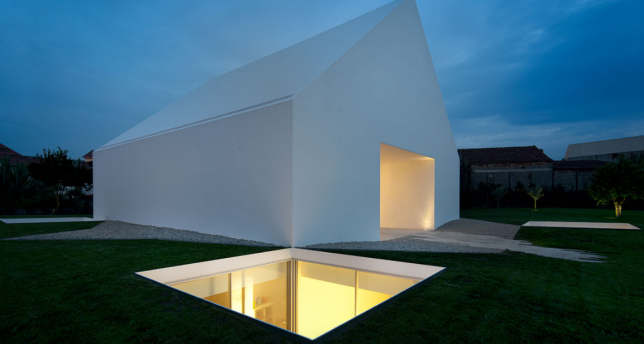
Windowless houses might sound dark and depressing, but the careful control of apertures in a building’s facade can actually be a brilliant technique for enhancing privacy, making views more pleasant and creating the feel of a secluded sanctuary. Fortress-like from the outside, they’re surprisingly bright and airy inside, often thanks to courtyards, terraces and rear glazing hidden from view of the street and neighbors.

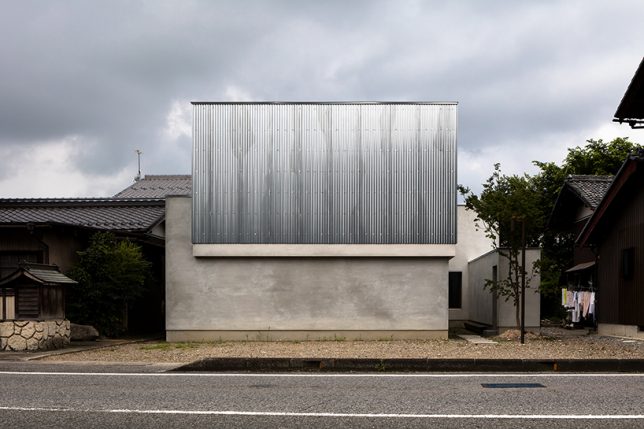
House for a Photographer by FORM, Shiga, Japan

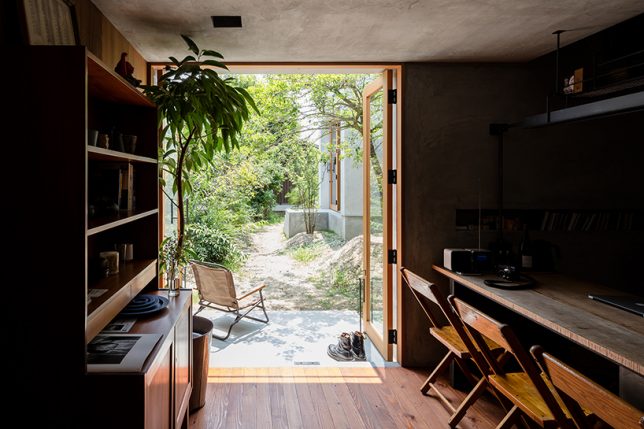
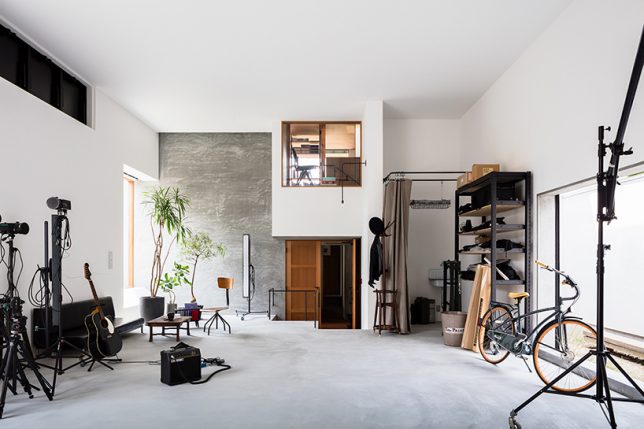
The client who commissioned this home from FORM is a photographer who wanted a studio and gallery for his work attached to his living quarters, all on a compact L-shaped lot. From the outside, it looks like an impenetrable box, but take the narrow alleyway into the gallery space and you’ll find a private courtyard that feels like an inner sanctum, echoing the atmosphere of the temple across the street. The building’s only windows look out onto the courtyard instead of the street, resulting in a mood of turning inward.

W House by Cukrowicz Nachbaur, Bezau, Austria

The shape of this residence in Austria by Cukrowicz Nachbaur might be that of an archetypal home, but its street-facing facade covered in timber slats certainly isn’t. Located close to another rural residence, this home gets privacy by arranging a two-story volume next to a one-story volume with a courtyard between them. All the home’s windows and sliding glass doors are arranged to look out onto this courtyard, aside from a few skylights, and first-floor porches are set beneath the overhanging second story to create secluded outdoor areas.

Domus Aurea by Alberto Campo Baeza & Gilberto L. Rodriguez, Monterrey, Mexico

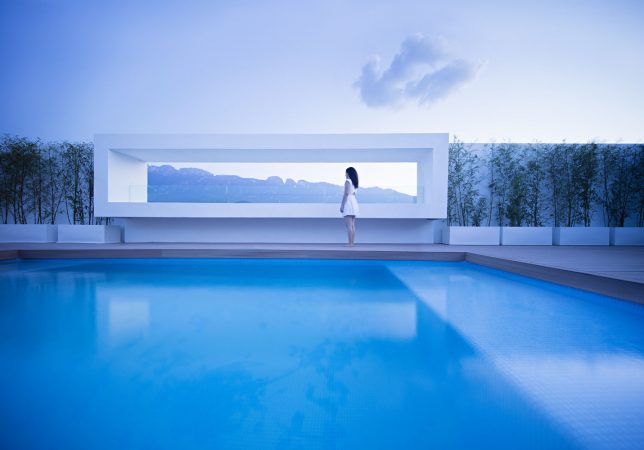
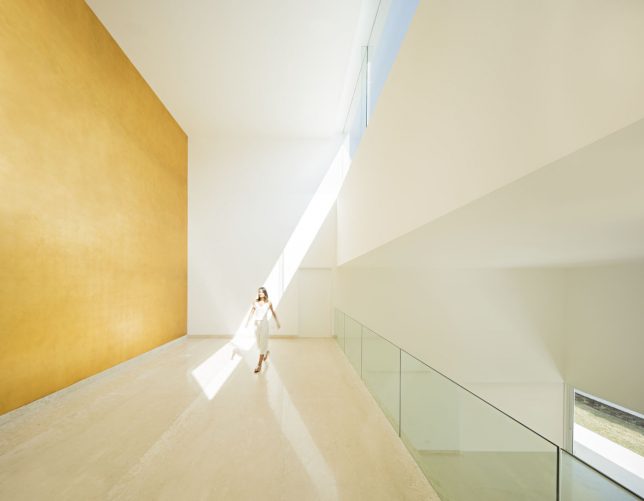
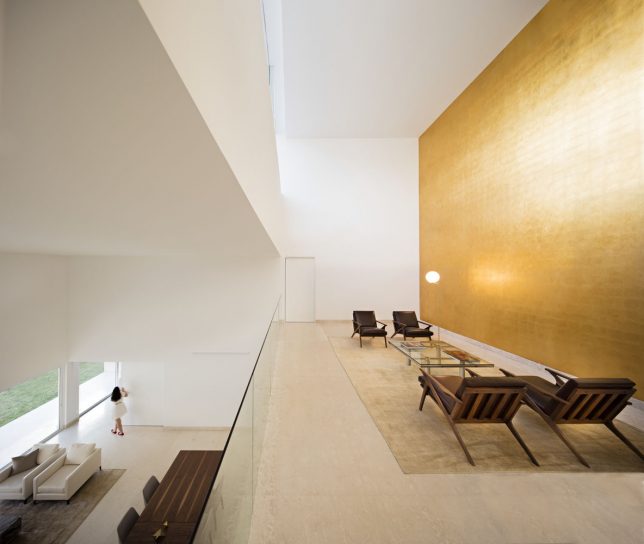
Modeled on the Emperor Nero’s house in Ancient Rome as well as the vivid works of Mexican architect and engineer Luis Barragán, ‘Domus Aurea’ by Alberto Campo Baeza features a gilded interior wall designed to reflect carefully targeted golden light throughout the space. Though the home’s openings amount to no more than some skylights and a narrow line of glazing on the first floor, the light bounces from one surface to the next. The architect placed the most public common areas on the first floor, the private rooms on the second and a swimming pool on the roof.

Mountain House by Hiroki + Tomoko Sekiguchi, Hyogo, Japan

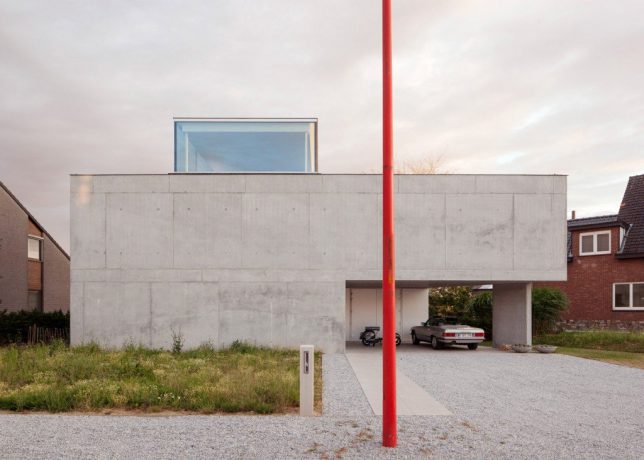
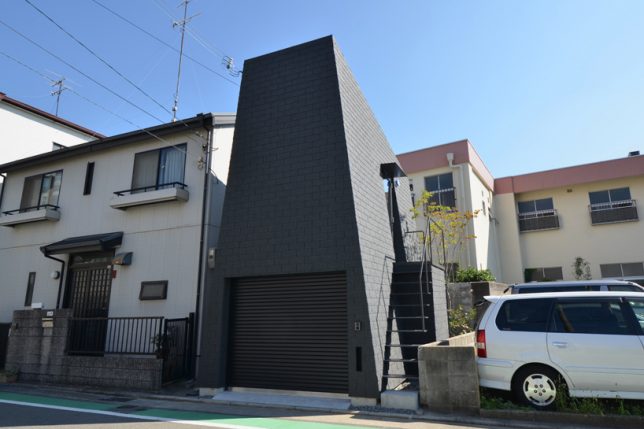
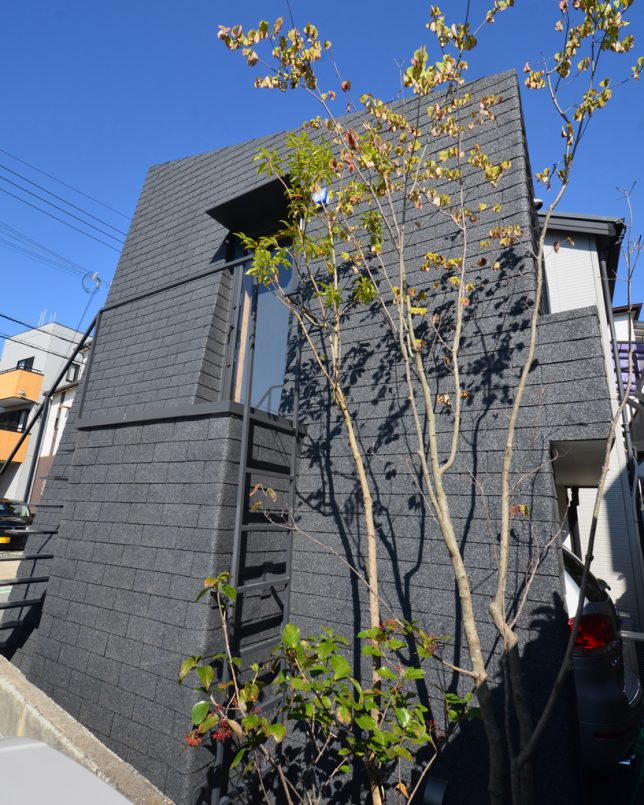
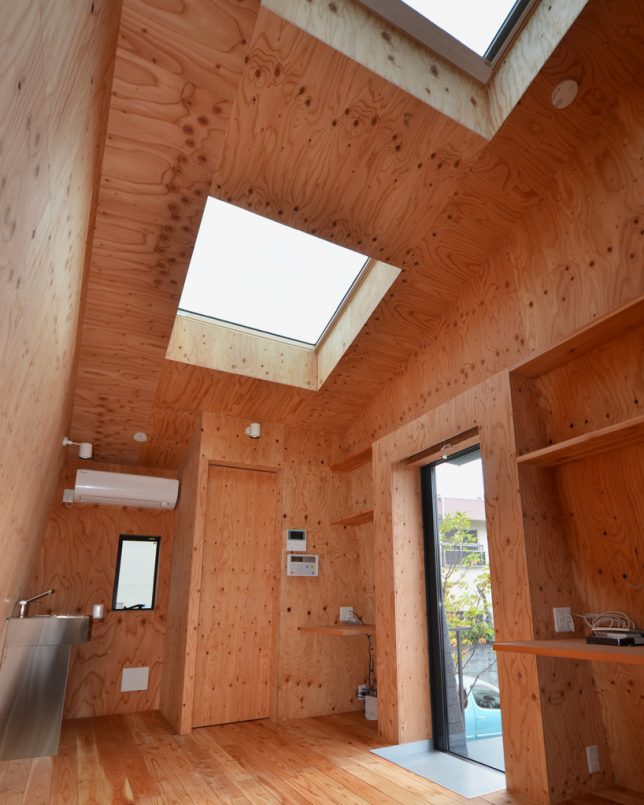
Situated on a tiny lot practically sitting right on top of its neighbors, this home by Hiroki + Tomoko Sekiguchi gains some measure of privacy by opening up to the sky instead. The sloped walls create a little more space between the home and the houses next door, and the living spaces sit atop a parking garage for the owners’ vehicle.

Next Page – Click Below to Read More:
No Windows No Problem These 12 Houses Are Bright Beautiful Private

Share on Facebook


[ By SA Rogers in Architecture & Houses & Residential. ]

[ WebUrbanist | Archives | Galleries | Privacy | TOS ]


WebUrbanist

 
Comments Off on No Windows, No Problem: These 12 Houses Are Bright, Beautiful & Private

Posted in Creativity


Add pdf printer to windows 8

30 Aug

If your software uses Adobe Reader for things like printing, the new sizes should now appear in the page size selector in the Printing Preferences task in PDF Impress Profiles and Watchers. Bit editions of these operating systems: Windows 10, But if add pdf printer to windows 8 contains pictures and you need your PDF […]
BooksChantcdCom

 
Comments Off on Add pdf printer to windows 8

Posted in Equipment


Macphun launches beta of Luminar photo editor for Windows

14 Jul

Mac-software maker Macphun has launched its first product for Windows PCs: a public beta of its award-winning photo editor Luminar. The beta is free of charge and comes with many of the most important features of the Mac version, including the artificial intelligence powered Accent AI Filter, which replaces traditional controls like shadows, highlights, contrast, tone, saturation and exposure with a single slider.

Unfortunately, a number of functions remain under development for the Windows platform, including workspaces, plug-in integration, object removal and noise reduction; however, the public beta will be updated as those features are being integrated and Macphun is envisaging a full cross-platform release in late in 2017.

“We are thrilled to release our first PC product today and give photography enthusiasts around the world the first taste of our best-selling Mac product,” said Kevin La Rue, Vice-President at Macphun. “By test-driving Luminar for Windows, beta testers can help shape our software and make the final release a perfect fit for everyone.”

You can download the free public beta of Luminar for Windows on the Macphun website now.

Press Release

Macphun debuts its first-ever software for the PC, heralding a new era of cross-platform solutions for photographers

San Diego, CA – July 13, 2017 — Macphun, the California-based developer known for delivering award-winning products for Mac, today launched the free public beta of its award-winning photo editor Luminar for Windows. To download the beta, please visit macphun.com/beta.

Luminar is a powerful photo editor designed to tackle anyone’s photography needs, from correcting challenging image problems to artful stylizing. Users can choose between levels of image processing complexity based on their experience, and adapt the workspace controls to their skill level, moving up to more advanced modes as they learn. Luminar works in non-destructive fashion and aims to take “work” from photo editing “workflow” for photographers worldwide.

In April, only 5 months after its launch, Luminar for Mac won the prestigious TIPA award for Best Imaging Software 2017. This all-in-one photo editor is a cutting-edge solution for creating fascinating images without extra hassle. Luminar includes over 300 robust tools that make fixing, editing and perfecting a photo as easy as moving a slider.

“We are thrilled to release our first PC product today and give photography enthusiasts around the world the first taste of our best-selling Mac product,” said Kevin La Rue, Vice-President at Macphun. “By test-driving Luminar for Windows, beta testers can help shape our software and make the final release a perfect fit for everyone,” concluded La Rue.

The public beta is free of charge and already matches some of the most important features of Luminar, such as the newest and most advanced tool developed by Macphun’s Research and Development Lab – the Accent AI Filter, powered by artificial intelligence technology. The filter allows anyone to create stunning images with a single slider, substituting for dozens of traditional controls like shadows, highlights, contrast, tone, saturation, exposure, details and many others.

Admittedly, several features from the Mac version of Luminar remain in development for the Windows platform, among them workspaces, plug-in integration, object removal, noise reduction, and more. As these are completed, the public beta will be updated regularly leading to a full cross-platform release late in 2017.

Key features of the Luminar for Windows public beta:

  • Adaptive user interface – Exactly matching the Mac version, the software adapts to the skill level and preferences of the photographer.
  • One-click presets – Over 50 pre-defined styles for every photography style.
  • Photo Editing Filters – Over 40 custom filters, each with built-in visual tips and a unique set of easy-to-use controls for correcting, enhancing and stylizing images.
  • RAW file conversion – Support for the latest RAW file libraries.
  • Non-destructive workflow – Edit without fear.

Recommended System Requirements – Windows 10, Core i5 2.2 or better, 8GB RAM, 1GB GPU RAM, SSD with 20+GB free space.

Articles: Digital Photography Review (dpreview.com)

 
Comments Off on Macphun launches beta of Luminar photo editor for Windows

Posted in Uncategorized


Microsoft unveils Windows Story Remix, a video editor for Windows 10

14 May

Windows Movie Maker is revived in Story Remix, an app announced today for Windows 10 users at Microsoft’s Build conference. It allows users to easily edit together photos and videos from their mobile and desktop collections into movie clips.

Microsoft’s presentation emphasizes its ease-of-use and collaboration features, but the attention-getter is the ability to easily drop in special effects. Fireballs, 3D-figures and text can be added to a scene and anchored to objects for a realistic-looking cinematic effect. 

For those less interested in customizing their video, Story Remix can automatically edit photos and videos into a movie with basic input from the user, presenting the option to ‘remix’ the whole thing if you don’t like what you get. The demonstrations certainly look clever – we’ll be interested to see how end users take to the final product.

Articles: Digital Photography Review (dpreview.com)

 
Comments Off on Microsoft unveils Windows Story Remix, a video editor for Windows 10

Posted in Uncategorized


Iridient X-Transformer beta brings much-loved X-Trans processing to Windows

28 Jan

Iridient Digital, maker of the popular Iridient Developer Raw conversion software for Mac, has announced a public Beta of a Fujifilm Raw converter utility for Windows.

Iridient X-Transformer is a standalone utility that takes RAF files from Fujifilm cameras and demosaics them before saving them as DNG files. This allows Windows users to access the well-regarded processing look that is popular among Mac-owning X-Trans shooters.

Camera support covers all but the very latest X-series models and covers cameras both with X-Trans and Bayer color filter patterns.

The software is designed to give files that are optimized for the conversion software you then import into, with the option to add tags to prevent Lightroom from duplicating the sharpening or noise reduction you’ve chosen to apply with X-Transformer, and options defining the handling of lens corrections.

The plugin also includes options for organizing and batch-renaming of files and the ability to compress and reduce the bit-depth of processed files, to save space.

The software offers control over the following parameters:

  • Interpolation process (More Detailed/Smoother), based on the Detail+ and Smooth options in Iridient Developer. The ‘Smoother’ option is less prone to artefacts but without the same level of fine detail.
  • Sharpening (Off, Low, Medium, High), with the option to over-ride Lightroom Sharpening and the ability to specify the sharpening tag in the DNG file.
  • Lens Correction – includes the option to apply the camera’s lens corrections, ignore them or write them as ‘opcode’ tags into the DNG file to be handled by the downstream converter.
  • Chroma/Luma Noise Reduction (Off, Low, Medium, High) again with the option to cancel Lightroom’s default NR.

The beta utility is available for free download but will place watermarks on the converted images. The arrival of Iridient’s conversion algorithm for Windows users will see its inclusion in a forthcoming comparison of several leading Raw converters for X-Trans cameras.

Iridient conversion, 100% crop
(Sharpening Low)
ACR conversion, 100 crop
(Default parameters)

Articles: Digital Photography Review (dpreview.com)

 
Comments Off on Iridient X-Transformer beta brings much-loved X-Trans processing to Windows

Posted in Uncategorized


Affinity Photo for Windows now available, Mac version updated to 1.5

10 Dec

Following the beta announced last month, Serif has officially launched the finalized version of Affinity Photo for Windows. The new application follows in the footsteps of Affinity Photo for Mac and aims to offer photo editing capabilities similar to that of Photoshop, only at a lower $ 39.99 cost. In addition to the new Windows version, the Mac edition of Affinity Photo has received a substantial update to version 1.5.

Affinity Photo for Windows launches with the same features arriving in Affinity Photo for Mac version 1.5, ensuring the two applications match each other for better cross-platform support. In addition to the features found in older versions of Affinity Photo, both the Windows and Mac 1.5 editions offer, according to Serif:

  • Macros to record and replay a set of commands
  • Advanced HDR merge producing deep unbounded 32-bit images
  • A full tone mapping workspace for both HDR and LDR images
  • Focus stacking to achieve large depth of field from multiple images
  • Full batch processing to process large folders of images in one go
  • An all-new way to edit 360 degree images
  • Direct PSD write-back
  • 32-bit editing including OpenEXR import & export
  • Automatic lens corrections based on profiles of thousands of lens & body combinations

Anyone who owns an older version of Affinity Photo for Mac can download the 1.5 update for free now. The Mac and Windows versions are both priced at $ 49.99 USD, though Serif has dropped the price to $ 39.99 / £29.99 / €39.99 until December 22.

Via: Serif

Articles: Digital Photography Review (dpreview.com)

 
Comments Off on Affinity Photo for Windows now available, Mac version updated to 1.5

Posted in Uncategorized


Affinity Photo beta now available for Windows

11 Nov

Following the launch of a Mac version in summer 2015, Serif has announced the availability of Affinity Photo for Windows beta. This version of the software has been in development for several months, and though the final Windows version hasn’t yet been released, anyone can download the beta now and try it out for free. As with any beta application, however, users should expect to encounter bugs.

Affinity Photo is an image editing program from Serif that was originally launched only for macOS. The company bills its software as a much cheaper but no less robust alternative to Adobe Photoshop. The Windows beta was scheduled to launch earlier this summer, but was delayed for reasons that are unclear. Those who download the beta will be the first users to try the following features, which will be available in Affinity Photo version 1.5 for Mac next month:

  • HDR merge
  • Focus stacking
  • Macros
  • Tone mapping
  • Batch processing
  • 360 degree image editing

Though the beta version is free, Serif plans to offer the finalized Affinity Photo for Windows at the same $ 49.99 USD price point as the Mac version. Beta users who encounter bugs are encouraged to report them in the software’s related forum.

Articles: Digital Photography Review (dpreview.com)

 
Comments Off on Affinity Photo beta now available for Windows

Posted in Uncategorized