Introduction
This tutorial has been transcribed from the SLR Lounge Lightroom 4 Workshop on DVD, a 14 hour Lightroom 4 A – Z guide with over 130 tutorials for mastering Lightroom from start to finish. The Digital download can be purchased from SLR Lounge while the physical copy is available through Amazon Prime.
Overview
In this article, we will go over one of our culling systems that we use at Lin and Jirsa Photography. We currently use the “Editing In” System at our studio, but in this article, we will go over the “Editing Out” System. Both systems are fast and effective; however, the “Editing In” System works a bit better for us (We will cover that “Editing In” workflow in an upcoming tutorial). Keep in mind that there is no one right culling system, so feel free to set up one that works best for you.
Either way, it is a good idea to keep your culling system as streamlined as possible. Our “Editing Out” System is a quick way to cull through images, so keep reading to see how you can save time in your production workflow!
KISS – Keep It Simple Stupid
As mentioned before, it is best to have a simple culling system because it can save you a lot of time. In most cases, the KISS acronym is quite fitting. Keep it simple, stupid. Seconds saved per image can end up being hours by the time you work through a large image catalog. Sometimes, photographers create rather complex culling systems to try and keep their images meticulously organized right from the start. For example, they may use the 5-star rating system like the one below.
- 5 stars = Portfolio photo
- 4 stars = Blog photo
- 3 stars = Average photo (delivered)
- 2 stars = A little potential but unsure (undelivered)
- 1 star = Reject image
While this kind of a rating system sounds great in theory, it can become too cumbersome when working from image to image since it requires you to carefully analyze each image and make too many decisions at once. “Is it good enough to keep, if so, is it blog worthy, or portfolio worthy, etc.” This is why we stress creating a simple culling system. We won’t truly know what images are blog or portfolio worthy until we are done culling, editing and finishing our images. At that point, we can scan through and quickly select and mark our blog/portfolio images in just a minute or two. Trying to make that decision during the initial culling is not only time consuming, it is impossible to make correctly.
So, let’s go over the 3 steps of the “Editing Out” System that you can adopt into your workflow to help speed things up.
The 3 Step “Editing Out” Culling Process
If you have seen our Lightroom 4 Workflow System DVD, you know that Lin & Jirsa Photography currently uses the “Editing In” System, which we mentioned earlier. In the “Editing Out” System, we will select all of our images in the catalog as a “pick” by pressing “P”. Then, we will go through each individual image and reject the images we do not want to deliver. The “Editing Out” System is simple because we now only have 1 choice : keep the image and move to the next or reject the image by pressing “X.”
Immediately, our workflow process has moved from 5 possible decisions with 5 different keystrokes, to only 1 decision and 1 keystroke.
Step 1: Flag All Images as Picks
We need to flag all images in our catalog as a Pick. Return to the Grid View by pressing “G.” Then, select all of your images by pressing “Ctrl + A.” Next, press “P” to flag all images as Picks. Then deselect your images by pressing “Ctrl + D.” This will allow us to go through our images and un-flag them during the culling process.
Step 2: Filter by Flag Status
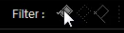
Next, we need to filter our images, so that when we “reject” an image it disappears from view. We are going to filter by flag status, so click on the first flag, as shown below. Now, we can only see flagged images. Anytime we press “X” to mark an image as a “reject” it will disappear from view.
Step 3: Culling Images
While we view and cull our images, we want to have as much screen space as possible. Press “F” twice to go into Full Screen Mode. Then press “Tab” to get rid of the left and right panels. Double-click on your image to view the image in full screen. Now, we are going to start culling our images. If you want to reject an image, press “X.” Since the Filter is set to only display “Flagged” images, any rejected image will automatically disappear from the lineup. Continue moving through your images by pressing the Right Arrow on your keyboard.
With the “Editing Out” System, we only have 1 option to consider, is the photo deliverable, or is it not. Is it worth keeping, or is it not. Deciding on whether it belongs on your blog, or portfolio should really come after all the images have been finalized and edited, not during the initial culling.
If you turn off all filters, you can see that the rejected images are grayed out. If you want to look at the rejected photos, just turn on the Rejected Filter, down in Filters.
So, hopefully this article was helpful to you. In the next culling article, we will show you are simple “Editing In” workflow. Just remember to keep your culling system simple, and it will save you many hours of time!
Learn More with the Lightroom 4 Workshop Collection!
This was a sample tutorial from the Lightroom 4 A to Z DVD which is one of the DVDs in the Lightroom 4 Workshop Collection. A collection of nearly 30 hours of video education teaching everything from Lightroom basics to advanced raw processing techniques.
The LR4 Workshop Collection also includes the critically acclaimed Lightroom 4 Preset System which is designed to enable users to achieve virtually any look and effect within 3-5 simple clicks. From basic color correction, vintage fades, black & white effects, tilt-shift effects, faux HDR, retouching, detail enhancing, and so much more. Click the links above to learn more.
Post originally from: Digital Photography Tips.
Check out our more Photography Tips at Photography Tips for Beginners, Portrait Photography Tips and Wedding Photography Tips.
A Simple 3 Step Culling Workflow: The “Editing Out” Culling System

Digital Photography School
