Today Flickr is launching a number of new improvements to their service. I’ll review what they are in this post, but in my mind the most significant change coming today is that Flickr is introducing the ability for you to bulk download your photos from their site.
I’ve been critical of Flickr in the past over the inability to easily get your photos back out of the service. While not a silo, Flickr’s never made it exactly easy to get your photos back after you upload them.
You’ve always been able to download your photos on a photo by photo basis, but for someone with a ton of photos, downloading each and every one individually isn’t very practical or user friendly. For a while Flickr had partnered up with a company called Qoop (now out of business) that would bulk load your photos to CDs or DVDs and sell them back to you, but that never sat right with me either — why should you have to pay to get your own photos back? Also for someone like me with over 100,000 photos on the site, how many CDs would that take and how much would *that* cost?
Several third party developers had developed apps that claimed to be able to use the Flickr API to bulk download your photos for you. I tried many of these apps with names like bulkr and migratr and flickrsync over the years and never found any of them very reliable or easy to use.
All that changes today though as Flickr rolls out official support for batch downloading your photos from Flickr.
Now you can fill up that free 1 terabyte (or unlimited terabytes if you’ve got a grandfathered Pro account) with confidence knowing that if you ever want/need those photos back from Flickr you’ll be able to get them back much more easily. As I understand it, there still may be photo limits for how many individual photos you can select in camera roll for a single download for performance reasons, but you can select large batches of photos from the new camera roll and Flickr will convert those photos into a zip file for you and send them right back to you on your computer. The number of photos you can download is unlimited. You can download multiple zip files effectively accessing 100% of your photostream.
Today’s new support for downloading is a very consumer friendly thing for Flickr to do. It is already very generous for Flickr to give people 1 terabyte of free cloud storage for your high res original photos, but now allowing you to get them back as easily as you upload them there makes this even more generous. Kudos to Flickr.
This new download support is part of a new section on Flickr called “Camera Roll.” Camera Roll has been in beta testing for several months now, but this downloading feature is newly available today.
In addition to download support, Flickr also now allows you to easily grab a batch of photos from your camera roll and share them as sort of an album on the fly via url. This can be helpful if you have a batch of recent or specific photos that you want to email to one person, or share on Facebook or Twitter or elsewhere — with this new feature you just select them in camera roll and create a shareable url. Even if you have photos marked private you can share them with others with these special url links — sort of like a shareable guest pass but much easier to generate on the go.
Flickr is also going deeper now with deep machine learning with Camera Roll. In addition to viewing your photos by date taken or posted, Flickr is now adding in a New Magic View, where Flickr will auto tag many of your photos and build them into commonly grouped albums. You can see all of your sunset photos in one place, or all of your group photo shots in one place, or all of your photos of automobiles, etc.
Some of you who go wayyy back with Flickr, might remember the old Tag Cow company which would do similar tagging for you of your photos. In Tag Cow’s case though they were actually using Amazon’s Mechanical Turk and hiring people in places like India and China to manually review and tag your photos for pennies.
Magic View is no Tag Cow though. Instead Flickr is actually using image recognition technology (remember this acquisition?) and algorithms to determine what your photos are of and then auto-tagging them based on this technology. If Flickr gets a tag wrong you will always be able to manually remove the automated tag. The tags that you add will be in a different shade than the auto-tags making it easy to see which ones you added and which ones Flickr added based on this technology.
One of the benefits of having more/better tagged photos on Flickr is that it will allow more public photos to be findable and searchable. This public/private distinction is important because private photos on Flickr are never searchable, except to you.
Which brings me to search.
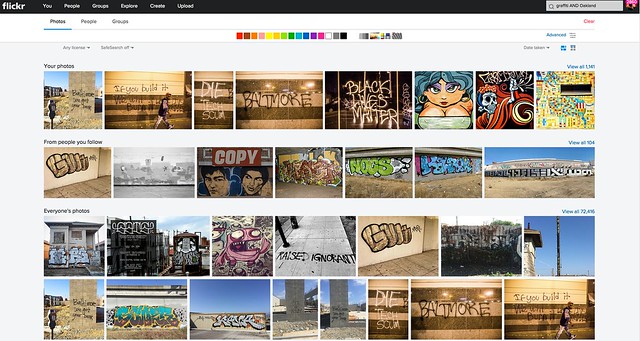
I am a HUGE fan of the new Flickr search experience. I’ve spent hundreds if not thousands of hours using the search functionality of Flickr. I routinely use Flickr search to scout photo locations, find people shooting in a particular area, stay on top of events happening around the San Francisco Bay Area, and tons of other ways. The new search page is clean and fast. In addition to date posted, interestingness and relevancy you can also now search Flickr photos by date taken.
Flickr’s done an entire rebuild of the back end of the search page to make it super fast and responsive — they will also be porting this new rebuilt page technology to other pages in the weeks and months ahead to improve performance on many other popular Flickr pages.
Although I consider myself a fairly advanced search technician when it comes to Flickr, for many who are not as sophisticated, basic text searches will be smarter. In the past if you wanted to search for the London Eye you’d have to search for “London Eye” with quotes, or merge the two words together as londoneye. With the new search if you type London Eye just as plain text, Flickr is smarter and will realize that you want to see photos of the London Eye not random photos of London mixed in with random photos of eyeballs.
Flickr has also introduced some slick filters which will allow you to filter by colors (or black and white), photo styles such as depth of field photos or minimalistic photos or heavily patterned photos. Unfortunately there still is no filter to only show me photos without those pesky and ugly signatures and watermarks though. 
In addition to Camera Roll and improved search, Flickr is also updating their mobile apps for iOS and Android, to provide a more consistent experience. My iOS experience on Flickr has not been good the past few months. Recent activity for me has become completely jumbled and unusable, which is more of a power user problem I think than anything. I’m hoping that the refresh fixes this bug for me — maybe not though. I do like to use the mobile version when I have a few minutes for looking at and favoriting photos of my contacts and it will be interesting to see what this is like once I upgrade.
The changes Flickr is rolling out today continue to make Flickr better and better — a trend that’s continued over the past several years as Flickr has ramped up staff and built a better and stronger team.
No other company today will give you a free terabyte of photo storage for your high res photos.
It always boggles my mind that people actually pay for storage of their photos on things like iCloud, when they could just send everything to Flickr for free. Especially now that you can get your photos back so easily, there really is no reason why everyone in the world should not use Flickr as a free cloud backup storage for all of their photos. Even if you don’t want to mix up every photo on your hard drive or phone with your current carefully curated Flickr presentation, you can just set up a second account and call it backup to Flickr and have a free backup site for your photos.
Are you one of those people who are constantly running out of space on your phone because of all of your photos? Then why aren’t you using Flickr?
More from The Verge, Wired, TechCrunch.
Thomas Hawk Digital Connection